

You can create relationships in Power BI between tables. Relationships are useful for some functions to work across multiple tables and produce the result. Relationship between tables also makes visualization and report elements more efficient, because result of selection in one chart can affect another chart from different table. However there is a limitation in Power BI relationship that you can’t create relationship based on more than one column. In other words if you want to create relationship (or join two tables) with two or more columns, you cannot! Fortunately there is a work around that I’ll explain in this post. For this post you need to be familiar with Power BI and Power Query, if you are not, read them through Power BI online book.
Defining the Problem
Assume that we have a budget table with fiscal year, fiscal period, and budget amount. Here is an screenshot of this table:

If I want to do date analysis and date based calculations it is best to create a relationship between the budget table and a date dimension. Here is a view of my date dimension: (Here is an example of creating date dimension with Power Query, and the script for creating date dimension in SQL Server)

To join these two tables I can add a day column to the budget table, and then join them based on three columns: fiscal year, fiscal period, and day (day of month). So here is the budget table with the new day column added and month value a bit polished to remove “Mth” from the month label;

Now if I want to create relationship between date dimension and budget table based on these three columns I cannot! The create relationship dialog doesn’t allow me to select multiple columns, and because with a single column a Key field won’t be identified so the relationship can’t be created.

Workaround
The workaround for this problem is easy. Power BI doesn’t allow relationship in model based on multiple columns, but Power Query can join tables with as many as columns we want. So what I can do as a workaround is to join budget table to date dimension in Power Query and fetch the date key. then I’ll use the date key as a single field relationship in Power BI modelling section.
First I open Merge Queries from the Combine section of Home tab;

Here is how I join two tables based on multiple columns: I can hold CTRL key and select columns one by one (in the right order of joining)
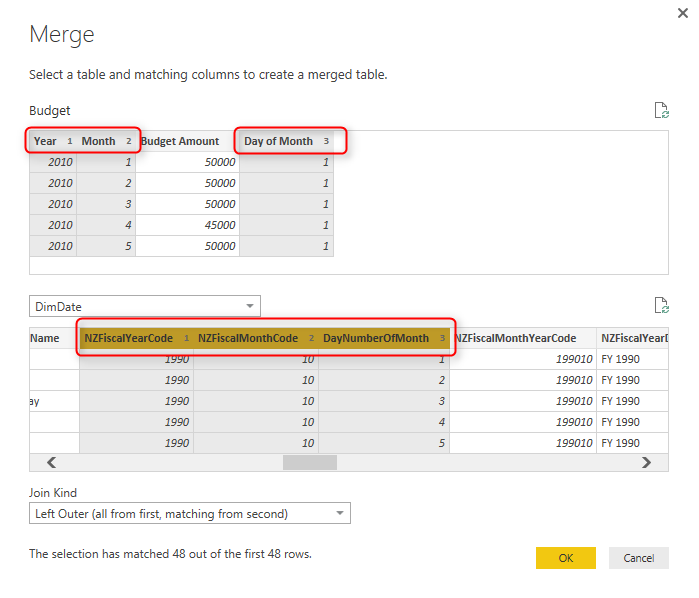
Then I’ll have the new table embedded as a result of the join;

So I’ll just pick the key field from embedded table;

And after save and closing query editor window I can create relationship in Power BI model based on a single column;


Reza is author of more than 14 books on Microsoft Business Intelligence, most of these books are published under Power BI category. Among these are books such as Power BI DAX Simplified, Pro Power BI Architecture, Power BI from Rookie to Rock Star, Power Query books series, Row-Level Security in Power BI and etc.
He is an International Speaker in Microsoft Ignite, Microsoft Business Applications Summit, Data Insight Summit, PASS Summit, SQL Saturday and SQL user groups. And He is a Microsoft Certified Trainer.
Reza’s passion is to help you find the best data solution, he is Data enthusiast.
His articles on different aspects of technologies, especially on MS BI, can be found on his blog: https://radacad.com/blog.
Hello Reza
Thanks for your very useful blog.
I am working on SSAS Tabular model and I have a Date table with no unique Date key. The columns are Year, YearMonth(Shamsi or Fiscal), Quarter and HalfName(First Half and SecondHalf). Then, I generated a unique column using the DAX Concatenate formula in my Fact table, as a DateKey, which has just Year and the HalfNames.
Do you think it is better to do it in SQL rather than Dax? I would appreciate it if you advise me in this regard.
Thanks
Hi Mari
You need to have a key column in your table. Doesn’t matter if your table doesn’t have the granularity of each day, but it would definitely need a key column so that you can connect it to your fact table. You can build that key column in SQL server or DAX, whatever you are more comfortable with.
Cheers
Reza
Hi Reza,
Could you please help me understand.
Merge/Combine of multliple columns to establish relationship which type of columns to be considered from both the tables?
Among all the multiple columns, atleast one of the columns should have distinct values?
Thanks
Raghu
Hi Raghu
If you have a column with distinct values, then you create a relationship just based on that column. Combining/merging of columns is only needed when you don’t have that unique key column. and the same combination should be used in both tables so that they can match to each other.
Hi, in my case, this could be the solution I need, as I have several tables and I need to add more than one relationship between 2 tables… I followed the step and then when I close and apply changes, the PBI stuck on the charging window and I have to close the PBI without applying the changes because it never ends, any idea why this is happening?
This has to be checked in details, It might be that Power BI somehow faced memory limit when analyzing the content of columns from each table (if the tables are big and the column values are very diverse)
Our team of consultants can help you dig more into the problem. feel free to use the contact us page for that.
Cheers
Reza