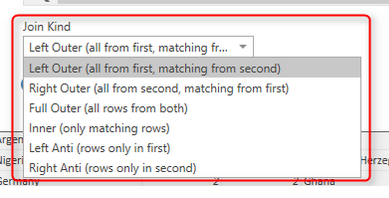
Joining tables is not a new concept, I bet all readers of my blog at least have a clue about that. However there are different types of joins, and applying these types of Joins are not all possible through Power Query GUI. Power BI recently took an step and implemented that in the GUI, however you might like to know how to apply that in the Power Query. The trick is that M is your friend, You can do whatever you want behind the scenes with M script.
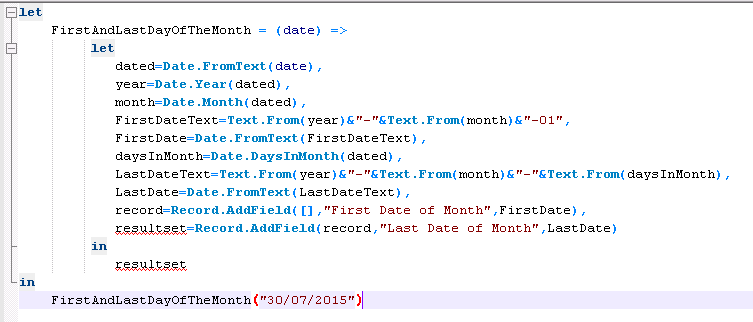
Yesterday in NZ BI user group meeting, I’ve been asked that does Power Query custom functions return only one value as the result set? or they can return multiple values. I’ve answered Yes, and I’ve explained that through a sentence how to do it with Records, List, or Table. Then I thought this might be a question of many people out there. So I’ve wrote this blog post to illustrate how to return multiple values from a custom function in Power Query.
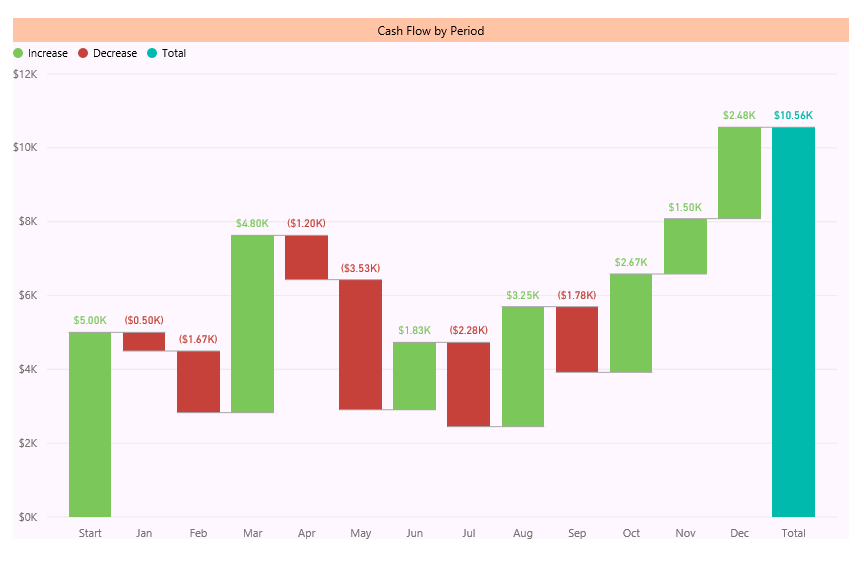
You’ve heard the news about Power BI Desktop release with bunch of new features. If you don’t, read blog post here to understand new features of Power BI. Waterfall chart is one of the new visualization elements in this product. For finance people this chart makes sense, but not everyone knows the usage of that. In this post I want to explain what is Waterfall chart, when to use it? and how to use it? So you would learn what’s Waterfall chart all about?
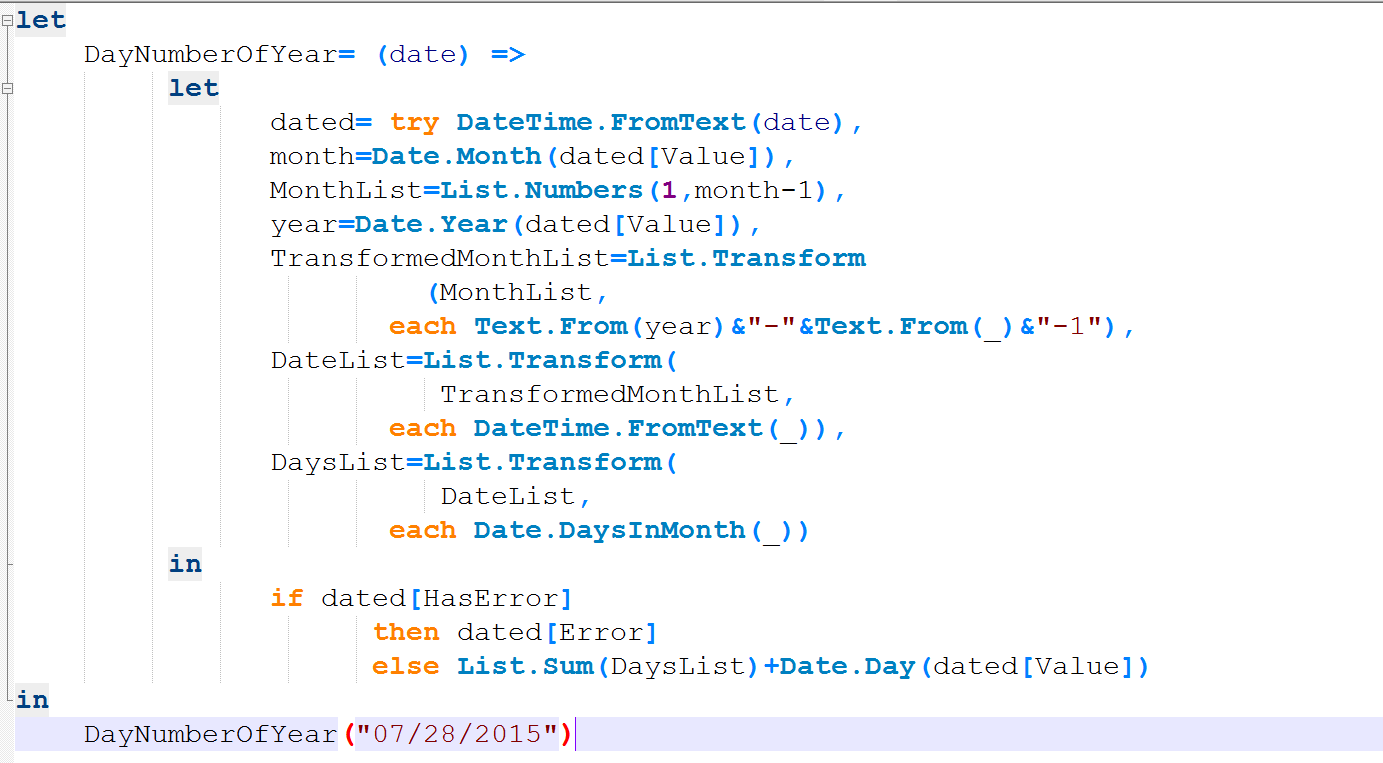
There are number of Date and DateTime built-in functions in Power Query which are really helpful. There is also a function for DayNumberOfYear. However I’ve thought it would be a good example to go through writing a function that uses Generators, Each singleton function, and error handling all inside a custom function. Through this post you will also learn;
When Power BI 2.0 released as General Availability I’ve published a post that highlights all new features in this product. One of the features was SSAS Tabular Live Power BI Connection. In this post I want to explore more what the Live connection means and what are advantages of this type of connection. Power BI Designer (Previous version of Power BI Desktop) was supporting offline connection to SSAS. The new SSAS Live connection of Power BI only works with SSAS Tabular at the moment.
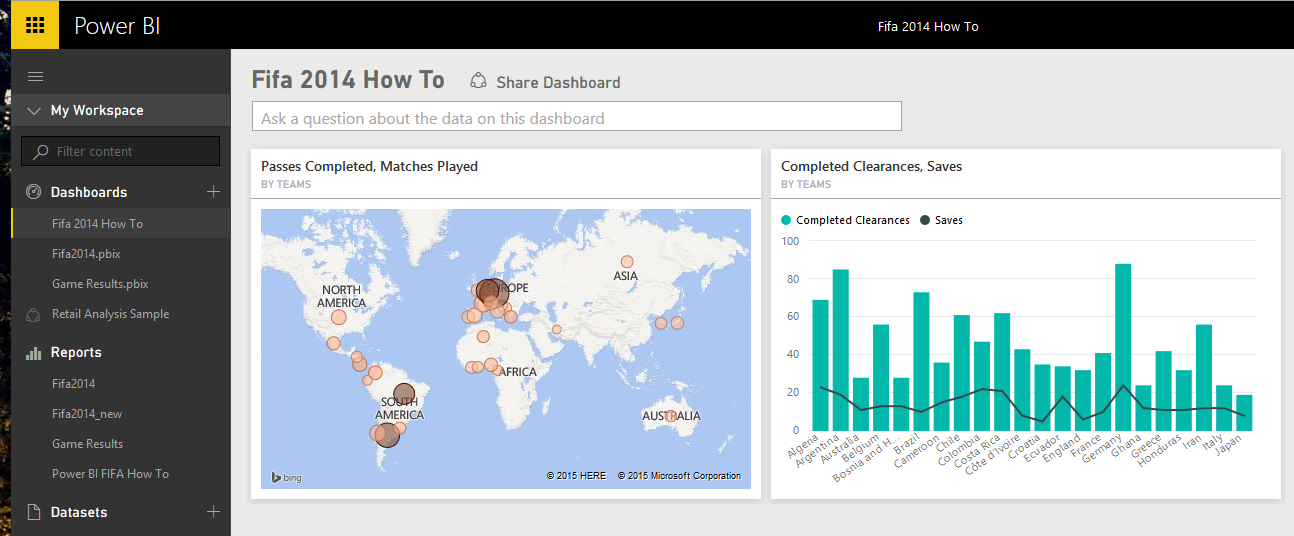
It was sometimes ago that I’ve posted some data analysis that I’ve done with Power BI Designer on FIFA 2014 Worldcup results. In this post I want to take you through the process of how to achieve that analysis. This post is an introduction to Power BI features with the example of FIFA 2014 Worldcup result set. Through this post you will learn how to connect to web based data sets and mash up the data with Power Query component of Power BI Desktop. And finally how to model it and visualize it in the Power BI report. Most of the data for this example comes from data sets in FIFA 2014 Worldcup official website: http://www.fifa.com/worldcup/archive/brazil2014/index.html
The Breaking news of General Availability of Power BI 2.0 in now everywhere all around the world. In this post I’ll illustrate some great new features of Power BI. if you would like to see a real world example of Power BI you can read FIFA 2014 Worldcup Data Analysis with Power BI, I’ll update that example later on with the new Power BI version. It has been a while that Power BI was on Preview, and with the great effort from Microsoft product team it is now available fully released. As per Microsoft blog post on 21st of July 2015 Microsoft mentioned some great features that will be available in this release, in this post we will go through them one by one. […]
It is a honor for me that I’ve been selected to speak in Microsoft Ignite New Zealand 2015. Microsoft Ignite New Zealand 2015 (TechED) is an annual conference for developers and IT professionals put on by Microsoft. It is held in several locations around the world. and it’s the biggest annual technology event in New Zealand. This conference gives Read more about I’ll Speak in Microsoft Ignite (TechED) New Zealand 2015; First time[…]
Thrilling news of public preview availability of Azure Data Catalog spread the word from Joseph Sirosh’s blog post yesterday; Azure Data Catalog will be available for public preview this Monday 13th of July. This is great step forward for using metadata alongside tools for extracting and visualization of the data. I would like to share my thoughts about what is a data catalog and what to expect from it on Monday.
What is Data Catalog; Data Catalog contains metadata related to the data source, metadata can contains tags, comments, descriptions, annotations…. about data source, tables, views, indexes, and all other objects in the data source. Most of you worked with databases (readers of my blog are database pros usually 😉 ). In all database environments there are two sides; business and IT (or let’s say owner, producers, or consumers of the database technology). Business usually understand concepts, while IT understand database structure. Metadata stored in a data catalog is the connection between these two.
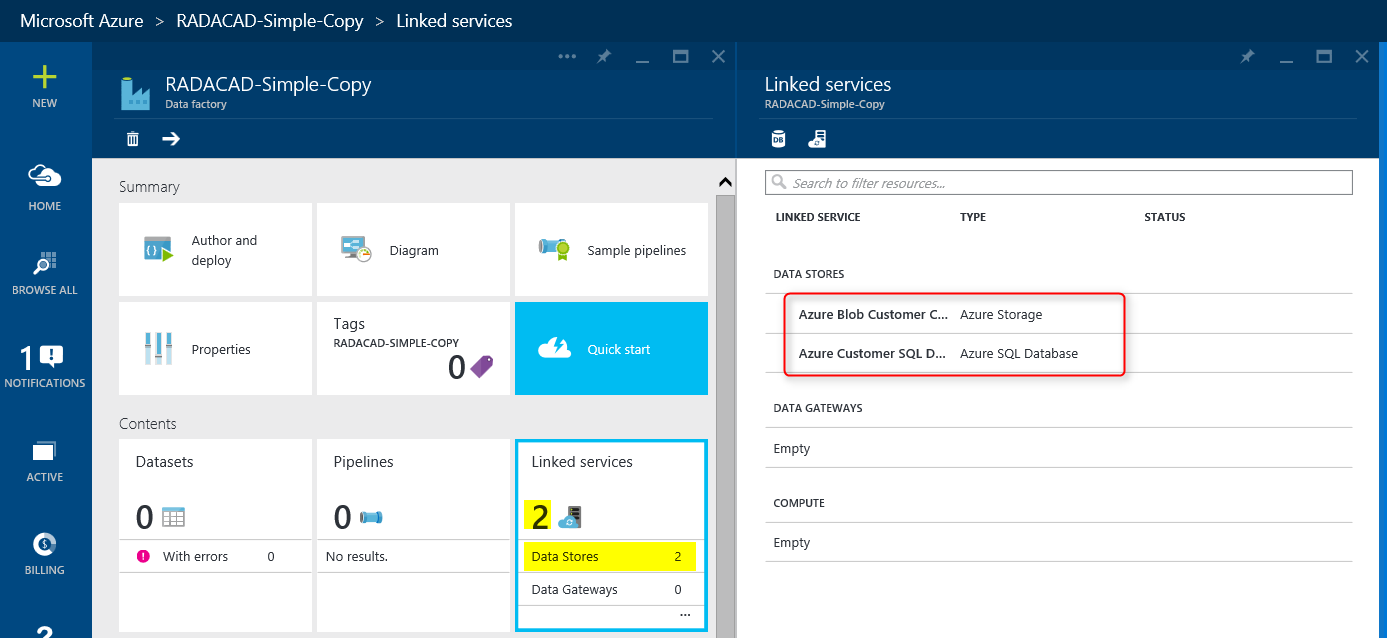
In previous post you’ve seen how to create Azure Data Factory. In this post we want to take the first step in building components of Azure Data Factory. Usually the very first step is creating Linked Services. Linked Services are connection to data sources and destinations. Data Source or destination may be on Azure (such as Azure Blob Storage, Azure SQL Database) or on premises (such as on-premises SQL Server, or on-premises Oracle). Linked Services need to work with Data Management Gateway if the data source/destination is on-premises.
In this example we follow the previous post solution; We want to copy data from some CSV files exists on Azure Blob Storage and load it into Azure SQL database. So we need two Linked Services for this example; one for Azure Blob Storage, and the other one for Azure SQL Database. Creating Linked Services might not be so hard once you have the environment ready for it. However in this example as we want to do everything from the scratch I’ll explain you how to create an Azure Blob Storage and upload CSV files there to be the source of our operation. I’ll also explain how to create the destination table in Azure SQL Database.