
In previous posts, I covered some methods of Dynamic Row Level Security including Row Level Security user based, With Manager Level Access, and also with User and Profiles as a many to many relationships. In this post, I’m going to cover another common scenario for row level security; Organizational hierarchy for security. Through organizational hierarchy the approach is that each employee should have access to his/her own data, and manager should have access to employee’s data, there might be another higher level manager as well. every person should have access to all employees under him or her. In this post, we are going to cover this method of security in details with Power BI. To learn more about Power BI read Power BI book from Rookie to Rock Star.
Prerequisite
For reading this post, it would be much better to have an understanding of the simple dynamic row-level security with Username or UserPrincipalName function beforehand. please read this post.
Scenario
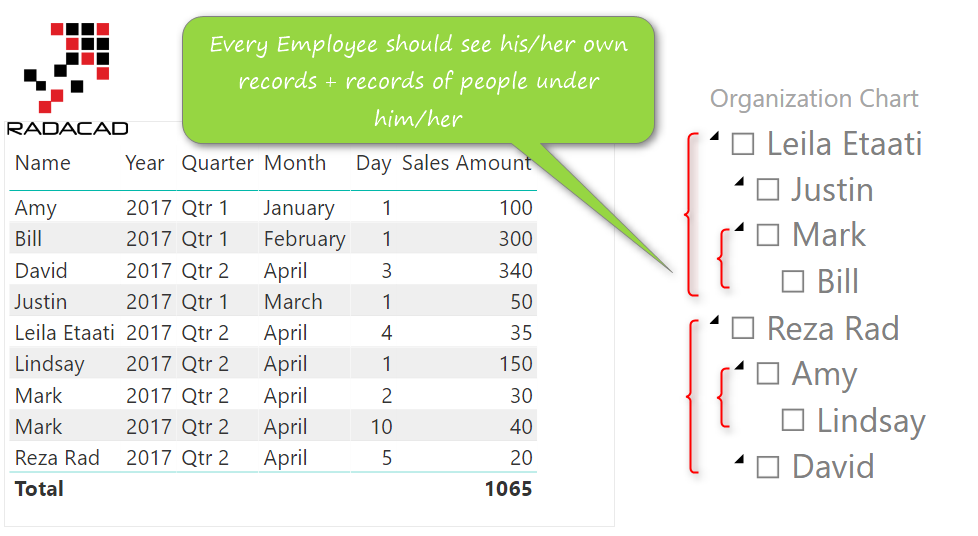
Every company has an organizational hierarchy, in many scenarios employees needs to be authorized to their data records only, and to the data of people whom they are managing. Here is an example of organization chart;
In the organization chart above; Bill should see only one record of data. Mark should see three records; 2 records for himself, and 1 record from Bill (because Bill is reporting directly to Mark). Leila should see 4 records; one record for herself, 2 records for Mark, and one record for Bill. This is how the hierarchical organizational row level security required to work.
User Table
Here is the sample data in User table;
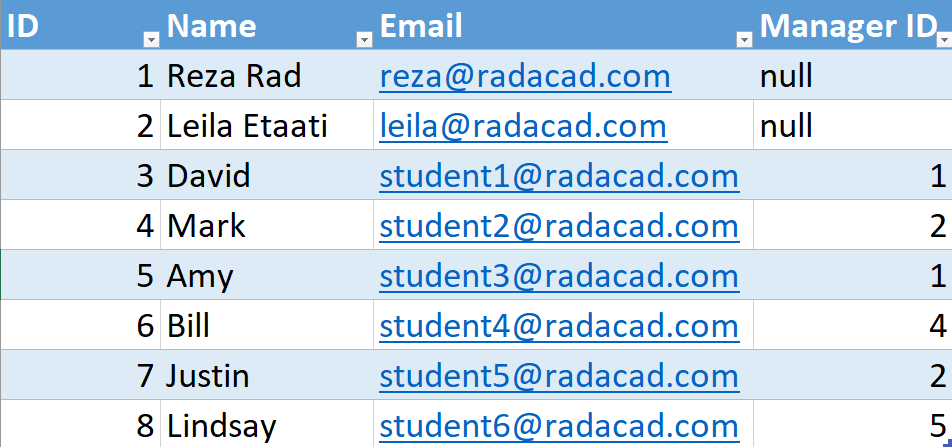
as you can see we have two main columns; ID of the employee, and the Manager ID which points to the record which is the manager’s record.
Sales Transaction Table
For every employee there might be one or more sales transactions in the transactions table;

Diagram of the model
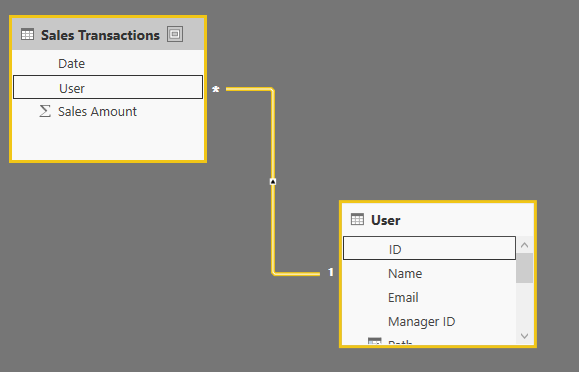
two tables here create a very simple diagram as below;
Sample Report
Here is a glance of sample report; it has all records from all employees as well as the organizational hierarchy;

Path Functions in DAX
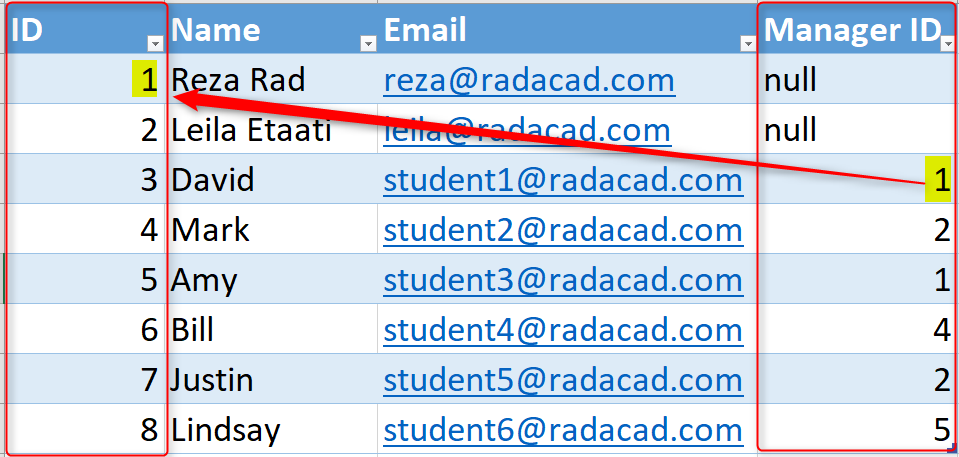
For implementing row level security in this scenario, one of the most common ways is using Path functions in DAX. Path functions are powerful functions that can navigate through an unknown level of hierarchy based on an ID, and Parent ID structure. the structure of your data table usually is constructed based on two columns; ID and Manager ID as below;
To learn how path functions are working, let’s explore couple of these functions;
Path()
This function will go through an ID, and parent ID structure, and reveals the whole hierarchical path into a string type delimited style. to use this function you can simply create a calculated column in the user table with below expression;
Path = PATH(User[ID],User[Manager ID])
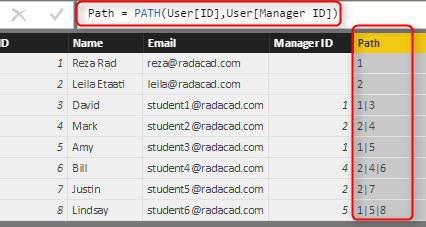
This function will give you the whole path for the hierarchy with a delimited text value. The id of every employee in the path is separated in this text by a vertical line (|).
PathItem()
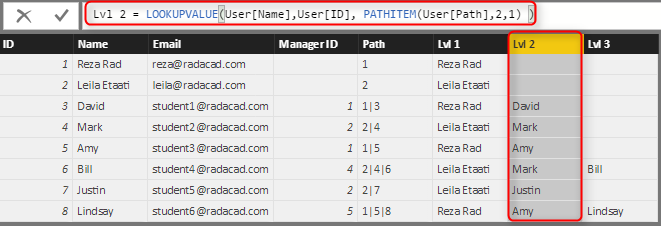
The PathItem() function will give you the specific item in a path. if you want to see who is the manager level 1, or level 2 or 3, you can use PathItem to fetch it. Here is an example;
PATHITEM(User[Path],2,1)
In the code above; 2 is the index of the level (2 means the second level of management), and 1 is the data type of output (1 means integer).
You can then combine this method with LookupValue function to find out name of the person in that level;
LOOKUPVALUE(
User[Name],
User[ID],
PATHITEM(User[Path],2,1)
)
This means you can create calculated columns for every level of organization hierarchy;
PathContains()
Now the important function of this post is PathContains. PathContains will check if an ID exists in the path or not. This is the function that you need to implement row level security. All you need to find out is the ID of the person who is logged in. We already know how to get the email address of the person who is logged in, we use UserName() or UserPrincipalName() function for it.
Find out the ID of person Logged in
You can use a Filter function and Iterator function in DAX to find out who logged in to the system, filter function for filtering the user with the PrincipalUserName() function, and Iterator function fetched the ID of that remaining record.
Here is how Filter Function used to fetch the logged in user’s record;
Filter(
User,
[Email]=USERPRINCIPALNAME()
)
After finding the record for current user, you can use MaxX or MinX to find out the ID of that user;
MaxX(
Filter(
User,
[Email]=USERPRINCIPALNAME()
)
,User[ID]
)
and finally you can now use this ID in a PathContains functions to check if user’s ID exists in a path or not;
PATHCONTAINS(User[Path],
MaxX(
Filter(
User,
[Email]=USERPRINCIPALNAME()
)
,User[ID]
)
)
You need to add this logic as a role in User table;
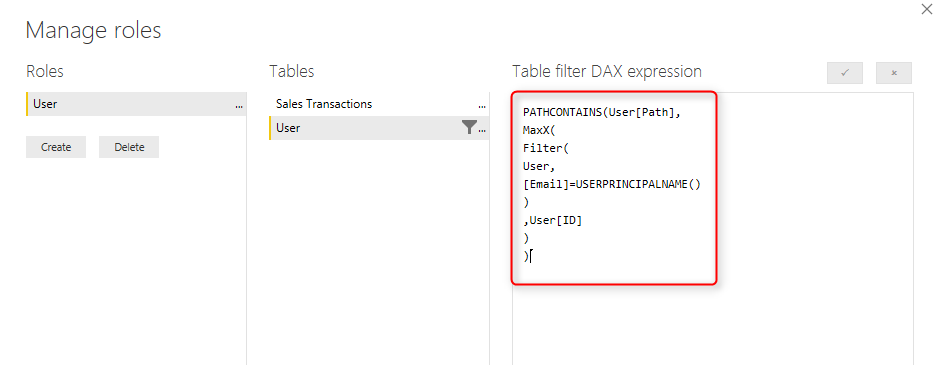
This DAX expression will check the full path of organization hierarchy to see if there is any records in user table which has this user ID in their Path column or not.
Testing Result
As a result if you switch to that user, you will see only logged in user with records related to him/her
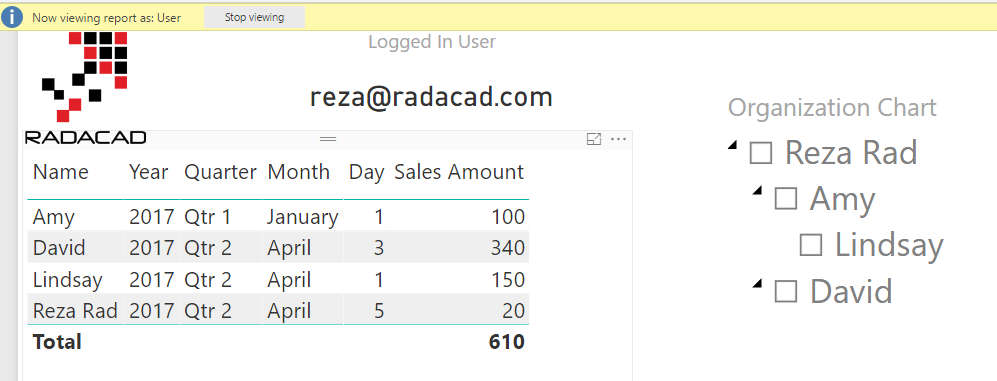
There are other methods of implementing such logic, you can use other functions and expressions to find the current records ID. This post explained one way of doing this. As you can see in the above screenshot, Reza only has access to see records for himself, Amy, and David (his direct reports), and Lindsay (who reports directly to Amy).
Summary
Applying row level security has many variations. In this post, you’ve learned about how to use organization hierarchy and Path functions in DAX to implement row level security based on a hierarchy. Please share your row-level-security scenario down in the comment below if it is different from what discussed. to learn more about other ways of row-level security, read the post series here:
Static Row Level Security
The logic of security is static in the role definition, we call it Static Row Level Security. to learn more about it, read this blog post.
Row Level Security in SSAS Live Connection
In this case, the Power BI Report connected live to an SSAS model. the username will pass through effective username connection information, to learn more about it, read this post.
Dynamic Row Level Security
When you have too many roles, then implementing static roles is not an option. You need to create one role and maintain the logic of security within the data model. This is called Dynamic row level security. To learn more about this, read this blog post.
Manager Level Access in Dynamic RLS
The dynamic RLS example that I explained in this post, does not include the manager level access. Sometimes you need the manager to have access to all data. This post explains how to do it;
Dynamic Row Level Security with Users and Profiles
When each user can be part of multiple profiles, or each profile can have many users. This many to many situation creates a different approach for row level security. This post explains in details how that method of security can be implemented.


Reza is author of more than 14 books on Microsoft Business Intelligence, most of these books are published under Power BI category. Among these are books such as Power BI DAX Simplified, Pro Power BI Architecture, Power BI from Rookie to Rock Star, Power Query books series, Row-Level Security in Power BI and etc.
He is an International Speaker in Microsoft Ignite, Microsoft Business Applications Summit, Data Insight Summit, PASS Summit, SQL Saturday and SQL user groups. And He is a Microsoft Certified Trainer.
Reza’s passion is to help you find the best data solution, he is Data enthusiast.
His articles on different aspects of technologies, especially on MS BI, can be found on his blog: https://radacad.com/blog.
Hi Reza,
i am using the above solution but i have one issue. what happen if one employee reports to 2 managers.
is there any way to implement this?
Thanks,
Haris
Hi Harris
there are two ways to solve that.
one: if it is only one other manager, another ManagerID field to be added to the employee’s table, like ManagerID2, and same process for that. the result to be a condition covering this and ManagerID.
two; if it might have multiple managers, then try the approach I mentioned here about many-to-many and organizational hierarchy
Cheers
Reza
Sorry to poke your notifier by leaving this comment, but these RLS articles are absolutely amazing ! Thanks ! 🙂
Thanks Remi for your kind words 🙂
This is really useful and helped me. can you please let me know if in case, few managers should able to see all the data(or all the employee data) like super user. How to achieve that, do we need to include that in RLS?
Hi Mona
You can add an Is Manager field, and change your DAX expression to consider that access level. here I explained about that method.
Cheers
Reza
Hi Reza. This is going to help my team a lot to set up secure access to our HR data. How would we amend the function to show 2 levels from any given manager? For example, if Lindsay was a manager Amy would see her reportees but Reza would not need to.
Hi Audrey
this is a good question 🙂 I might write about it in another blog.
what comes into my mind right now is that you need a way to find out what level this person is and only consider two-level below him/her.
this can be done using some string functions that count the number of (|) between, the reason is that we don’t really have a PathItemLevel function that tells us the level of the path item. you can also use the pathitem or pathitemreverse in the reverse order, but that might not be as efficient as parsing the text.
Cheers
Reza
Hi reza…I am implementing this strategy with the SSAS but it generating the following error:
The value ” in ‘GraphTestCUB'[DimSales.Manager_Id] must also exist in ‘GraphTestCUB'[DimSales.Userid]. Please add the missing data and try again.
this is because the user who do not have manager has its manager_id as blank/null. I am not able to fix this error despite seevral attempts.
If you can help.
Hi Asif. can you share a screenshot of your data model (relationships) and also the data in the table?
Cheers
Reza
There is no mechanism to upload screenshots.
I am exactly replicating your tutorial. It is working very fine when I direct access the table in PowerBI however when I implemented it SSAS cube and Dimension only then it fires the error. kindly provide your email I will send he screen shots or allow me to place a screenshots here.
There are some websites you can use to share a screenshot, like this: https://snipboard.io/
Cheers
Reza
Hi Reza. Thanks for the post.
What would it be the Dax code if you have the next situation…?
1. You have 10 sales executives and 2 group managers with 5 executives each one. Group 1 with executives 1 to 5 and Group 2 with executives 6 to 10, on January 1st. Each manager follows their own group sales.
2. The sales groups change from time to time (some executives are moved from one group to another in a slow changing dimension basis). For example: Executive 3 and 5 are moved into Group 2 and Executives 6 and 8 moved into Group 1 on July 1st.
3. Some executives leave the team and they are replaced with new ones.
4. The Group managers have a Commercial Manager that follows up all sales.
5. I need to create a dynamic RLS code to let every Group Manager to see the sales of his own team, but the team has changed during the present year, and could have changed during the last years.
Any help is greatly appreciated.
Hi Max
What you need is to tie up the organizational levels with profiles rather than users. The post here was a simple example of using users. If you use profiles, then the many-to-many relationship brings some complexity. I explained that in a two-part article here.
Cheers
Reza
Hi Reza, how would you hide the higher level columns dynamically if a lower level user login?
For instance, looking at your data ‘If Lindsay logged in then ‘Reza Rad’ and ‘Amy’ name shouldn’t be visible and if Amy logged in then she can see ‘Lindsay’ but not the Higher level ‘Reza Rad’.
How can we achieve this?
This is working as you mentioned already
a lower-level user cannot see anything from upper level
Cheers
Reza
Hi Reza,
I need to apply the ORG hierarchal level security on top of role based security, that is already applied on the sample powerbi file here
https://drive.google.com/file/d/1571cqkpl4qvZXX2Xs3omBak03m14i42x/view?usp=sharing
Kindly help me with this
Hi Raj
Check out my articles about many-to-many and organizational hierarchy RLS combined
Cheers
Reza