
All of the methods of sharing Power BI files in the Power BI Service (such as dashboard sharing, workspaces, Apps, etc.) need paying power bi subscriptions for consuming reports. Users need to be either Power BI Pro or free accounts under Power BI premium capacity. The “Publish to web” is the only way of sharing Power BI content through the service for free. Yes, you read that right; with this method, you can share Power BI content with users who don’t have a Power BI account.
Publish to the web is an easy way of sharing public data. However, it has some disadvantages as well. In this article and video, you will learn about this feature in more detail, and you will learn this feature is, and how it is different from Power BI Embedded. It will be a very long article if you want to learn about both Power BI Embedded and Publish to the web and compare them here. So in this article, I’ll explain Publish to Web, and in another article, you’ll learn about Power BI embedded and their differences. In this article, you will learn how easy it is to share your report with the public through a web page which can be your blog post, an HTML page, or any other web page. Some frequently asked questions about this feature are answered through the content of this article. If you like to learn more about Power BI, read Power BI online book, from Rookie to Rock Star.
Video
What is Publish to Web?
Once you publish your Power BI report into Power BI Service, you can share it with others by sharing it directly or in workspaces in Power BI. What if you want to share it with the public through the web? Let’s say you want everyone to see the report and play with it (with all your interactive features in Power BI). The answer is; to use Publish to web. Publish to web allows you to create an embedded code for the Power BI report and use that code on a web page. This simple feature will enable everyone to access the report. They won’t be able to edit the report, but they will see the report, and the report will be fully interactive for them so they can highlight items, select slicers, and drill down.
How to Do It?
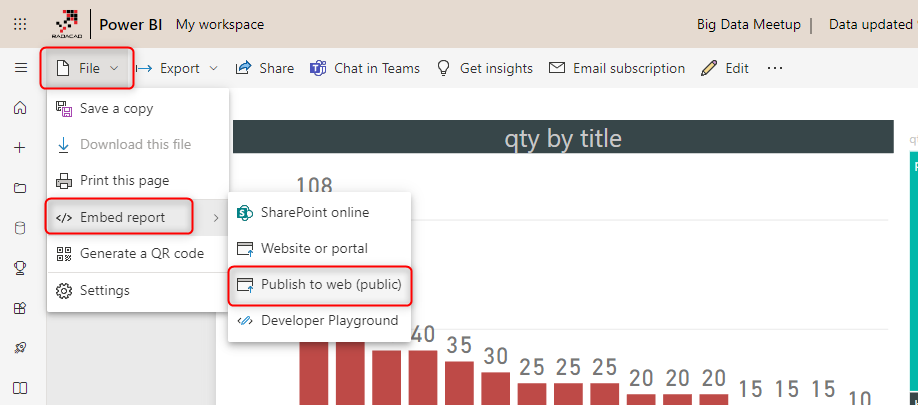
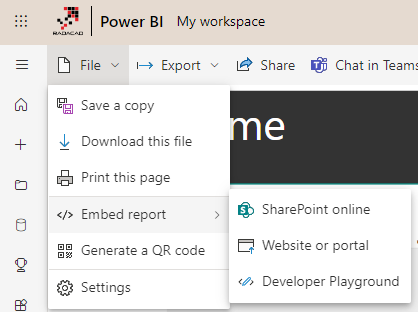
Using this feature is very simple. You must first deploy or publish the report into the Power BI website or service. And there, click on the report (not the dashboard). Once you open the report, click on the File menu option, and under Embed report, choose to Publish to Web.
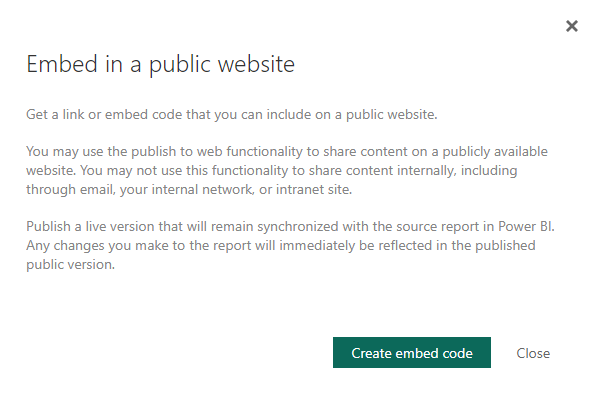
Then you will be informed about this feature in a message box that mentions this step will create a link and embed code for you to share with the world through a website or even email. Click on Create embed code below.
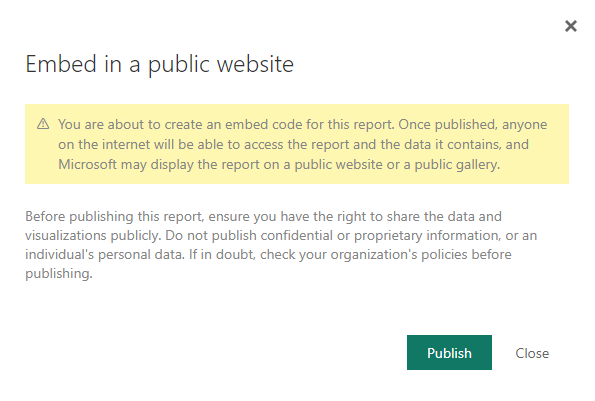
Because this is all about sharing a report and the data in the report, you will be informed again to check the confidentiality of the data and report and make sure you are sharing content that is not harmful to the organization or someone when it is viewable for the public.
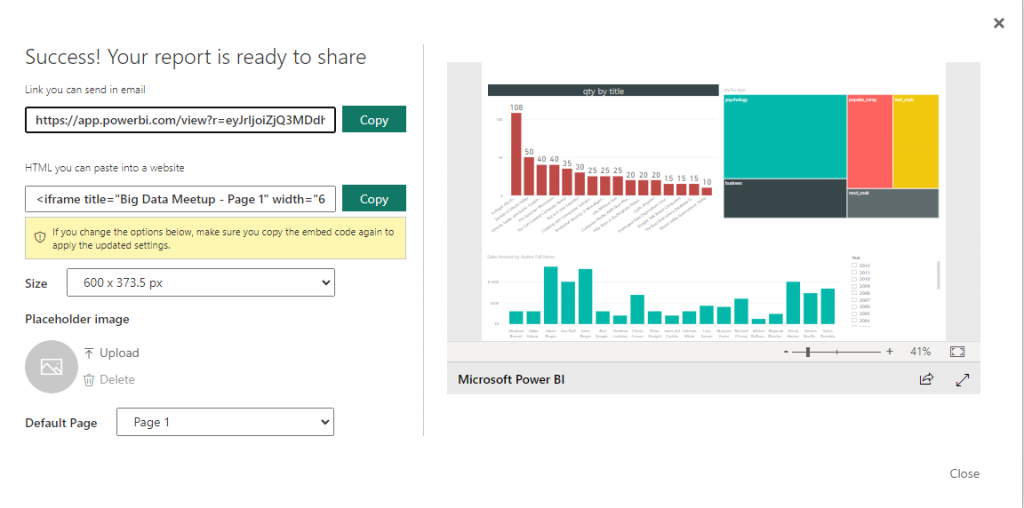
After clicking on Publish above, you will see the embed code plus a link to share through email if you want. You can also choose the size of the screen for the embed code.
You can now browse the link to see the report in a browser, even if you open it in Incognito (or Private) mode.
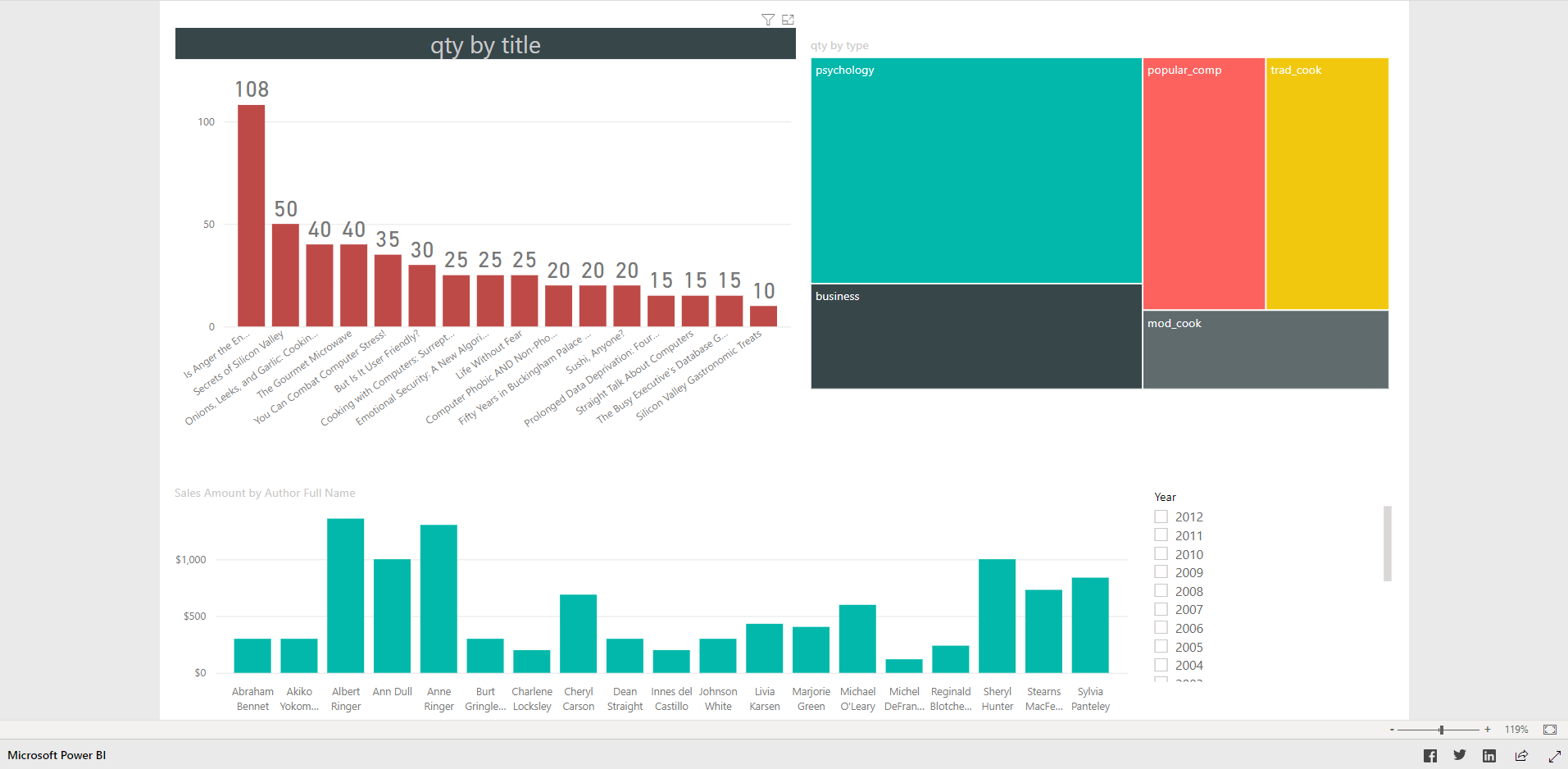
To browse the report, you don’t need to log in to the Power BI service. Users, to view this report, won’t need anything. The report is fully interactive; users can highlight, select or deselect items.
You can also use the embed code and add it to your HTML page, blog post, or wherever you want them to see the report. Here is I embedded my code;

And after adding the embed code full interactive report will be visible on my page like this:
Security Thoughts?
What You Share is for Everyone!
The first thing you might think of is usually security. How can you manage security on this? The short answer is there is no security here. The report is shared through the web or email with EVERYONE. So everyone who has the link or embeds code can access the report. They cannot edit it. But they can view it with no restrictions.
Users can share it with others!
A report published on the web has a share section at the right-bottom hand-side. Everyone can share this report with anyone else through all social media channels; Facebook, Twitter, and LinkedIn sharing the link directly! This method of sharing is not secure. I only recommend sharing the data you want to publish a public report on your company or organization’s website.
The report is PUBLIC. Not only to those with the Link
Yes, you read it right. This report is not shared only with those with the link. It is shared globally on the internet. A search engine such as Google can search for a report. All the reports with Publish to web links are available there. here is an example of the search result from Google;
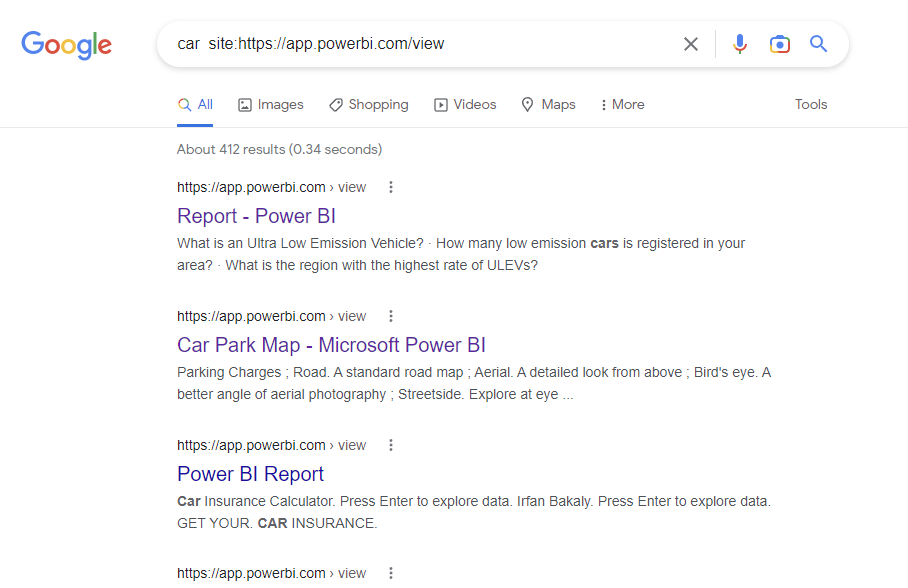
You must double-check that the report and data don’t reveal confidential information.
All Report Pages Are Visible
If you have a report with 10+ pages, it will be visible to browsers. You can not limit which pages you want to show and which you don’t. For example, the above report has more than one page, and you can view it. I recommend creating different reports if you want to restrict some pages and share them separately.
What If the report has Row-Level Security applied?
If you have a report with the Row-Level security applied to it, you won’t be able to create a “Publish to web” link. The below screenshot is an example of such a case.
All Report Pages Are Visible
If you have a report with multiple pages, it will be visible to browsers. You can not limit which pages you want to show and which you don’t. For example, the above report has more than one page, and you can view it. I recommend creating different reports if you want to restrict some pages and share them separately.
Publish to Web is only recommended for public data sharing in your organization website with the public. There is no security option for Publish to Web; this method should not be used for reports of the confidential data of businesses.
Link or Embed code is Synchronized with the Report
If you make any changes to the report, all changes will be synchronized because links or embed codes are just references to this report. So People will always see the latest version of your report. If you also want to keep the report up-to-date, you can schedule it for data refresh.
Removing the Access is Easy!
If for some reason, you want to revoke access for everyone to the report, you can do it quickly. Go to the Power BI service, and under Settings, click on Manage Embed Codes.
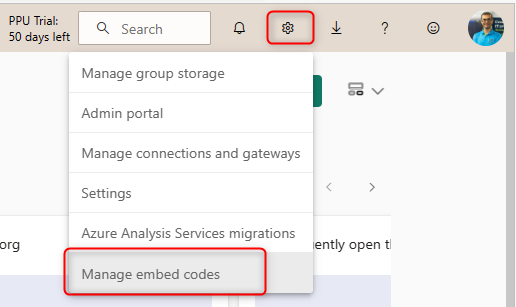
You will see the embed code created here and can delete it. It is essential which workspace you are in because the list of public reports will be only those from that workspace.
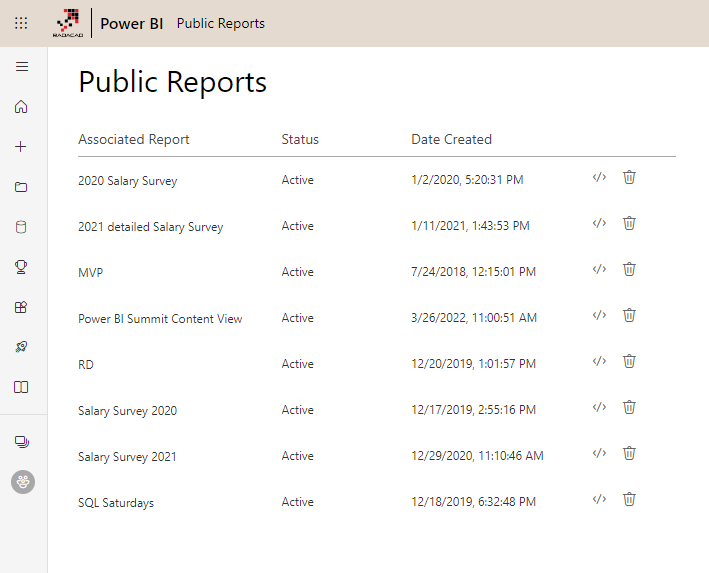
Once you delete the embed code, no one can access this report from the public web. You will see a notification message about it.
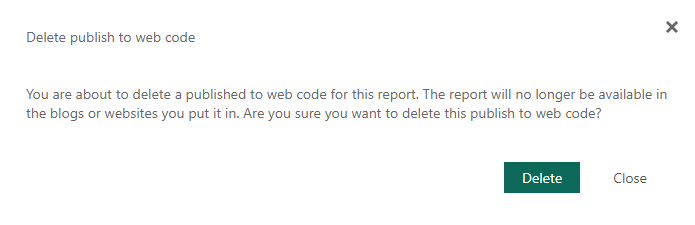
If you go ahead and delete the embed code, the link and the embed code will show a message to public web users that this content is not available.

Central Monitoring for all Embed Codes
Publish to the web seems a frustrating option with all the security holes. There is a need for an administration page to manage all embed codes there across the Power BI tenant. There is a place the Power BI tenant administrator can find all reports that are published to the web, and you can remove those from being published to the web.
To go to the admin portal, click on the setting icon in the Power BI service, and then go to Admin Portal. Click on Embed Codes on the left-hand side, and you will see all embed codes published by anyone from your organization.
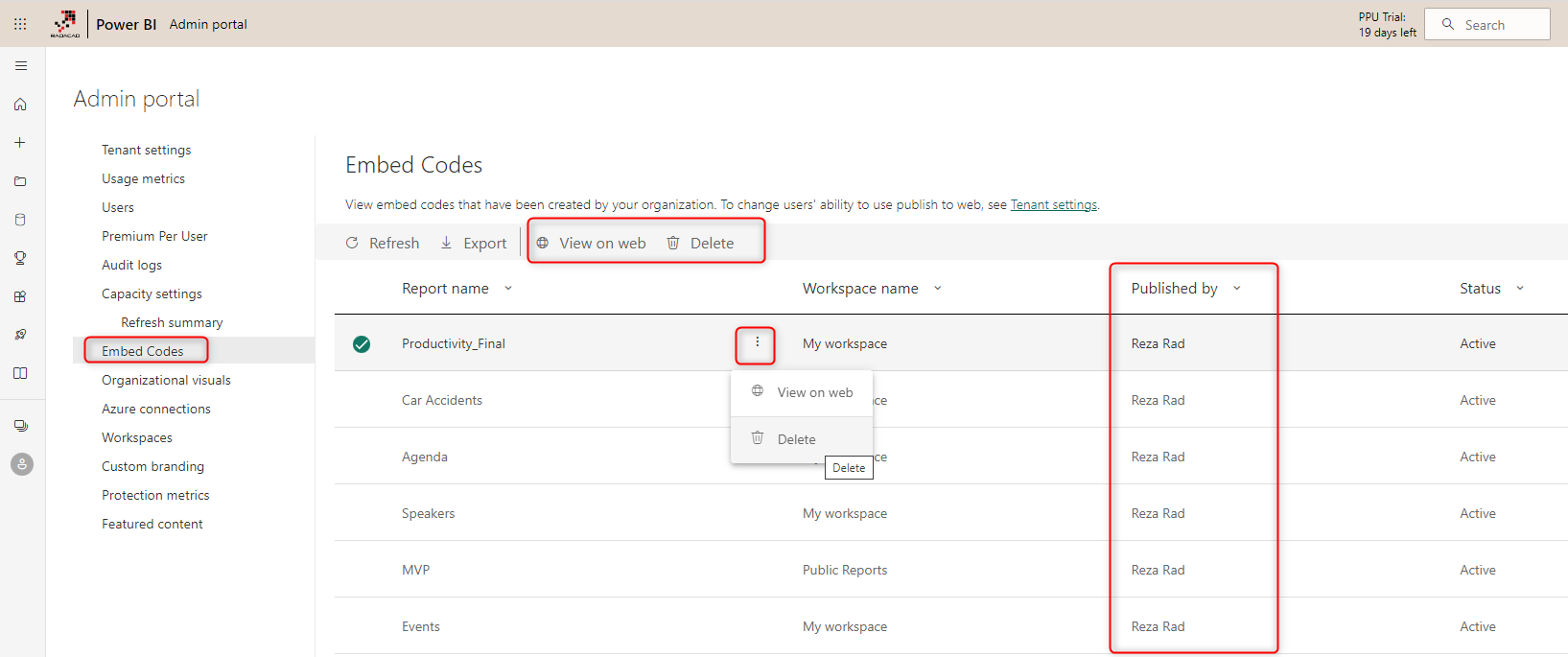
There are two options for each report published to the web: to view the published report or delete it. Once you delete it, no one can use the published web link.
Who can publish the reports on the web?
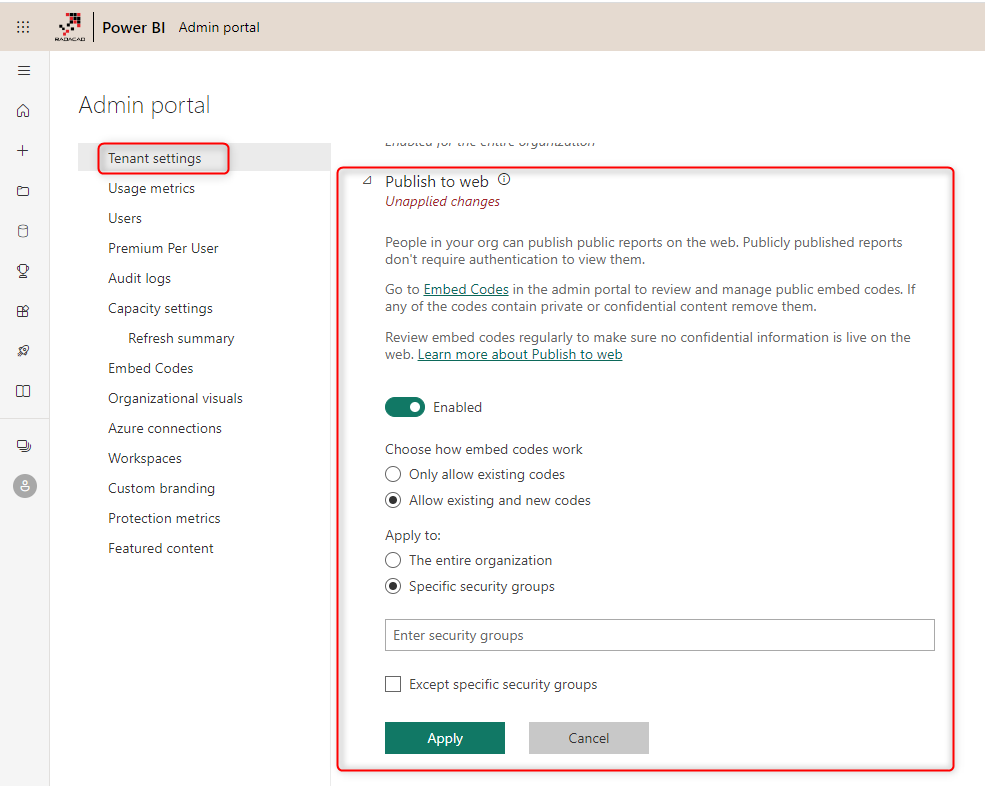
Power BI tenant administrator can turn off the Publish to web feature entirely or only authorize it for a specific group of users. I highly recommend using this setting and either turning it off entirely or just enabling it for a group of users from the BI or data analytics team who know all the security problems of this method. Do not turn on this feature for the entire organization. This configuration is under Tenant Settings.
Difference with Other Sharing Methods?
You can share your dashboards and reports with people in your organization. This feature also gives you a link to the report. However, It is different from the public link. Here are some differences between sharing dashboard and public link;
- Only those who have access to the dashboard will see the content. The dashboard link shared with the public won’t show anything if they are not authorized to see it.
- Users will need to have Power BI accounts.
- Power BI Workspace or App is For Authorized groups of users inside or outside of Your Organization, not for everyone!
- Power BI Embedded is different from Publish to Web
Only those who have access to the dashboard will see the content
Once you share a report, you can choose who has access to see it based on their Power BI accounts. If they don’t have a Power BI account or they don’t have access to that content, they won’t see the content.
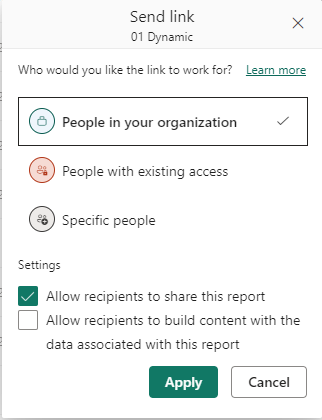
Dashboard link Works Only for Authorized Users
Despite having the dashboard link available, Only authorized users can see the content when browsing the link. Otherwise, they will see a message that says they don’t have permission to view this dashboard.

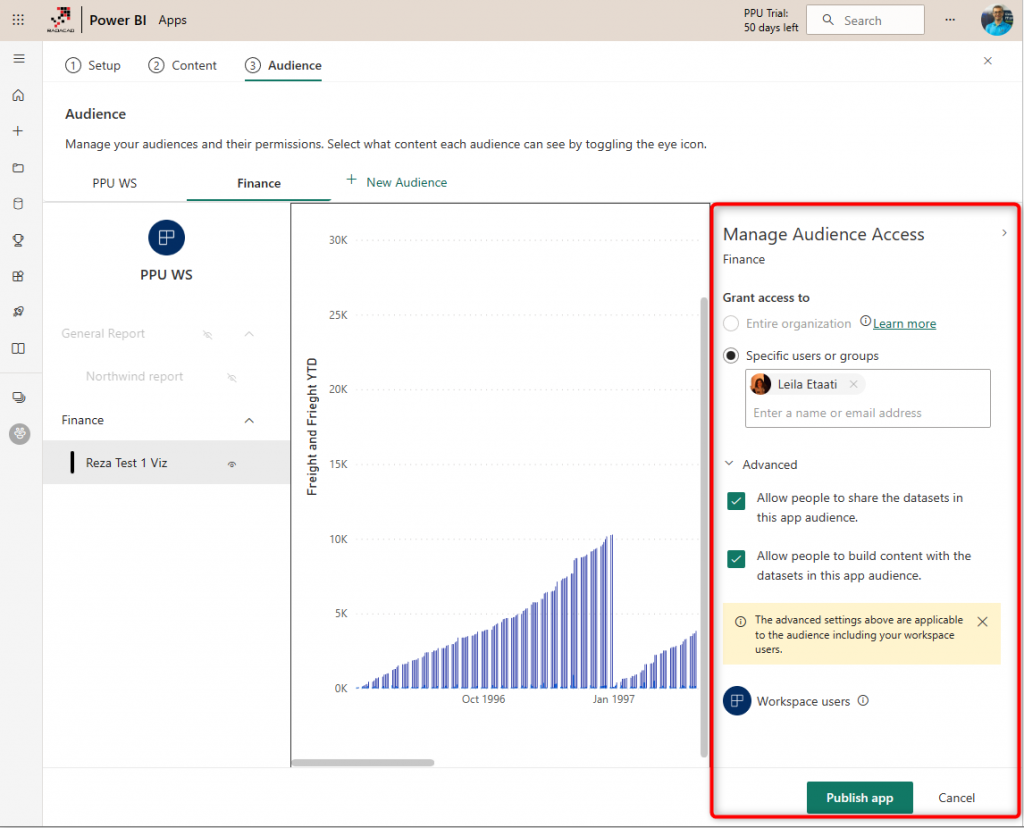
Power BI Workspace or App is for authorized groups of users inside or outside of your organization, not for everyone!
You can share dashboards, reports, and data sets with your organization’s workspace. And users will have access to all content shared or part of it (using the audience settings in the Power BI App). However, with Publish to web, any users who have access to the page will see the report, regardless of having a Power BI account.
Public Access or Organizational Sharing
Last but not least, the difference between publishing to the web and other sharing methods is about giving public access or sharing content through the organization.
With Sharing dashboards or using Power BI workspaces and apps, you can share content with other users. These users SHOULD BE Power BI users; they cannot access content anonymously. They must log in to the Power BI service to access the content.
With Publish to web, EVERYONE access the report even if they don’t have a Power BI account. They don’t need to log in. They can browse the page that contains Power BI embed code with no restriction on viewing the report.
Power BI Embedded is Different from Publish to Web
Power BI Embedded brings Power BI into applications. Yes, you can share your Power BI report through an application with API Keys. And you share the report with application users, even if they don’t have Power BI accounts. However, you are much more flexible here. You can choose which reports you want to share with which users in the application. Power BI Embedded is how to bring the Power BI experience into an application with security configuration enabled for users. Power BI Embedded is fully secured in a custom application, but the public reports are not.
Publish to Web is not secure, free way of sharing, and is for the public. Power BI embedded is secure, paid service, and for specific people that you authorize them.
Summary
In summary, Publishing to the web is the only free way of sharing Power BI content. This method of sharing doesn’t have any security bound to it. As soon as you publish a report to the web, anyone with that link can access the report and the data. This method of sharing is easy. However, it is not recommended for confidential data. This method is a reasonable option if you want to share some public reports on your company’s public website.
Publish to the web is entirely different from Power BI Embedded or Secure Embed; these methods should not be considered the same.
Other sharing methods are explained below.
- Dashboard or Report Sharing
- Sharing through workspaces
- Apps
- Embed Code
- Publish to Web (This article)
- Sharing through SharePoint Online
- Power BI Embedded
- Comparing Sharing methods in Power BI


Reza is author of more than 14 books on Microsoft Business Intelligence, most of these books are published under Power BI category. Among these are books such as Power BI DAX Simplified, Pro Power BI Architecture, Power BI from Rookie to Rock Star, Power Query books series, Row-Level Security in Power BI and etc.
He is an International Speaker in Microsoft Ignite, Microsoft Business Applications Summit, Data Insight Summit, PASS Summit, SQL Saturday and SQL user groups. And He is a Microsoft Certified Trainer.
Reza’s passion is to help you find the best data solution, he is Data enthusiast.
His articles on different aspects of technologies, especially on MS BI, can be found on his blog: https://radacad.com/blog.
Hi Reza
I have changed the settings under Admin and published to the Web. It is supposed to be available within an hour or so but I published it yesterday and it is still not available.
Are you aware of any problems? Where can I log a call?
My Embed Code is https://app.powerbi.com/view?r=eyJrIjoiN2VkOTZlZTUtOTdiNC00NDI5LTgxNWEtOTliNzJmZWE4NDA0IiwidCI6IjFiYWZkMGRiLTU3MjgtNDJmOC05ZjliLTYzNzY4Mzg5ZmQ5MSIsImMiOjl9
Many thanks
Hi Hannes
Have you set this setting correctly too?
Cheers
Reza
Hi Reza,
The article is great, Thanks for posting them. I am a newbie to PowerBI.
I have a question. If I refresh data in a report, do I need to re-publish the report again and then only users will see updated values? If yes, then is there a way to auto-publish whenever report is refreshed?
I am trying to avoid manual intervention of re-publishing here.
Thanks,
Snehal
Hi Snehal
The right way of doing it is to publish it once, and then in the service schedule it to refresh. you won’t need to do anything manual then.
Cheers
Reza
Hi Everyone, |
Trying to publish my reports to the web. But unfortunately on my ‘Admin Portal’ i cant see the Tenant part where you allow for embeding.
I’m using Trial Power BI. Could that be reason?
that means your account is not the Power BI Tenant Admin. you need to find the person in your organization who is the admin
Cheers
Reza
Hi Raza, I have a free power bi desktop license, can I share a dashboard as a link so that it can be viewed by anyone clicking that link (no Microsoft account needed by the user)
You need to have Pro account. Free account is not for sharing. If you have Pro account, then you can produce a link using Publish to web for free users
Cheers
Reza
I got an public web report, how can i see/add this report in power BI App (smarthphone) or my service page?
You cannot see Publish to Web reports through the Power BI Mobile app. you can only see them through the browser.
If you want to see the report through the mobile app, then you need to have organizational access to the report
Cheers
Reza
Dear Mr. Reza Rad,
Enjoying your tutorial video and articles for couple of weeks just. Found power bi interesting! By the way how many publish to web links can be created with a Pro license? And, Can GB size be increased in a single Pro license?
Thanks in advance.
Best wishes, Raj
Thanks
You can use as many as “Publish to Web”s you want. each Pro account right now has a limit of 10GB. I am not aware of any change coming to that size in the future
Cheers
Reza
+ to clearify business need
I plan to use exclusively publicly available data, but would prefer not to share all the hard work in the back end (DB modelling, transformations, relationships… structuring data etc.) at this moment.
Thanks x2 🙂
Hi Verdan
The publish to web option doesn’t share your PBIX file or the data model. it just reveals the visualization and the data
Cheers
Reza
Hello mr Reza Rad, Thank you for this tutorial. I am a PowerBI PRO user and admin of PowerBI. However, when I try to switch on the Publish to Web option (via Admin/ Tenant settings), it doesn’t work. The whole option is greyed out. Do you have any idea what might be wrong?
Do you have a screenshot you can share?
Hello reza,
i have a question i did not have the answer to in any other place.
once i made the “publish to web (public)” stage and i have the HTML code and the code how can i use it in a linkedin post or a facebook post. obviously i tried to paste the code into a linkedin/facebook code and it did not work.
so my question is how do i make it work so pepole can see it embedded on the post.
hope you can solve me this unsolved problem
Thanks in advance, Rami Benhamo | Israel.
Hi Rami
You can embed it anywhere that you can embed an HTML code. In LinkedIn you have a place to enter text, but not HTML code.
Hi Reza,
We want publish embedder report to public/internal web. Can we do it with Power BI Pro lincence. Thank you.
It depends on which method you use. with some methods, yes you can use Power BI Pro, but then users also need to have Power BI Pro, Embed in a web application using code explained here that can work that way.
Cheers
Reza