
There are different methods to use row-level security in Power BI; You can set up Row Level Security in Power BI itself or through a live connection from a data source such as SSAS Tabular. However, row-level security defined in the ways mentioned in the articles above isn’t dynamic. By dynamic row-level security, I mean the definition of security is beside the user account information in the data source. For example, when John logs in to the system, based on data tables that show John is the sales manager for a specific branch, he should be able to see only those branches’ data. This method is possible in Power BI using DAX UserName() or UserPrincipalName() function. In this article, I’ll show you an example of dynamic row-level security with Power BI’s DAX USERNAME() function. If you like to learn more about Power BI, read Power BI online book; from Rookie to Rock Star.
Video
Why Dynamic Row Level Security?
The most important question is, why dynamic row-level security? To answer this question, you must consider the limitation of static row-level security. Static row-level security is simple to implement. However, if you have thousands of roles, then it would be a nightmare to maintain. For example, if you want to create a payroll Power BI report in a company with ten thousand users, you want every user to have his/her role. Dynamic row-level security is the answer for such scenarios.
Sample Data
For this example, I will use data entered in Power BI itself. There won’t be any external data sources. This doesn’t mean that dynamic security has an issue with external data sources. Dynamic security works with any data sources as long as we have related data rows in the tables. For the simplicity of this example, I’ll be using data sources inside Power BI.
For this example, let’s create two simple tables; Sales Rep and Transactions. Sales Rep has information on sales representatives, and transaction data is sales transactions. Each sales transaction is handled by a sales rep. So let’s create sample tables in Power BI. Open Power BI Desktop, and from the Data section, choose Enter Data.
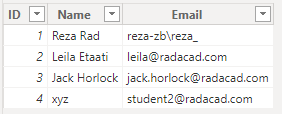
Create a table as above with three columns and data in it. You have to use usernames similar to Power BI accounts that you want to set up security for it. Name this table as Sales Rep.
Create another table for Transactions with the structure below, and name it Transactions:
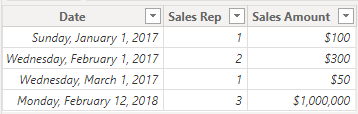
As you can see in the above screenshot, each sales transaction is handled by a sales rep. Again I mention that these tables are added inside Power BI just for the simplicity of this example. Tables can come from everywhere.
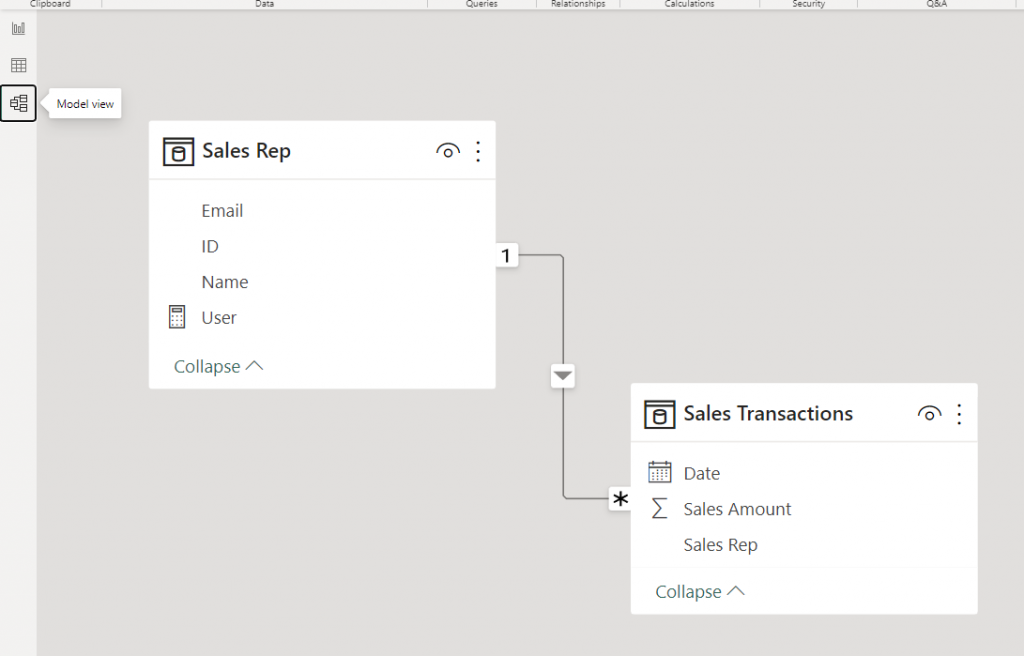
Load tables into Power BI; we don’t need to do anything with Power Query at this stage. Go to the Relationship tab and verify the relationship between Sales Rep (ID) and Transactions (Sales Rep) to be as below;
Sample Report
For this example, I will be using basic table visualization. The table visualization will show Date, Sales Amount (from Transactions), and Name (from Sales Rep).
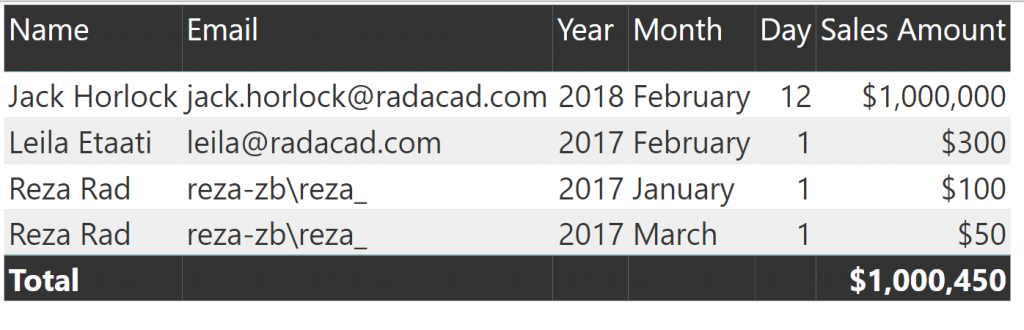
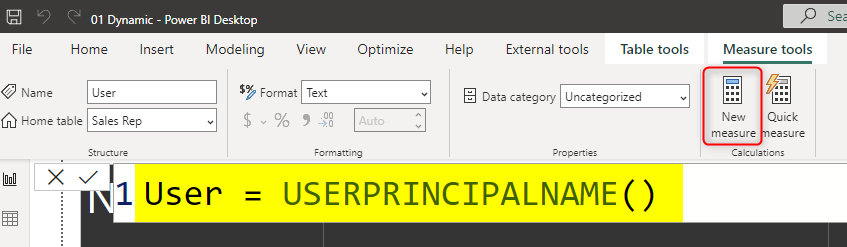
The main reason for this visualization is to simply show that each user will see only their data rows from all tables. I also will add a measure for USERPRINCIPALNAME() in DAX to see the user logged in from my report. So in Data Tab, create a new measure, and name it User, with a value of USERNAME();
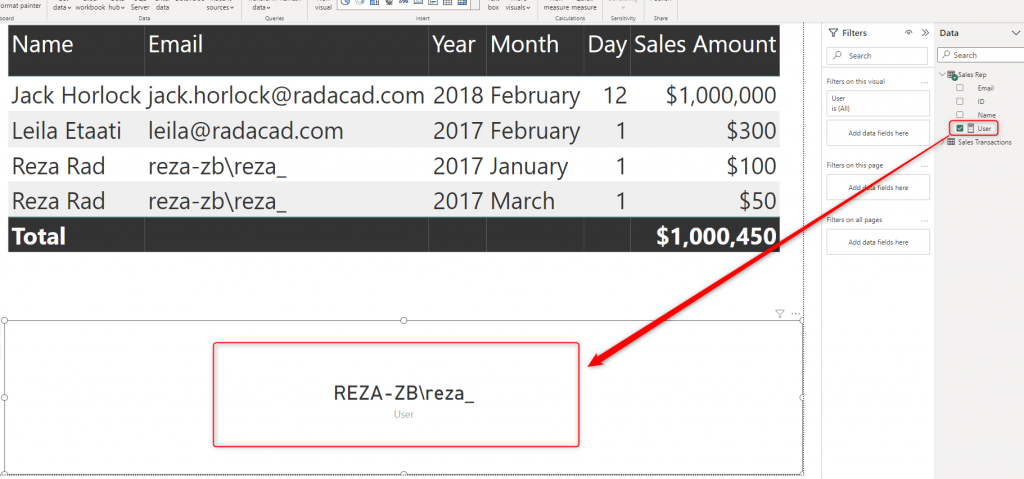
Now let’s add a Card visualization to the report. Add the User measure to the card visual. Here is the report’s final view;
DAX Functions: UserName() and UserPrincipalName()
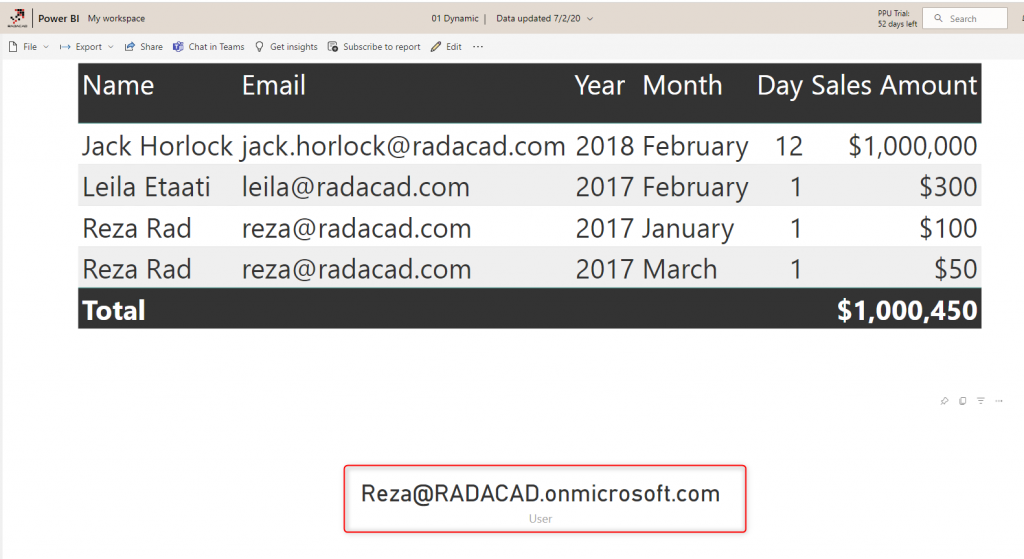
USERNAME() function in DAX returns the username of the logged-in user. However, there is a small trick for it. If we don’t set up row-level security for our report, USERNAME() function will return the user id. To understand what I mean, publish your report to Power BI and browse it to see what you will see.
UserPrincipalName() function in DAX works exactly like UserName() function with the difference that it will always return the username (not the unique identifier). So basically UserPrincipalName() is a better function for testing, but the works both the same in a production environment. Now let’s set up row-level security and assign users to it to see how it works.
Row Level Security in Power BI Desktop
I have explained in another post how row-level security in Power BI Desktop works, so if you want to learn more, read this blog post. Here I will only use that technique to filter each role based on their username with the DAX username() function. To create security, go to the Modeling tab, Manage Roles. Create a role and name it Sales Rep. and define a filter on the Sales Rep table as below;
[Username] = USERPRINCIPALNAME()
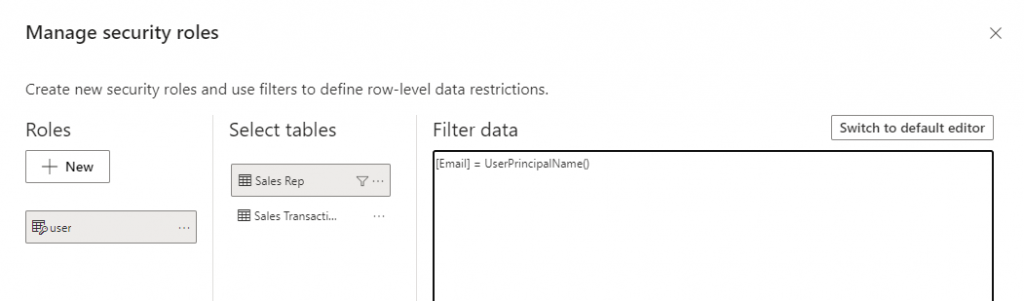
This filter simply means that the logged-in user will only see his/her records in the whole data set. As you remember, the username field in the Sales Rep table is defined as the usernames of Power BI accounts. And transactions table is also related to this table based on Sales Rep ID. So filtering one table will affect others. As a result, this single-line filter will enable dynamic row-level security in the whole Power BI solution here.
Assign users to Power BI Security.
Now Save, and publish your solution to Power BI. In the Power BI service, go to the security setting of the data set you just published (I named this 01 Dynamic).
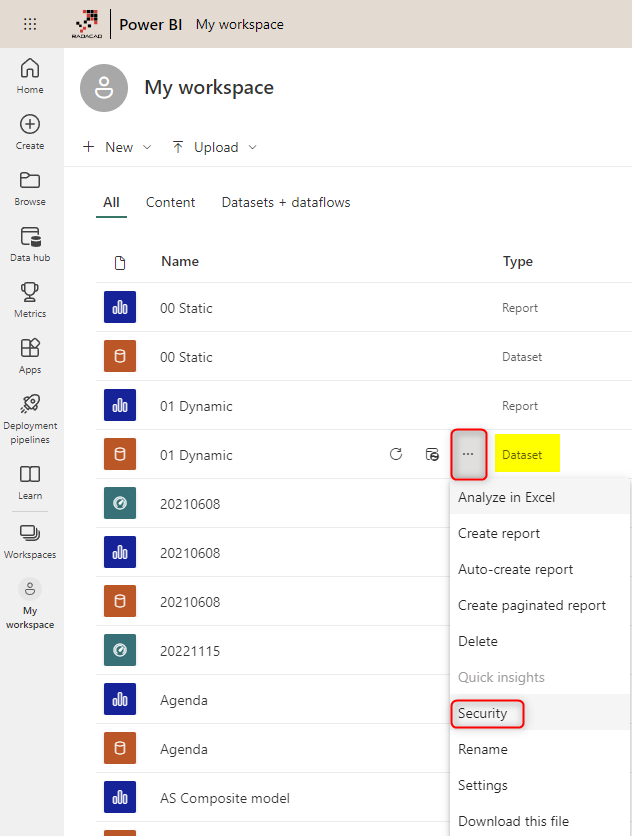
And in the Security tab, add all users to the Sales Rep role.
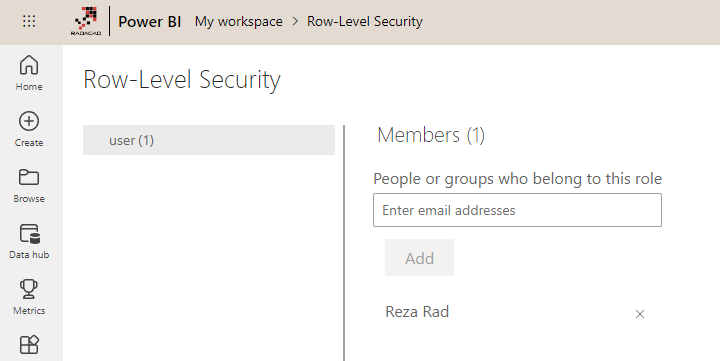
Adding a user here doesn’t mean they will see data in the report. Remember that this security is dynamic, which means that they will see their data rows ONLY if the underlying data set has a record for their username, and they will only see data rows related to their username, not others.
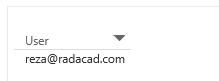
Now if you refresh the report in Power BI, you will see actual usernames.
Share the Report or Dashboard
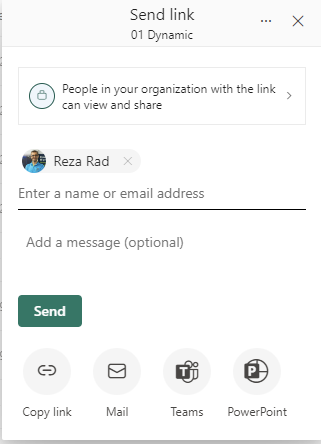
Other users should have access to the dashboard and report first to see it. You can share the report using any method that gives the user a read-only view. Here, I used the individual report-sharing option;
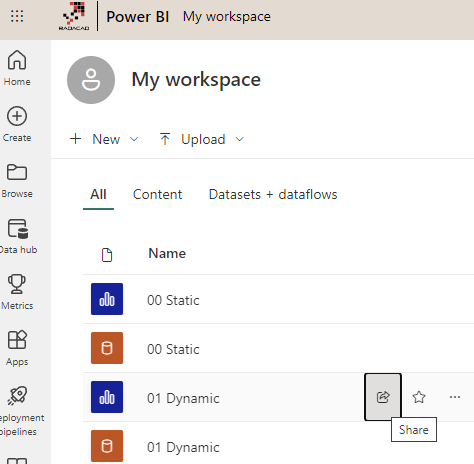
Now share the it with other users
Test the Security
Now, if other users open the report, and if their usernames match one of the entries in the Sales Rep table, they would see their names and data rows related to that in the report;
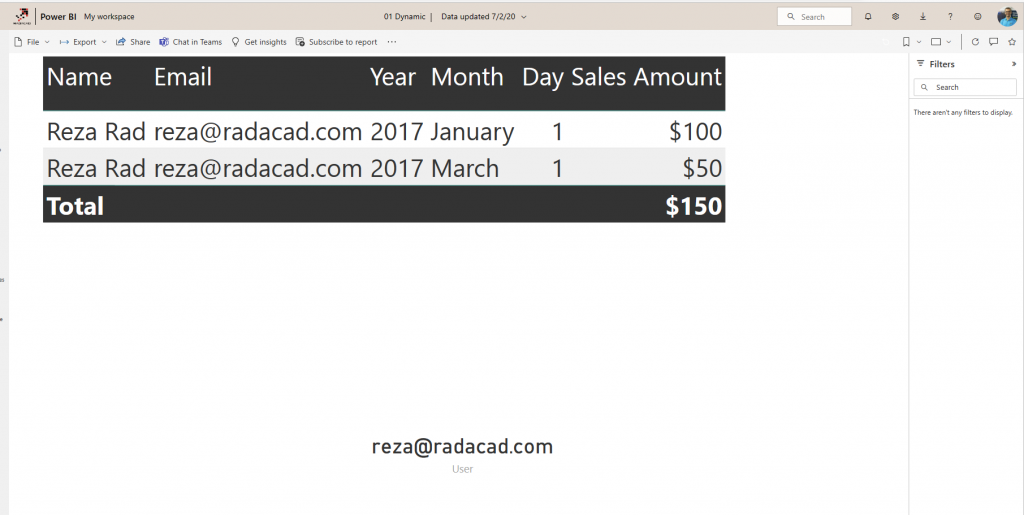
As you can see, my account only sees my transactions in the Sales Rep and Sales Transactions table. The views of other users of this report would be different.
Summary
You have seen how easy it is to use Dynamic row level security in Power BI using DAX USERNAME() or UserPrincipalName() function. With this method, users will see their view of the world. However, you must ensure that your Power BI model has a relationship set up properly. Otherwise, people might see other tables’ data when there is no relationship between their profile table to those tables. Dynamic row-level security is highly dependent on your data model, so keep your data model right.
To set up the Dynamic Row-Level Security in the right way, I recommend reading my article here:
https://radacad.com/what-do-you-need-to-implement-dynamic-row-level-security-in-power-bi


Reza is author of more than 14 books on Microsoft Business Intelligence, most of these books are published under Power BI category. Among these are books such as Power BI DAX Simplified, Pro Power BI Architecture, Power BI from Rookie to Rock Star, Power Query books series, Row-Level Security in Power BI and etc.
He is an International Speaker in Microsoft Ignite, Microsoft Business Applications Summit, Data Insight Summit, PASS Summit, SQL Saturday and SQL user groups. And He is a Microsoft Certified Trainer.
Reza’s passion is to help you find the best data solution, he is Data enthusiast.
His articles on different aspects of technologies, especially on MS BI, can be found on his blog: https://radacad.com/blog.
Hi Reza Rad,
Nice Tips.
I have a question related with many-to-many and RLS functionality. With the last Power BI update, on 30th June 2016, we can manage roles at PBI Desktop as you writed, I’m creating a dashboard and I need use RLS with a many2many relationship.
I tried lot of things, but RLS doesn’t work, maybe i have a data error in my model, but after take a look to Marco post http://www.sqlbi.com/articles/many-to-many-relationships-in-power-bi-and-excel-2016/ I think it is ok. I downloaded Marco’s .pbix example and reproduce my RLS in it and neither works. At this link https://db.tt/9l2cliFM you can find Marco’s .pbix modified. If you apply role “Customer-Alex”, you can see that for table1 (contains data from table Accounts and Balances) and slicer_Account the role doesn’t work. Any idea?
In the same way with role “Account-Alex” for slicer_customer the role doesn’t work, but work for all the other visuals.
My sensation is that RLS only work in one direction from center to outside, but not from outside, table Customer, to center fact table Balances.
Thanks!
Link: https://db.tt/9l2cliFM
PS: i also publish this question to Marco at their post.
Hi Marc,
Thanks for your kind words.
regarding your question: The best modeling is always a modeling that doesn’t have many to many relationship. It should be designed like star schema. It is correct that we might not have a data warehouse for our Power BI model. However to get the model perform best and in very high performance, star schema should be modelled in Power BI.
However if there are cases that star schema is too expensive to build or budget doesn’t allow time to do so, there can be tricks for solving this RLS issue with M2M relationship. If you simply include Customer in your Account and Balance table for example, then it will be filtered down per each customer role. this might not be a solution, but a very quick work around.
Cheers,
Reza
Hello again!
First of all, thanks for your reply. I discarted this workaround because my rows grew exponential.
I found the answer:
You can see at this whitepaper https://powerbi.microsoft.com/en-us/blog/bidirectional-cross-filtering-whitepaper-2/ that RLS only works with Single relations, it interpret Both relations like Single relations. But, the whitepaper explains that in Analysis Services 2016 we have an option for RLS use correctly Both relations type, you need select this option. Inside Power BI after 30 June 2016 update we have this option too! You need go to File–>Options & settings –> Options –> Preview Features activate Enable cross filtering in both directions… and save. After that go to your Both relation and under the Single/Both selector appear new checkbox for apply RLS to Both relation.
See you!
Hi Marc,
Thanks for sharing this information here. Really helpful.
Cheers,
Reza
Hello, Reza! Thanks for a clear details on RLS, it’s clear and concise as always.
I have an idea for my site, but want to know if it is possible to use RLS for reports published to Web? I mean, if I have user logged in on my site, can I apply this type of filtering to report, published to, for example, profile page of such user?
Thanks!
Thanks Maxim for your kind words.
I don’t think that be an option with “Publish to web” feature. because user will have access to the whole report with embedded code added into your page. even in the profile of that user he/she will see everything. because there is no way to tell Power BI that this user has logged in. If you have a way to identify a user then it should work. Power BI Embedded is another option to look at for your situation. Either way as long as you can identify which user logged in (which through login to your website you can), and you can pass that username/identity somehow to Power BI report and make it dynamically filtered based on that login the it should work.
Cheers,
Reza
Thanks, I think it was bad idea. May be something like push some user-dependent parameters to report via API… but this is other topic.
I have a client whom wishes to avoid paying the pro-user licence fees but wants RLS for remote workers to view reports with their remote data view only. Initially it It appears RLS is a pro-user feature ONLY. So i assume these end users logging in through the Power BI service without a pro license wouldn’t be able to use this report…. 🙁 Is that true ?
So i am keen to try the “publish to web” solution where users log into a portal (thus catching their username) and then filtering the report based on this username…..Interesting solution but do you think it would really work ?
Hi David. Not exactly sure about RLS licensing yet. Will check it out and let you know.
Regarding doing this with Publish to Web; You should be really careful with that. Publish to web expose the report to EVERYONE. if the embed code leaks somehow, then your report is available for anyone. when you embed it into your page through Publish to web, then everyone (who has access to the web page) can right click, View source. And they will see the embed code easily. then they can share it with the world with no restriction.
You can use Power BI Embedded feature as well. but then that would require another pricing plan. So my suggestion to your customer is: IF they want a reliable RLS they have to pay a bit for it.
Cheers,
Reza
Thank you for the post that’s very helpful. I wonder if you could advice on my current situation. I try to implement this dynamic RLS in my PBI report as you guided, but users actually would read report through via report file(pbix)instead of publishing on PBI service. I was asked to perform dynamic filtering on report level based on their account entered.i.e.users only can see their own clients data after typing account and refreshing. I really would like to know if this could be achieved besides publishing and creating roles in RLS. Like using power query or dax possible to make it dynamic?
Thank you!!!
Hi Autumn,
With Power BI Desktop there is no control on this. because a user can use a *.pbix file without even logging into Power BI Desktop. The correct way of doing this is through the service.
Cheers,
Reza
hi, i do have several quesitons
>username() fetches the machine login name. So if a user uses a different machine and tries to view the reporting using his power bi account, will he still be able to view it?
>how do we validate the username() role using power bi dekstop?
> i tried validating this using pbi service, but i was still seeing the report from an unfiltered data set
Hi Dane,
Have you went through the example step by step to the end? If you do, you already know that Username function never returns Power BI account when you are developing in Desktop. It will work only on the Power BI Service. When you publish your report that has row level security enabled in the service, and in the Security tab of data set give access to others then username() function will return power bi accounts of users, and they will see filtered data set.
Cheers
Reza
Thank you for the post. In the Power BI service is there a way to assign every / all users to a security role. For example, I have implemented dynamic row level security through DAX and my data model but I must assign every user to this role (either individual e-mail or group distribution list) in the Power BI service. Instead of doing this is there a way to assign any user (*) that views this report / dashboard to a default role? If this is not possible, there is a lot of wasted overhead in maintaining that list of users. Thanks in advance.
Hi Josh.
I believe there are some methods to create an EVERYONE distribution list and use it to assign to the role. something like this (I haven’t checked this method myself): https://community.spiceworks.com/how_to/102462-office365-all-users-distribution-group
Cheers
Reza
Thanks for the blog, that really helps to understand the BI RLS. A question though, Would it be possible to integrate (embed ) it with a web app ? What it means is, Can we embed this report into a web app using Publish to Web option? If so, how would It sends my user name (user context) to this report to get the user specific data?. Is it possible? .. Might be a silly question, please respond.
Hi,
RLS is possible through Power BI Embedded. But not Publish to Web. Publish to Web is available for everyone, but Power BI Embedded can be fully integrated into your web app with the security model that you have in your application.
Cheers
Reza
Sir, thanks a ton for this guide. It really helped. Can you tell me how to apply multi-level security? I mean, say, in my dataset there are columns like Cluster Manager and Branch Manager. I want when a Branch Manager will log-in, he will be able to see his data only but when a Cluster Manager will log-in, he should be able to see data of all branches which are under him. How is this possible using USERNAME function? Thank you in advance.
Ok, I think I figured it out. I should have separate dimension tables of Cluster Managers and Branch Managers. These tables will have a one-to-many relationship with fact table. And my ‘User’ table will have separate one-to-one relationships with ‘Cluster Managers’ and ‘Branch Managers’ tables. Right?
Hi Sandip,
Yes, correct. any logic you want to implement through Dynamic RLS should be implemented as part of tables in Database. You can have a field in Cluster or Branch that says which user is manager of that. some other methods also might be possible, but all goes through relationships in the model.
Cheers
Reza
Hi there, this is a great post and I really appreciate the guidance. However I have a further Hierarchy challenge. In my scenario, there are 45 sales people and 6 managers across the whole team. I want all managers to see all data but filter seller data to their records. I have created a table that matches the seller to their email address. can I write an expression that firstly qualifies the managers?
Hi Phil
Thanks. I have written another blog post about organizational hierarchy with the row level security. read it here.
Cheers
Reza