
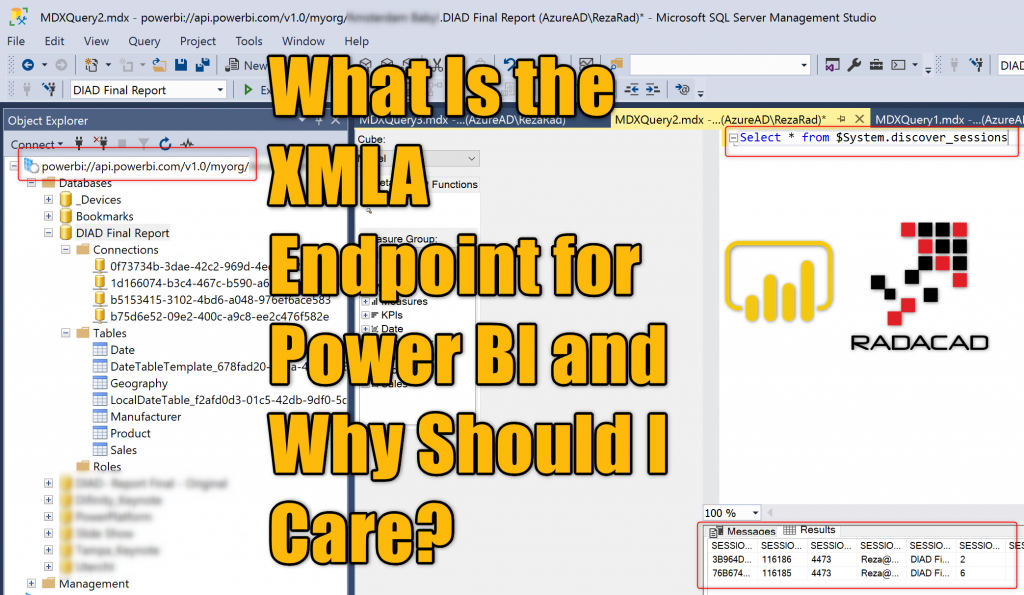
The XMLA endpoint term is still too technical for many Power BI report developers. Many people come to me asking what exactly is XMLA endpoint, and what are the benefits of it. What it can do? or most importantly; as a report developer, why should I care? Well, I will answer all of these questions in this article. Let’s dig in. If you like to learn more about Power BI, read the Power BI book from Rookie to Rock Star.
Behind the Scene of a Power BI Dataset
To understand what an XMLA endpoint is and what it does for you, first, you need to understand the backstage of a Power BI dataset. By backstage, I mean what is behind the beautiful Power BI report that you see, Or let’s say, what are things that you don’t see!
A Power BI report is a visualization element connected to an in-memory dataset behind the scene (I am talking about the most common method of using Power BI; Import Data). the in-memory dataset behind the scene, has all the data loaded into the memory, with all calculations, relationships, and connections to the data source. When you open a *.PBIX file, behind the scene, there are two elements; a report (visualization part) and a dataset (data model). This separation is visible in the Power BI Desktop app resource details in the Task Manager;
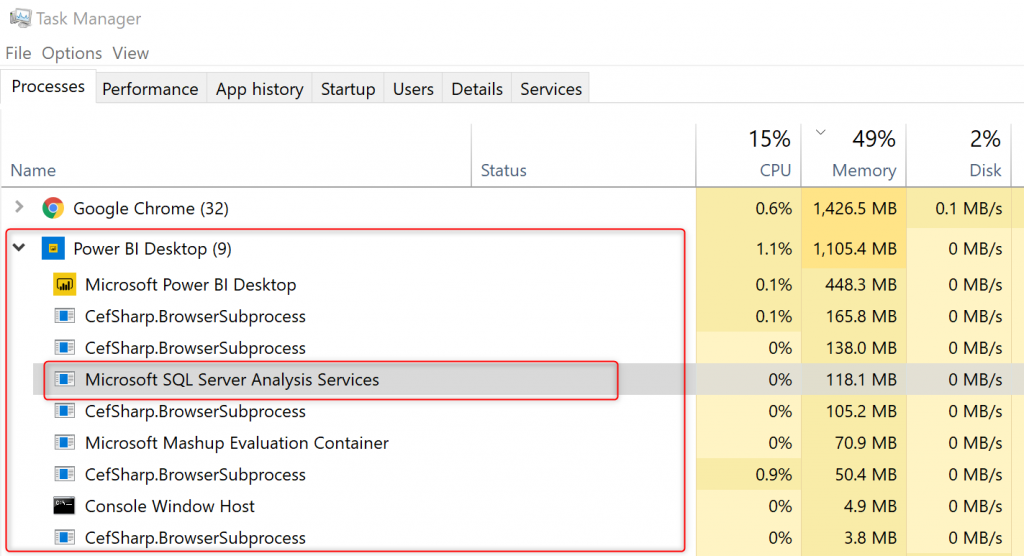
As you can see in the above screenshot, a Microsoft SQL Server Analysis Services task is running under the Power BI Desktop list. A Power BI report stores its data in the memory which is managed by the Microsoft SQL Server Analysis Services (Let’s call it by its shorter familiar name SSAS) engine. Even if you run Power BI Desktop on a machine that doesn’t have SSAS installed, you will see this service because Power BI Desktop automatically installs a version of SSAS with it.
A Power BI dataset is hosted through a SQL Server Analysis Services Engine.
When you publish your *.pbix file to the Power BI Service, you will also see this separation of the data model (dataset) and the visualization (report);
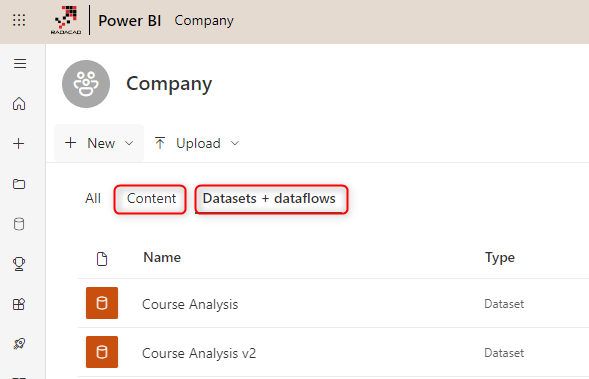
When you host your report (or publish it) in the Power BI service, the dataset will be managed by a version of SSAS installed on a cloud machine that you don’t see (or, better to say, a version of Azure Analysis Services).
SSAS is More Than What You See
So now that you know a Power BI dataset is an SSAS model behind the scene, the next question is, what is the point? Or what is the benefit of it for me? To understand that, let’s see what SSAS is actually.
SSAS is a modeling engine in Microsoft SQL Server and is now more than 20 years old mature technology. SSAS is a server-side modeling technology. It means the model will be hosted on a server, and client tools can work with it. Through many years; the two most common client tools to work with SSAS were and still are: SQL Server Data Tools (SSDT), and SQL Server Management Studio (SSMS).
These tools are not only to build the model in SSAS but also to manage it. And when it comes to management, It means monitoring, controlling, backup, and restore of the model and many other features. Here is a view of an SSAS database (model) from SSMS.
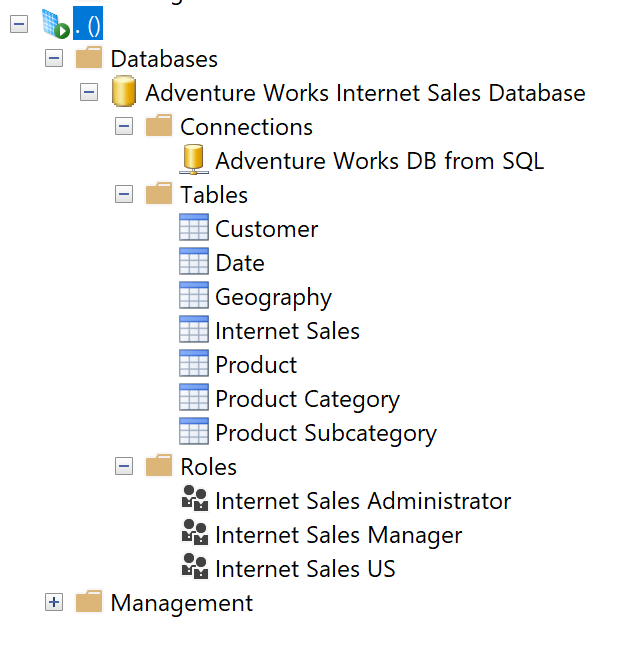
SSAS models can be monitored using a lot of queries and commands called Dynamic Management Views (DMV). For example, the command below shows all the users querying or working with this SSAS model;

SQL Server Analysis Services is a server-side technology, that can give you a lot of details about the model, and can be monitored through client tools using many scripts and commands such as Dynamic Management Views.
Can I Access the SSAS Model of My Power BI Dataset?
Well, you learned so far that your Power BI dataset is an SSAS model behind the scene. And you learned that you could control and monitor SSAS models using some client tools. However, when the Power BI dataset is hosted in the Power BI service, how can you connect to that SSAS model? how can you control, manage, or monitor it? Or, even more importantly; Why is it important to do it?
If you can connect to the SSAS model of your Power BI dataset, you can connect to the data model directly. You can see how many users are using it. You can see what processes take longer and what slower. You can leverage all those monitoring features to build a better model moving forward.
There are two common ways to connect to the Power BI dataset hosted in the service: Power BI Desktop (using Get Data from Power BI dataset), and Excel (Analyze in Excel).
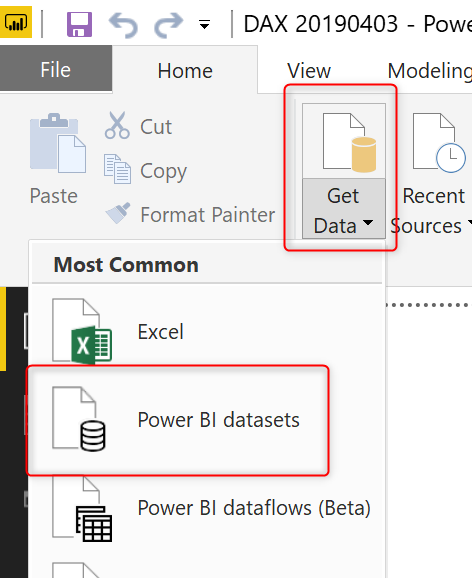
Both of these tools are reporting tools. You can (somehow) run monitoring queries from these tools, but these are not built for that purpose. You will have better control if you can access it through other client tools. The good news is that; now you can! Using XMLA endpoint.
XMLA Endpoint
Now is a good time to explain what the XMLA endpoint is. XMLA endpoint creates a connectivity channel for other tools and services (which can be third-party tools, too) to the SSAS model. XMLA endpoint is available for SSAS models hosted through SQL Server and has already been used for a long time. You can use a tool such as SSMS and connect to the local SSAS engine. Without an XMLA endpoint, access to the SSAS model will be very limited and probably unsupported.
XMLA endpoint creates a connectivity channel for other tools and services (which can be third party tools too) to the SSAS model.
The good news is that; the XMLA endpoint is available for Power BI datasets hosed in the Power BI Service. It means now you can use ANY client tools that support XMLA connectivity to connect to Power BI datasets. When I say ANY, I mean it. In addition to SSMS or SSDT, or Microsoft SQL Server client tools, you can use third-party tools, such as DAX Studio and Power BI Helper, and also tools, such as Tableau! Yes, you heard it right; You can use Tableau to connect to a Power BI dataset hosted in the Power BI service and then have your visualization in Tableau.
This diagram from Microsoft says it all actually, all of these tools now can be used to connect to a Power BI dataset hosted in the service;

In other words; the Power BI dataset is not now just for Power BI tools; it can be the source for any other tools that have XMLA connectivity support; Tableau, SSMS, Power BI Helper, etc.
How does XMLA Connection work?
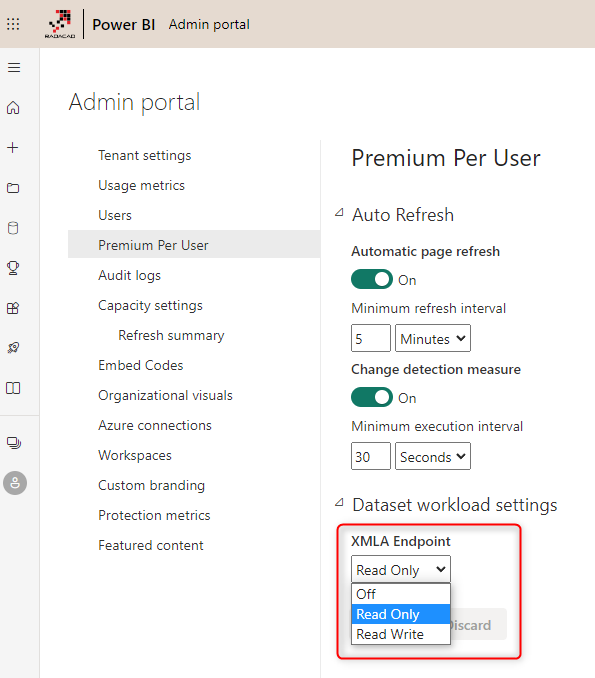
There are two types of connection for the XMLA endpoint. Read and Read/Write. The XMLA functionality is limited to Premium licensing. The read-only connection will enable you to read data from the dataset (Which can be useful for monitoring and querying), and the Write connection enables you to apply changes to the dataset (such as adding calculation groups or object-level security to the Power BI dataset).
XMLA endpoint URL
If you go to a premium capacity allocated workspace, under the Premium Capacity, you will see the XMLA endpoint connection URL;
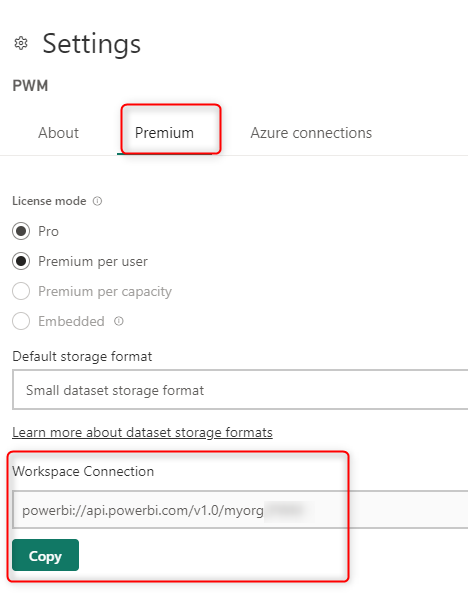
The format is:
powerbi://api.powerbi.com/v1.0/myorg/<workspace name>
Workspace name can have spaces and is case sensitive. Example:
powerbi://api.powerbi.com/v1.0/myorg/Reza SAMPLE workspace
Admin Control under Capacity Configuration
Your capacity admin should enable you to use the XMLA endpoint. This is possible through Admin Portal -> Capacity Setting -> selecting the capacity -> Workloads. If you are using Premium Per User licensing, there is a place to set it under the admin portal under the Premium Per User.
Client Tools
And you should have a client tool for this type of connection. You can use a tool such as SSMS. However, you would need SSMS 18.0 RC1 or above, which can be downloaded here. And client tools can have these libraries installed to be able to connect.
Sample Connection
Here is a sample of the connection created using XMLA endpoint through SSMS;
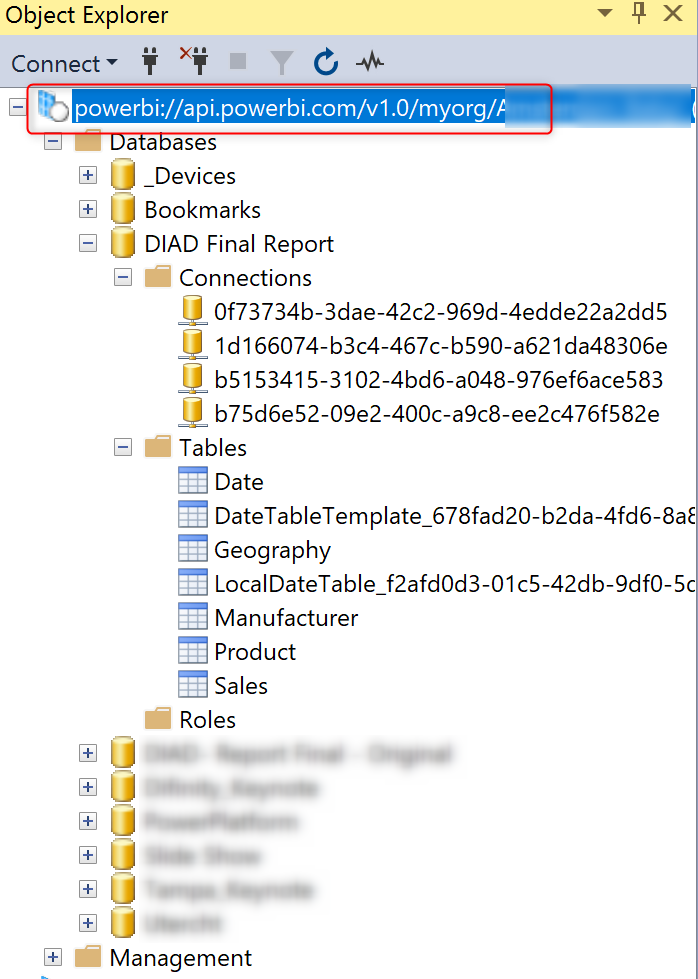
And an example of querying is to see how many users are using this dataset now using DMVs.
Power BI Helper
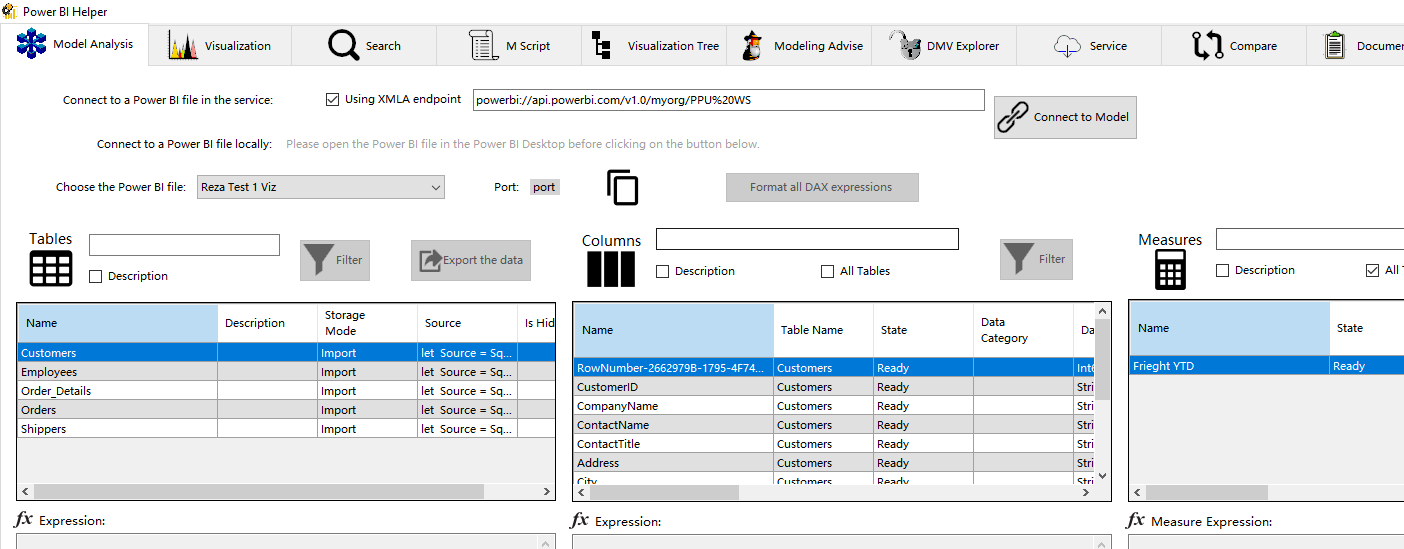
Power BI Helper is also one of the client tools that can connect to the XMLA endpoint.

And can give you documentation and some information about the datasets in this workspace.
Summary
Using XMLA endpoints, you can use client tools to control, manage, and monitor Power BI datasets in the service. Also, a Power BI dataset can now be used as the data model for other visualization tools such as Tableau. XMLA endpoint can be read-only for querying and logging purposes or read-write for making changes to the model.


Reza is author of more than 14 books on Microsoft Business Intelligence, most of these books are published under Power BI category. Among these are books such as Power BI DAX Simplified, Pro Power BI Architecture, Power BI from Rookie to Rock Star, Power Query books series, Row-Level Security in Power BI and etc.
He is an International Speaker in Microsoft Ignite, Microsoft Business Applications Summit, Data Insight Summit, PASS Summit, SQL Saturday and SQL user groups. And He is a Microsoft Certified Trainer.
Reza’s passion is to help you find the best data solution, he is Data enthusiast.
His articles on different aspects of technologies, especially on MS BI, can be found on his blog: https://radacad.com/blog.
@reza. When connect using Tableau, which authentication method will I use?
1 use windows authentication
2. Use specific user name and password.
3. Sign in using oauth.
I am an admin on both power bi and tableau
I have tried all but non is working. The error message I get is Unable to complete action
Unable to connect to the server. Check that the server is running and that you have access privileges to the requested database.
Error Code: A7AED4D2
Analysis Services database error 0x80004005: The following system error occurred: The specified class was not found.
Unable to connect to the server. Check that the server is running and that you have access privileges to the requested database.
Hi Olayemi
It would be OAuth with your power bi account login and password.
if you get an error maybe issue is elsewhere, the settings or other areas
Reza