

The default configuration for the Power BI dataset is to wipe out the entire data and reload it again. This can be a long process if you have a big dataset. Hybrid tables in Power BI keep part of the data in DirectQuery, and the rest is imported for data freshness and performance. In this article, I explain how you can set up an incremental refresh in Power BI and its requirements. You will also learn about Hybrid tables in Power BI. Incremental Refresh is not just in Power BI datasets but also in Dataflows and Datamarts. In this article, you learn to load only part of the changed data instead of loading the entire data each time. To learn more about Power BI, read the Power BI book from Rookie to Rock Star.
Video
What is Incremental Refresh?
When you load data from the source into the destination (Power BI), there are two methods: Full Load or Incremental Refresh. Full Load means fetching the entire dataset each time and wiping out the previous data. When I say the entire dataset, I mean after all Power Query transformations because there might be some filtering in Power Query; whatever data loads into the Power BI dataset in this sentence is considered the entire data.
If the dataset is small, or the refresh process is not taking a long time, then the full load is not a problem. The problem happens when the dataset is big or the refresh process takes longer than an acceptable timeframe. Consider you have a large dataset including 20 years of data. From that dataset, probably the data from 20 years ago won’t change anymore, or even the data from 5 years ago, sometimes even a year ago. So why re-processing it again? Why re-loading data that doesn’t update? Incremental Refresh is the process of loading only part of the data that might change and adding it to the previous dataset, which is no longer changing.
Partitioning
Incremental Load will split the table into partitions. The quantity of the partitions will be based on the settings applied at the time of Incremental refresh. For example, if you want to have the last year’s data refreshed only, a yearly partition will likely be created for every year, and the one for the current year will be refreshed on a scheduled basis.
Hybrid Tables
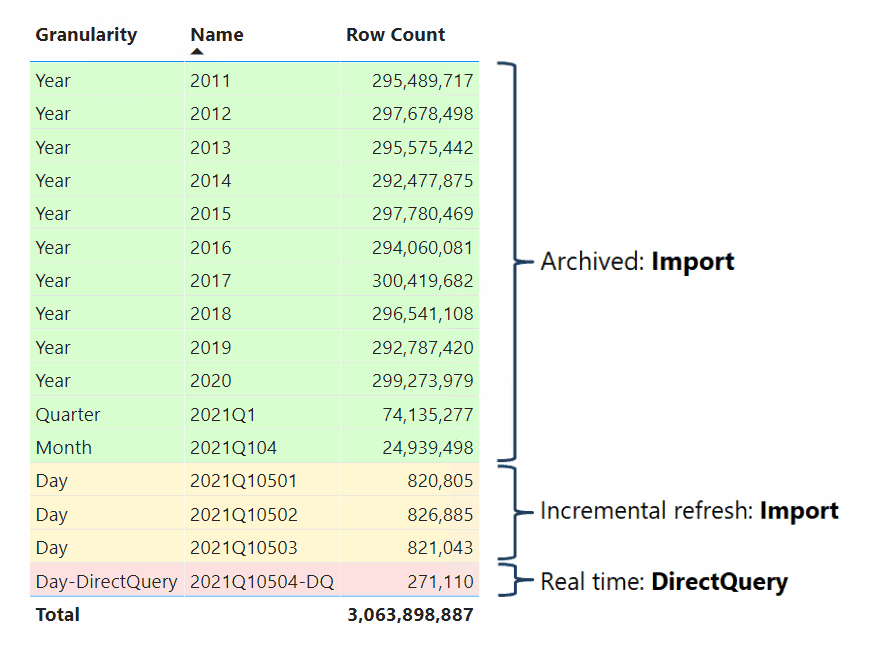
If you need data freshness (near real-time) on a big table, there is an option for you. You can have your table designed to keep both DirectQuery and import data in one table. The DirectQuery part is to ensure the near real-time data, and the Imported part is to ensure the best performance in Power BI.
Hybrid tables are partitioned, so their most recent partition is a DirectQuery from the data source, and their historical data is imported into other partitions. This is not a Dual storage mode. It is a table that part of it is imported, and part of it is DirectQuery. Hybrid tables can only be applied on a table that incremental refresh is set on it. The image below shows how a hybrid table might have the structure of the data behind the scene.
Requirements: What do you need to set up?
Table with Date Field(s)
To set up the incremental refresh, you need to have a table (or more) with date field(s). The date field is the field that will have an impact on the partial refresh of the data. For example, Let’s say you have a FactSales table. You want to load all sales made earlier than a year ago just once, but everything from a year ago to now regularly. So you need to have a date field in your table for it. Most of the time, this field can be created date, modified date, order date, publish date, etc. You need to have a field like that as of date data type.
A data source that supports query folding
Query folding means that the Power Query transformations will be translated to the data source language (such as T-SQL when querying from SQL Server). Although you can implement Incremental Refresh on any data source, even if it is not supporting query folding, It would be pointless to do it for such data sources.
The main point of Incremental Refresh is that Power BI just reads the data that is recent and changed rather than reading the entire data from the source. With a data source that supports query folding (such as SQL Server or any other database system), that is possible because Query folding happens, and Power BI only queries the recent part of the data. However, If your data source doesn’t support query folding, For example, it is a CSV file. Then Power BI, when connected to it, reads the entire data anyway.
Licensing Requirement
Incremental Refresh doesn’t need a Premium or PPU license. You can even set it up using a Power BI Pro license. However, Hybrid tables require a Power BI Premium capacity or PPU.
Limitations: Things to Know Beforehand
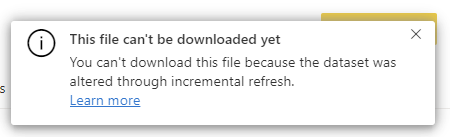
A limitation that can be important is that after setting up the incremental refresh, you cannot download the PBIX file from the service anymore because the data is now partitioned. It also makes sense because the data size is probably too large for downloading.
How to Setup Incremental Refresh
Setting up Incremental Refresh has some steps in Power BI Desktop and then in the Power BI Service. Let’s check them one by one.
Parameters in Power Query
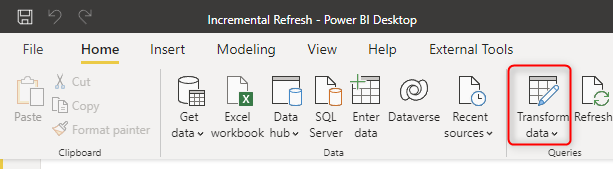
You need to use Power Query parameters to set up the incremental refresh in Power BI. You need to create two parameters with the reserved names of RangeStart and RangeEnd (Note that Power Query is a case-sensitive language). Go to Transform Data in your Power BI Desktop solution,
And then click on New Parameters.
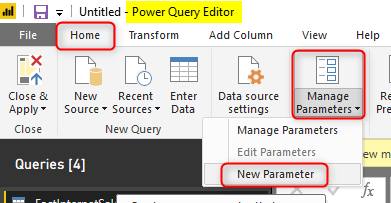
Then create two parameters of DateTime data type, with the names of RangeStart and RangeEnd, and set a default value for each too. The default value can be anything, but the name and the data type should be as mentioned here.

Filter Data Based on Parameters
After creating the two parameters, you need to filter the data of the date field based on these two parameters. For example, in the FactInternetSales, I can filter the OrderDate using the column filtering as below;
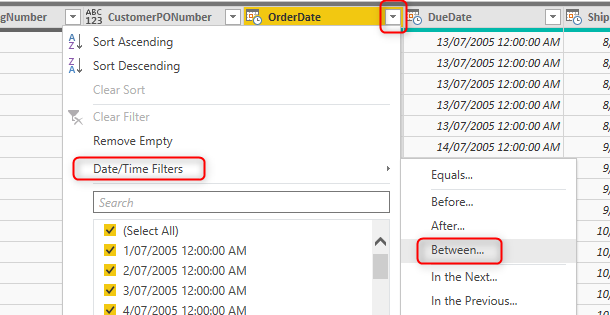
You can use the Between filter using the RangeStart and RangeEnd parameters as below;
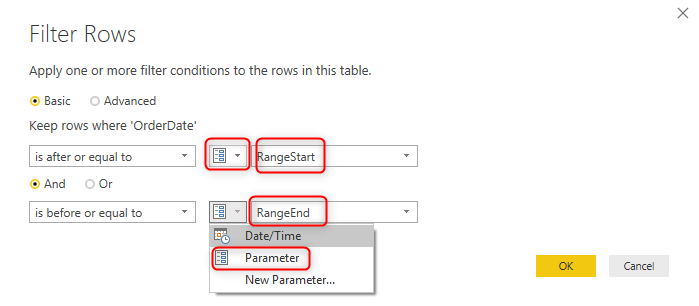
After this action, your data in the table will be filtered based on the default values you set for the RangeStart and RangeEnd parameters. However, don’t worry about that. These two parameters will be overwritten with the configuration you make in the Incremental Refresh setting of the Power BI Desktop.
Power BI Desktop Incremental Refresh Setup
The final step in Power BI Desktop is to close&apply the Power Query Editor window and set up the incremental refresh setting for the table. You have to right-click on the table in the Power BI Desktop and select Incremental Refresh.
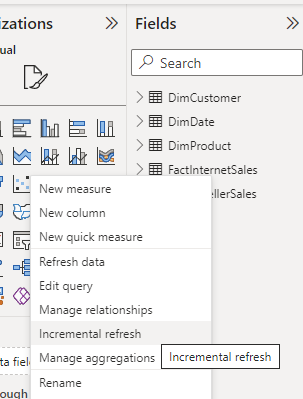
In the Incremental Refresh settings window, you can choose the table first. If the table is a table that doesn’t have the two parameters of RangeStart and RangeEnd used in filter criteria, then you won’t be able to do the setting for it. For example, DimCustomer won’t give me the option to do the incremental refresh settings.
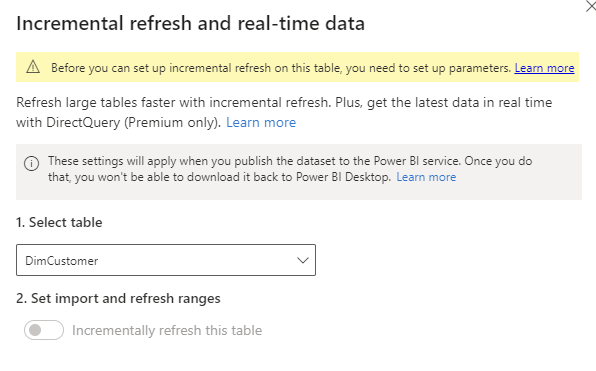
However, I can do the settings for FactInternetSales because I did filter the OrderDate field of this table based on the parameters. There are two things to notice at this step: If your data source comes from a data source that supports query folding, then Incremental load works best. If not, it is not recommended to use it. Most of the time, huge data comes from a relational data store system, which supports query folding.
Another thing to note is that there is an option for “Get the latest data in real-time with DirectQuery”, which requires Premium or PPU licensing. And finally, you have to know that you cannot download a PBIX file from the service if it has an incremental refresh setup.
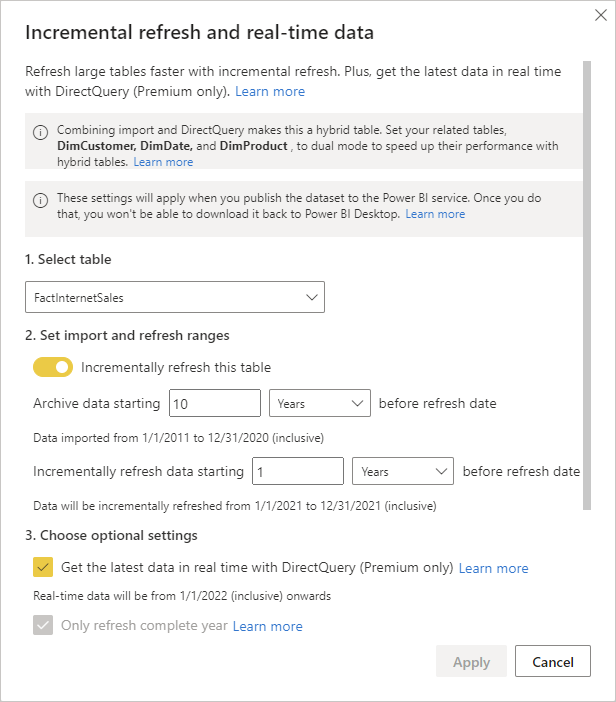
Configuration for the incremental refresh is easy. You just set up the amount rows to Store (load only once, and store it) and the amount rows to Refresh (re-load every time);
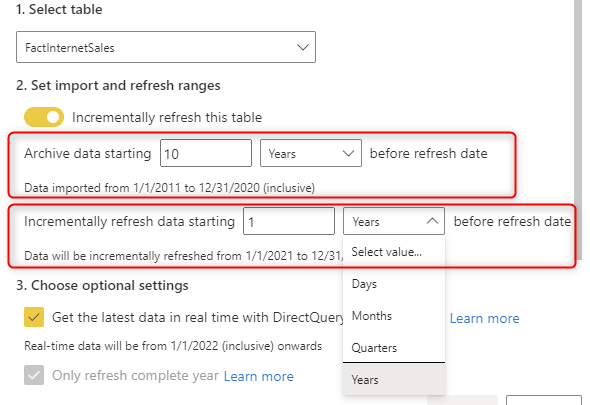
Hybrid table setup
You have one more configuration if you want to have your table set up as a hybrid table. This requires a Premium or PPU license. Select the “Get the latest data in real-time with DirectQuery” option. And your dataset has to be published into a Premium or PPU workspace. Once you set this configuration, You can see the period of real-time data and also a diagram showing the timeline of your setup.
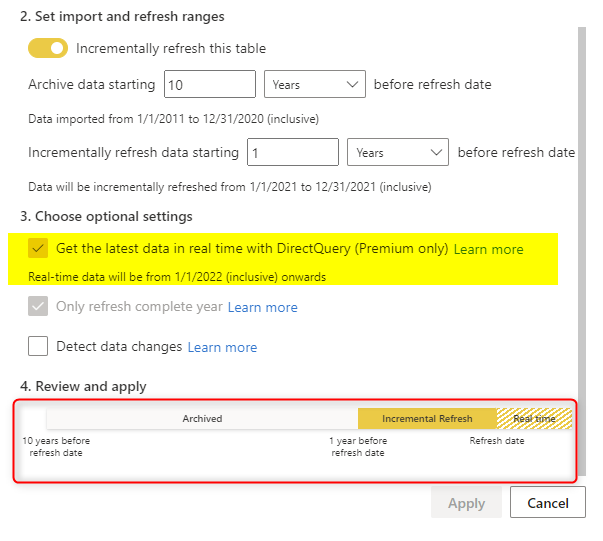
After enabling this on your dataset, your dataset can only be published to a Premium or PPU workspace.
Incremental Refresh for Multiple Tables
You can set up the incremental refresh for multiple tables. You don’t need more parameters; the two parameters of RangeStart and RangeEnd are enough. You just need to set up the filter in any other tables you want.
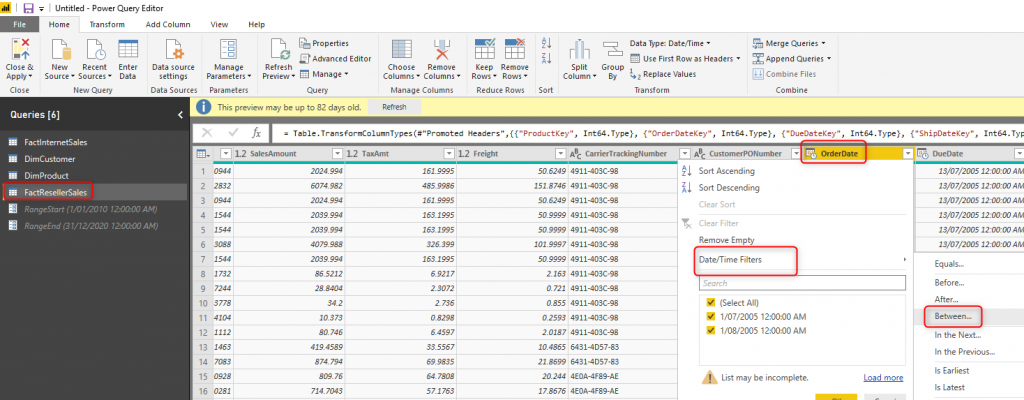
Then you need to set up the configuration in the Power BI Desktop for each table;
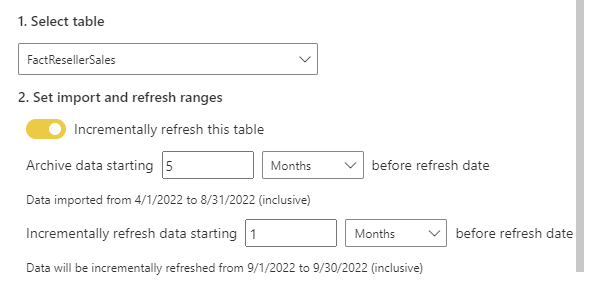
Note that although we are using the same parameters of RangeStart and RangeEnd, you can have different configurations of Store and Refresh for the incremental refresh setting for each table.
Publish to Service
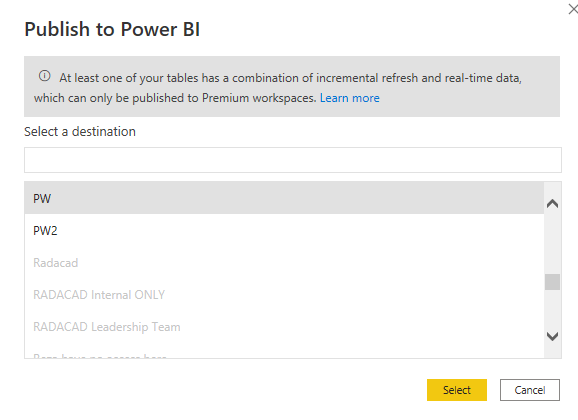
After setting up everything, you can publish the Power BI file to the service. Note that if you used Hybrid tables, you could only publish it to Premium workspaces.
How do the partitions look like
Now that you have set up the incremental refresh and the hybrid table settings, you can check out the partitions in the Power BI dataset. The method I used to show this to you only works if you have a Premium or PPU workspace. You can use the XMLA endpoint to connect to the dataset using the SQL Server Management Studio (SSMS) and see the partitions on a table.
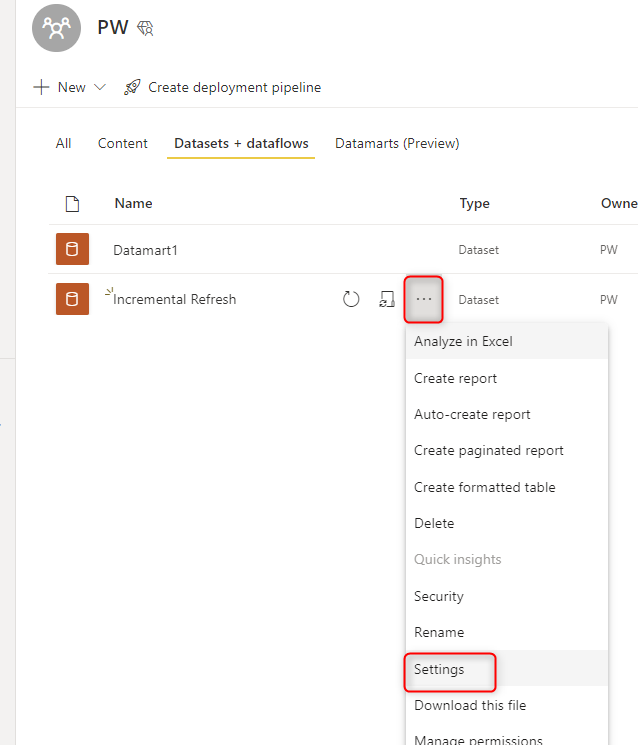
In the Power BI Service, go to the settings of your dataset;
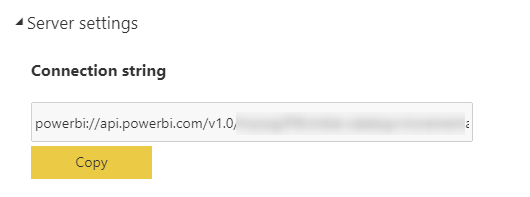
In the Dataset settings, expand Server settings and copy the connection string (if you don’t see this section, then perhaps your workspace is not a Premium or PPU workspace);
Open SSMS, create a connection to Analysis Services and paste the connection string as the server name, set authentication as Azure Active Directory – Universal with MFA, and they type your Power BI email as the user name. After authentication, you can see your dataset in the SSMS. Expand the tables.
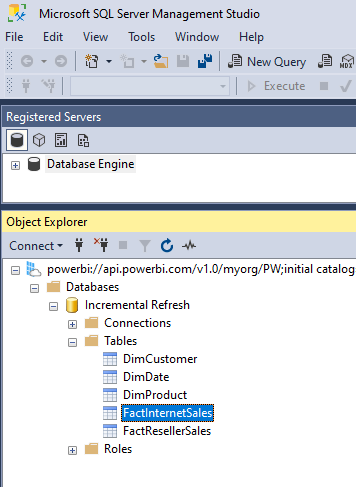
Right-click on a table (such as FactInternetSales) and select Partitions.
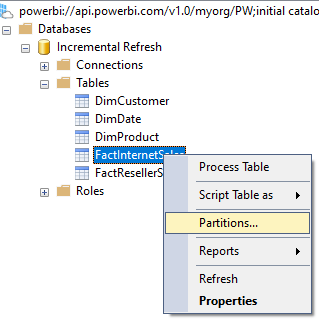
Then you will be able to see the partitions;
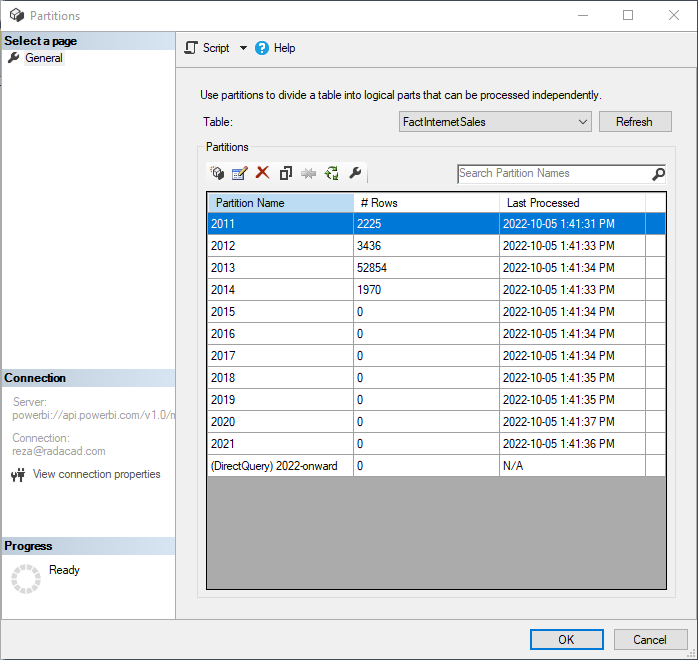
If your table has only one partition, then perhaps it doesn’t have an incremental refresh set up on it. If your table has the Hybrid table settings, then the last partition will be a DirectQuery partition (Like what you see in the above screenshot)
Detect Data Changes
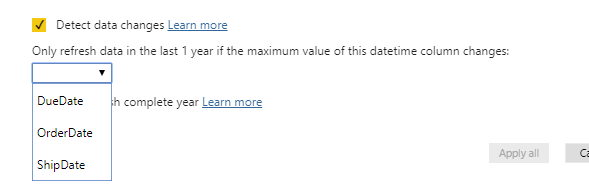
Incremental Refresh will make the part of the dataset to refresh much smaller, and as a result, the process would be much faster. However, there is still one better way to do that. Suppose you have a modified DateTime (or updated DateTime) in your table. In that case, the incremental refresh process can monitor that field and only get rows whose date/time is after the latest date/time in that field in the previous refresh. To enable this process, you can enable the Detect Data Changes and then choose the modified date or update date from the table. Notice that this is different from the OrderDate or transaction date. And not all tables have such a field.
Only Refresh Complete Period
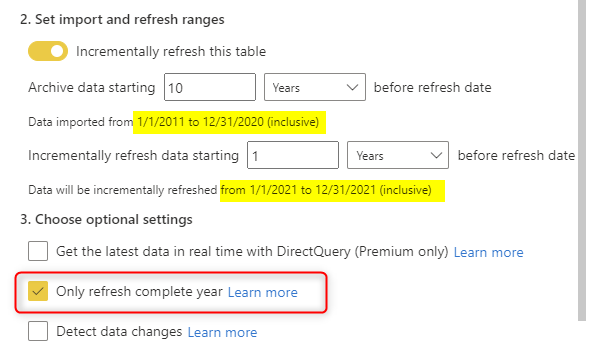
Depending on the period you selected when you set up the incremental refresh, you can choose to only refresh when the period is complete. For example, in the FactInternetSales, I set the refresh period to Year. And then I can set the option to Only Refresh the Complete Period, which means even If we were in Feb 2019, it would only refresh the data up to Dec 2018 (because that is the latest date that we have a full complete year in it);
Incremental Refresh for Dataflows or Datamarts
Dataflows are ETL processes in the cloud for the Power BI service. You can also set up the Incremental Refresh for Dataflows. And it is even easier to do it for the dataflow. You don’t need to create the RangeStart and RangeEnd parameters there. Just go to the Incremental dataflow Refresh setting directly.
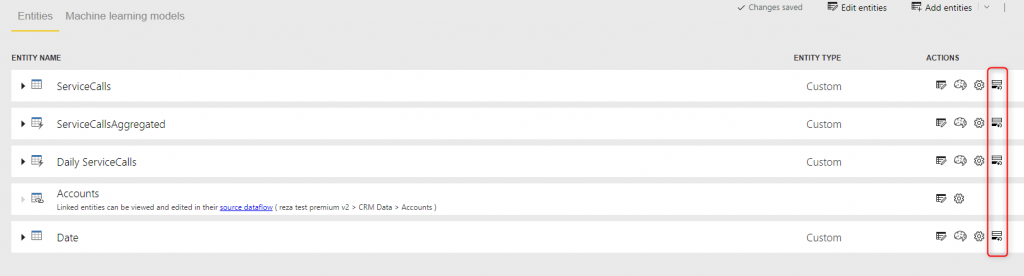
You can see that the same set-up of the incremental refresh setting is available for the dataflow;
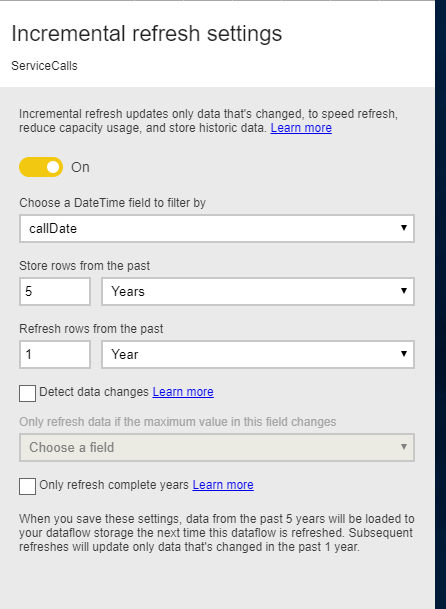
A similar setting can be done on the Datamart for an incremental refresh.
Summary
Setting up the incremental refresh in Power BI means loading only part of the data regularly and storing the consistent data. This process will make your refresh time much faster. However, there are some requirements for it. You need to have a date field in your table. It is recommended only when the data source supports query folding. You can do this configuration on a Power BI dataset or in Power BI dataflow or Datamarts. If you do this on a dataset, then after publishing the dataset, you cannot download the PBIX file.
Hybrid tables can be an addition to your Incremental Refresh setup. They are helpful in having the most up-to-date data using the DirectQuery partition while the historical data is stored as Import in other partitions. From the Power BI point of view, these are all part of a single table.
Have you ever considered using Incremental Refresh? If you haven’t done it so far, let me know why in the comments below, and I’m always happy to help you with that.


Reza is author of more than 14 books on Microsoft Business Intelligence, most of these books are published under Power BI category. Among these are books such as Power BI DAX Simplified, Pro Power BI Architecture, Power BI from Rookie to Rock Star, Power Query books series, Row-Level Security in Power BI and etc.
He is an International Speaker in Microsoft Ignite, Microsoft Business Applications Summit, Data Insight Summit, PASS Summit, SQL Saturday and SQL user groups. And He is a Microsoft Certified Trainer.
Reza’s passion is to help you find the best data solution, he is Data enthusiast.
His articles on different aspects of technologies, especially on MS BI, can be found on his blog: https://radacad.com/blog.
Thank You for the informative articles. Is incremental refresh available with Power BI Embedded?
Power BI datasets are just shared in the embedded way, they support Incremental refresh like a normal dataset.