
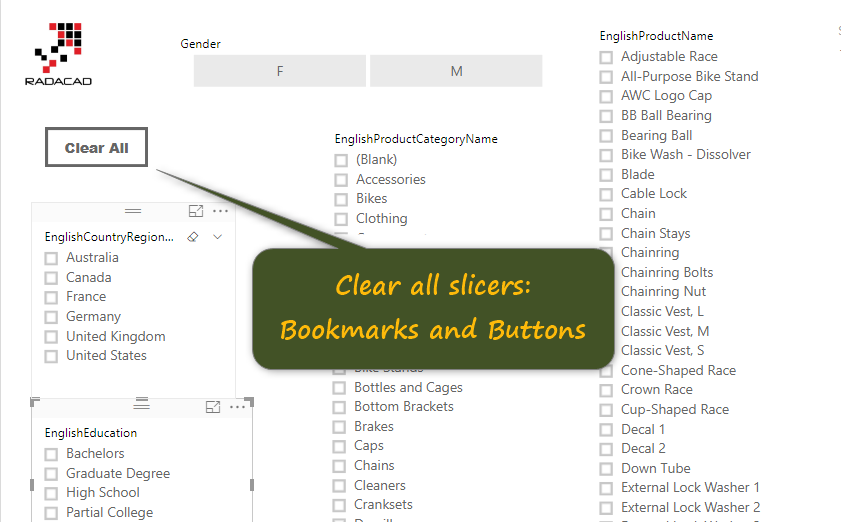
Using bookmarks for clearing all slicers in Power BI is not a a new function, I have been using it for many months, and advising many people to do it that way. However, I still get a lot of questions in my presentations about how to do that. That is why I ended up writing this post. This post shows you a very quick trick of having a button to clear all slicers, and the magic is all happening with bookmarks. Bookmarks store the state of a Power BI page, and can be used in many scenarios, in this post, I only show you the ability to clear all slicers in a page. To learn more about Power BI; read Power BI book from Rookie to Rock Star.
Sample Report Page
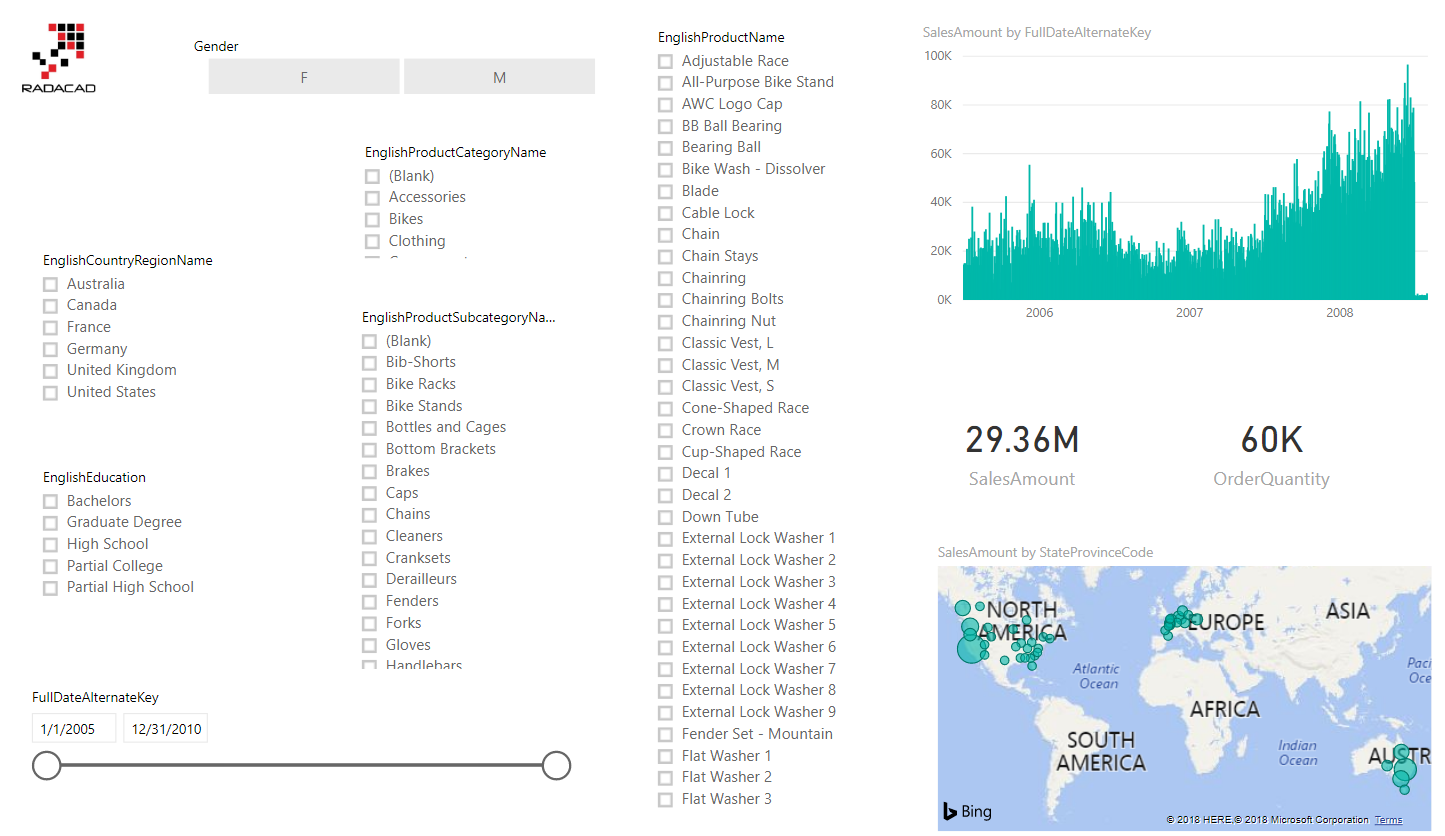
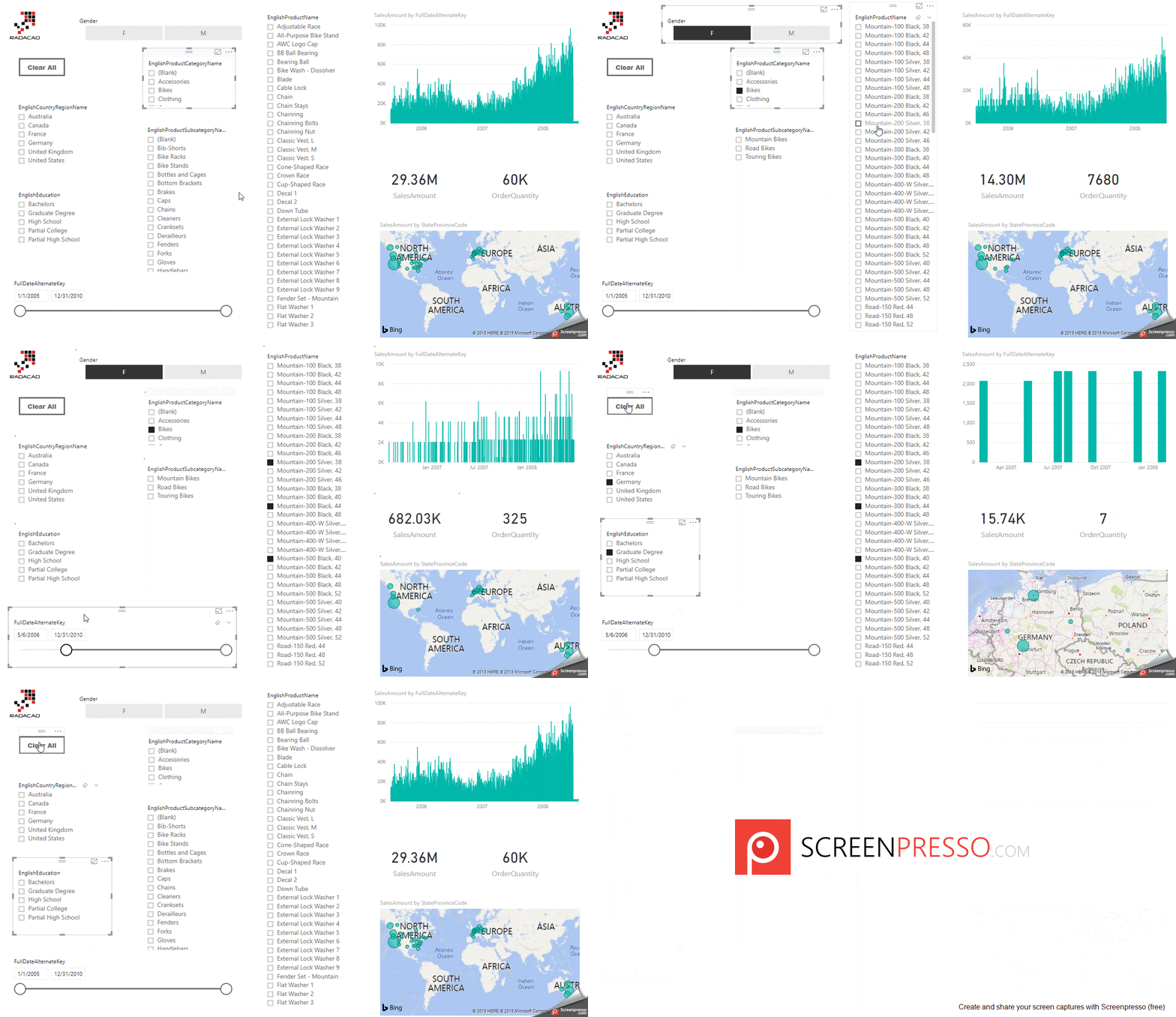
Here is a sample Power BI report page with a number of slicers:
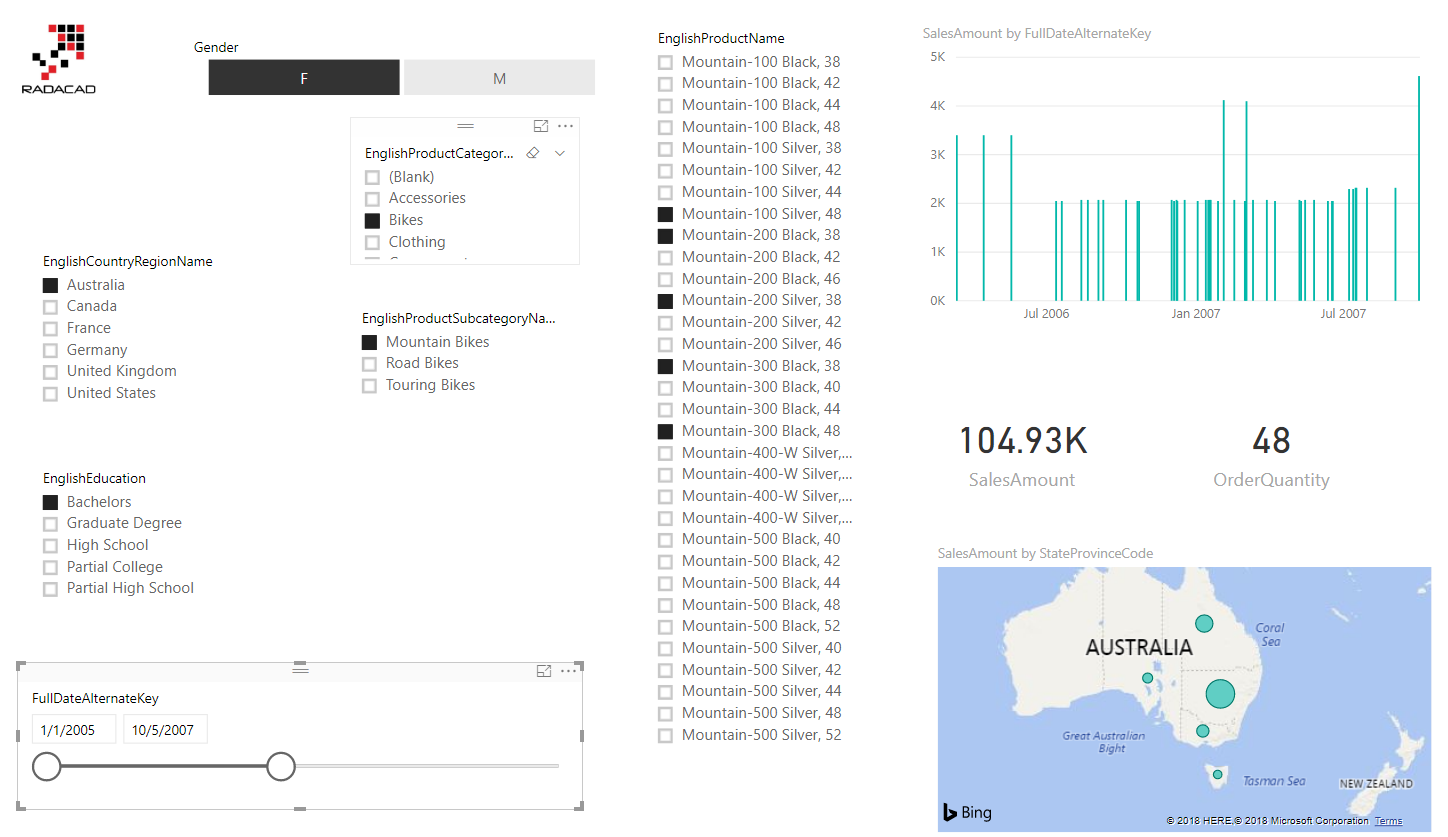
Screenshot below shows a selected state of items;
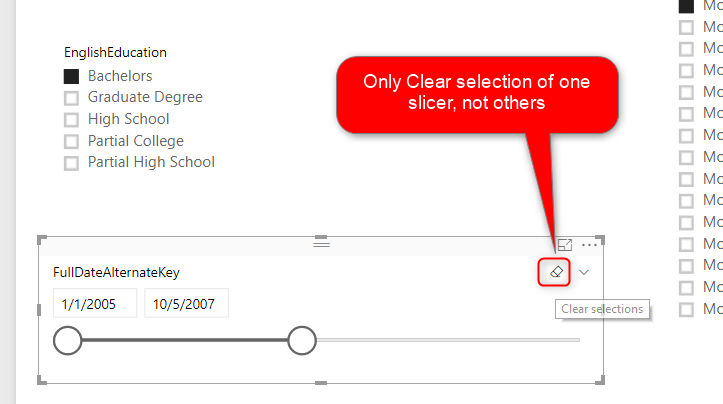
If you want to clear every slicer; usually, there is a clear button on the slicer header. Or you can even enable Select All in the sclier format options. However, there is no Clear All for all the scliers in the page.
Solution: Bookmarks and Buttons
Solution is to use bookmarks. Here are steps:
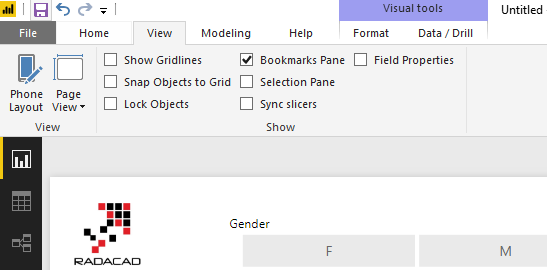
Step 1: Open Bookmarks pane;
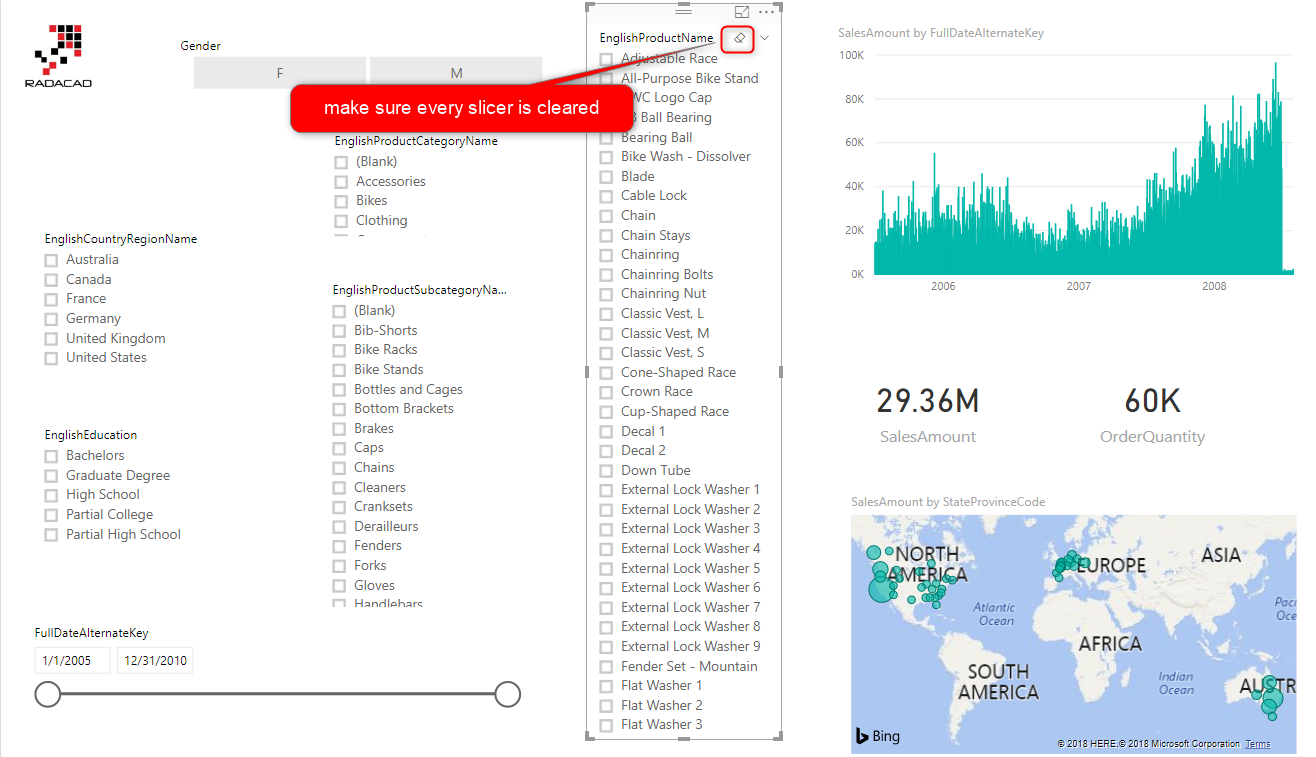
Step 2: Use the clear button on the header of every slicer. Do this for all slicers.
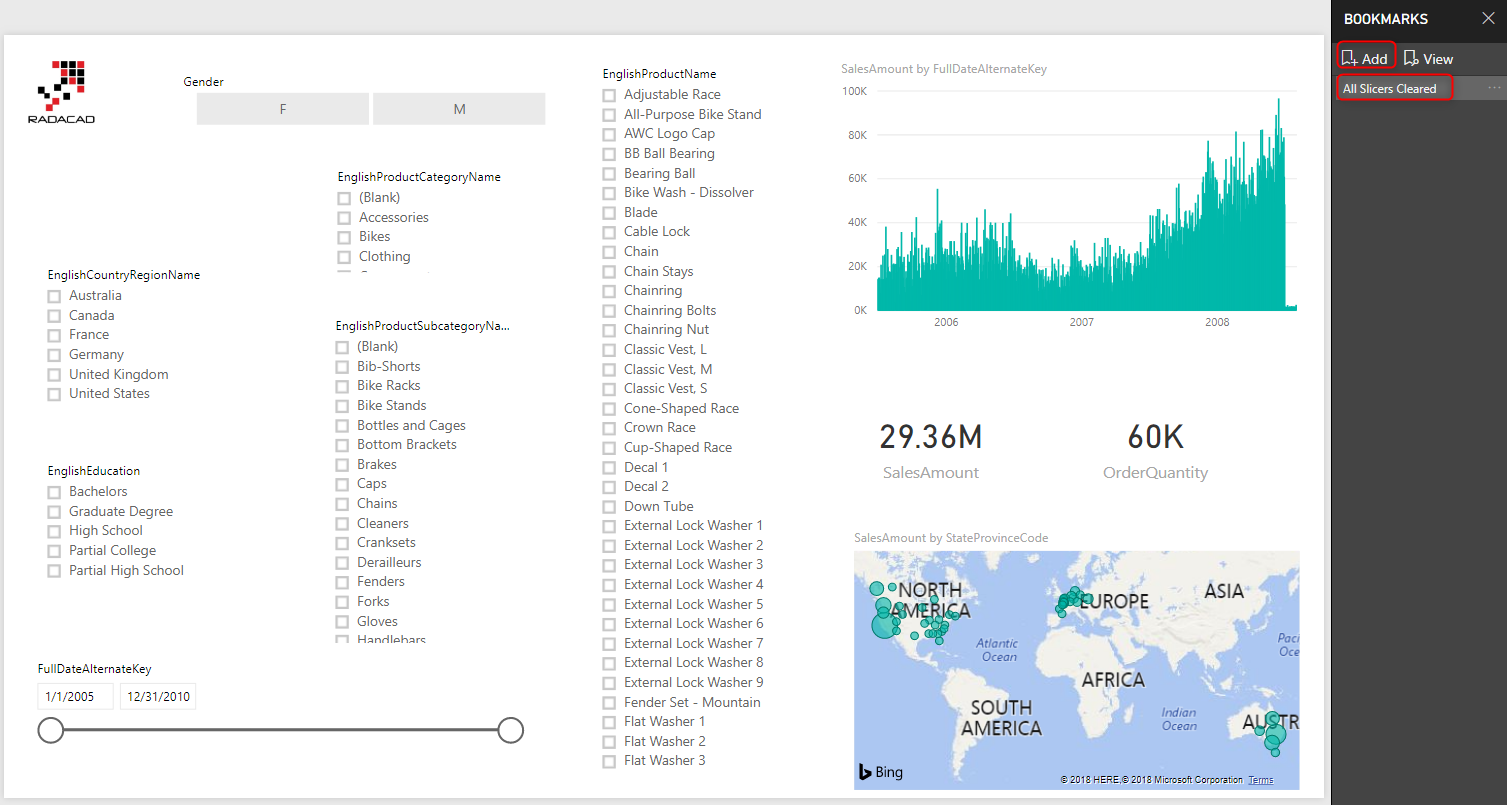
Step 3: Create a bookmark of the page, when none of slicers are selected.
Step 4: Create a Button for user interation; This button would be clear all button. You can even use Images with logos if you want to.
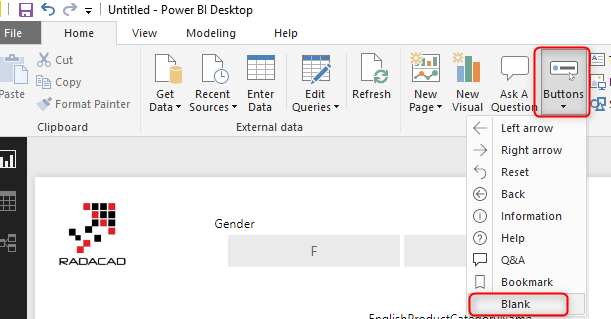
You can then configure the button to show a different text, with some formattings
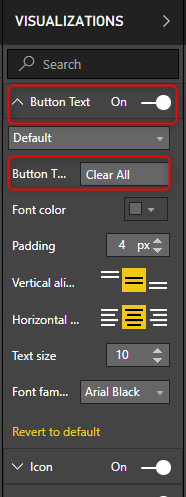
Step 5: Bind the button to bookmark
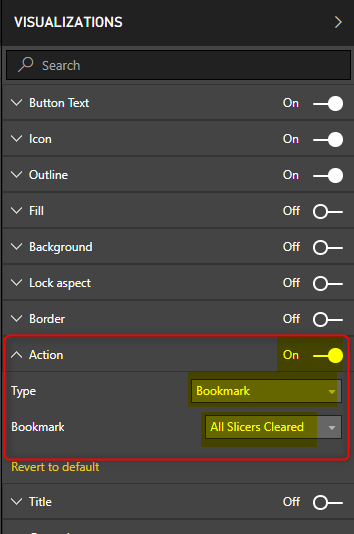
Now that you have the clear all button, the last step is to set the Action property of that to bookmark, and select the “clear all slicers” bookmark for it.
Testing the solution
To test the solution, use Ctrl+Click on the desktop, or just click on it in the website;
Summary
Using buttons and bookmarks for clearing all slicers is only one of the multiple creative ways you can use bookmarks. I will write more about other usages of buttons and bookmarks together. Do you have some use cases yourself; don’t hesistae to write in the comment below.


Reza is author of more than 14 books on Microsoft Business Intelligence, most of these books are published under Power BI category. Among these are books such as Power BI DAX Simplified, Pro Power BI Architecture, Power BI from Rookie to Rock Star, Power Query books series, Row-Level Security in Power BI and etc.
He is an International Speaker in Microsoft Ignite, Microsoft Business Applications Summit, Data Insight Summit, PASS Summit, SQL Saturday and SQL user groups. And He is a Microsoft Certified Trainer.
Reza’s passion is to help you find the best data solution, he is Data enthusiast.
His articles on different aspects of technologies, especially on MS BI, can be found on his blog: https://radacad.com/blog.
Thank you for this detailed explanation. It is definately very useful.
Does it work for the mobile view of reports as well?
Hi Martin,
Yes it will work on Mobile view
Cheers
Reza
Nice!!!
Thanks Tom 🙂 Good to see you here.
Great feature☺Thanks for the post
This is now a built in feature from PowerBI I believe? So no need to do this way any more?
Hi Guy. The “Reset the default” feature is available in the Power BI service now, but in the desktop not yet.
Cheers
Reza
Hi, would this work for selections made on visualisations. One thing I am struggling with, coming from a Qlik background, is being easily able to see what selections / filters I’ve made. In Power BI, it can be a bit confusing / misleading to know what an end user has selected
Hi Carl.
Not sure if I understand your question exactly. If you want to select some items in the slicer and then create a bookmark from that selection, yes, it is working that way.
otherwise; please elaborate more. Thanks
Reza
What if you don’t want the slicers cleared when using bookmarks? I would like the slicers to stay as they were. Is there an option for this?
Hi Kelly
In that case, you have to first select everything you want to be your default selection on all slicers, and then create the bookmark.
Nice! Thanks.
Hello, I build A clear filter like you write. It works on one page, when I want to use it on another pages, that doesnt work. The result is, I come back to the first page. How can I solve this? Thanks a lot!
Bookmarks are tied to a PAGE. It means only that page will be affected not others. If you want that to change also other pages, you have to combine this feature with the ability to SYNC slicers.
when you sync slicers over multiple pages, change in one page, will affect others too.
I tried to do the clear slicer button it did not work
Remember you have to use Ctrl+click on the desktop.
Cheers
Reza
Hi Reza –
I have a report level filter which is applied in my report across pages. Suppose, if I want to create a Reset button (using Bookmark) for a page which should reset every slicer present in the same page but should not reset the REPORT LEVEL FILTER. How can I achieve this? If I am unchecking the “DATA” option, it is carrying forward all the filters (including the Report level filter), and If I am checking the “DATA” option, it is resetting all the filters (including the Report level filter).
Really hoping for a solution here.
Hi.
You need to first set your report-level filter, then uncheck all slicer selections, and then create/update your bookmark.
Cheers
Reza