
Does it take a long time to get your data refreshed in your Power BI model? Should you wait for hours for the refresh to finish because you have complex transformations behind the scene? Does the long refresh time make it hard for you to develop your solution? The good news I have for you in this article is; how to use Power BI dataflows to help with reducing the refresh time of your Power BI models. I have previously explained some of the benefits of dataflows, and here is another one in action, let’s see how it can help. To learn more about Power BI, read Power BI book from Rookie to Rock Star.
The Problem: Slow Refresh Time
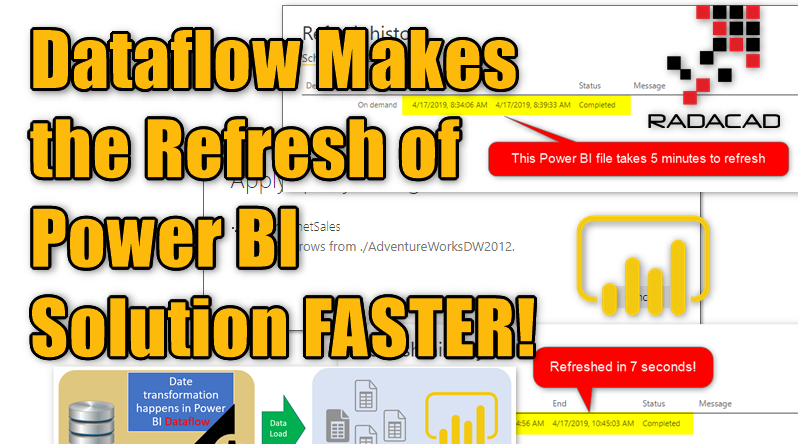
You have a Power BI file that takes a long time to refresh. The long refresh time can be because the data source is slow, or the set of transformations steps used are heavy and makes the process of data preparation a lengthy process. Having a long refresh time can cause a log of challenges, for example, you are doing a refresh to develop some changes, but due to the long refresh time, your development speed also reduces, and many other reasons. For example, the Power BI report below takes 5 minutes to refresh.

Note that 5 minutes for refresh is not a long refresh time. and I created that sample model for training purpose here. I’m just showing how to make it faster, even for a refresh that takes 5 minutes. You can apply the same method of refresh processes that take hours long.
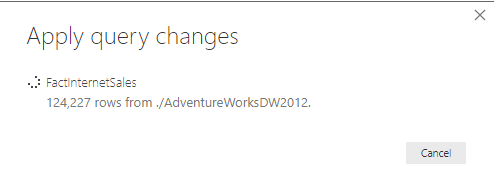
Now instead of us waiting for a long time to get this refreshing, and seeing a message like below, we want to speed it up;
The Solution: Push the Transformation to Dataflow
I have previously explained about Power BI dataflow and use cases of it, I also explained how to create your first dataflow. If you are new to Dataflow, here is a very brief explanation:
Power BI Dataflow is a set of Power Query transformations running in the Power BI service independent from a Power BI dataset.
A Power BI dataflow can run Power Query transformations, and load the output into Azure Data Lake storage for future usage. And that is exactly, how it can help with reducing your Power BI dataset refresh time.
If your dataset refresh takes a long time because you have applied a set of heavy data transformations in Power Query, then what you can do instead is to push that set of heavy transformations to a dataflow. That way, the transformations happen on a different process, it loads the output into Azure Data Lake storage of Power BI service, and then you can use that output as the input of the Power BI dataset. The diagram below shows what I’m talking about:
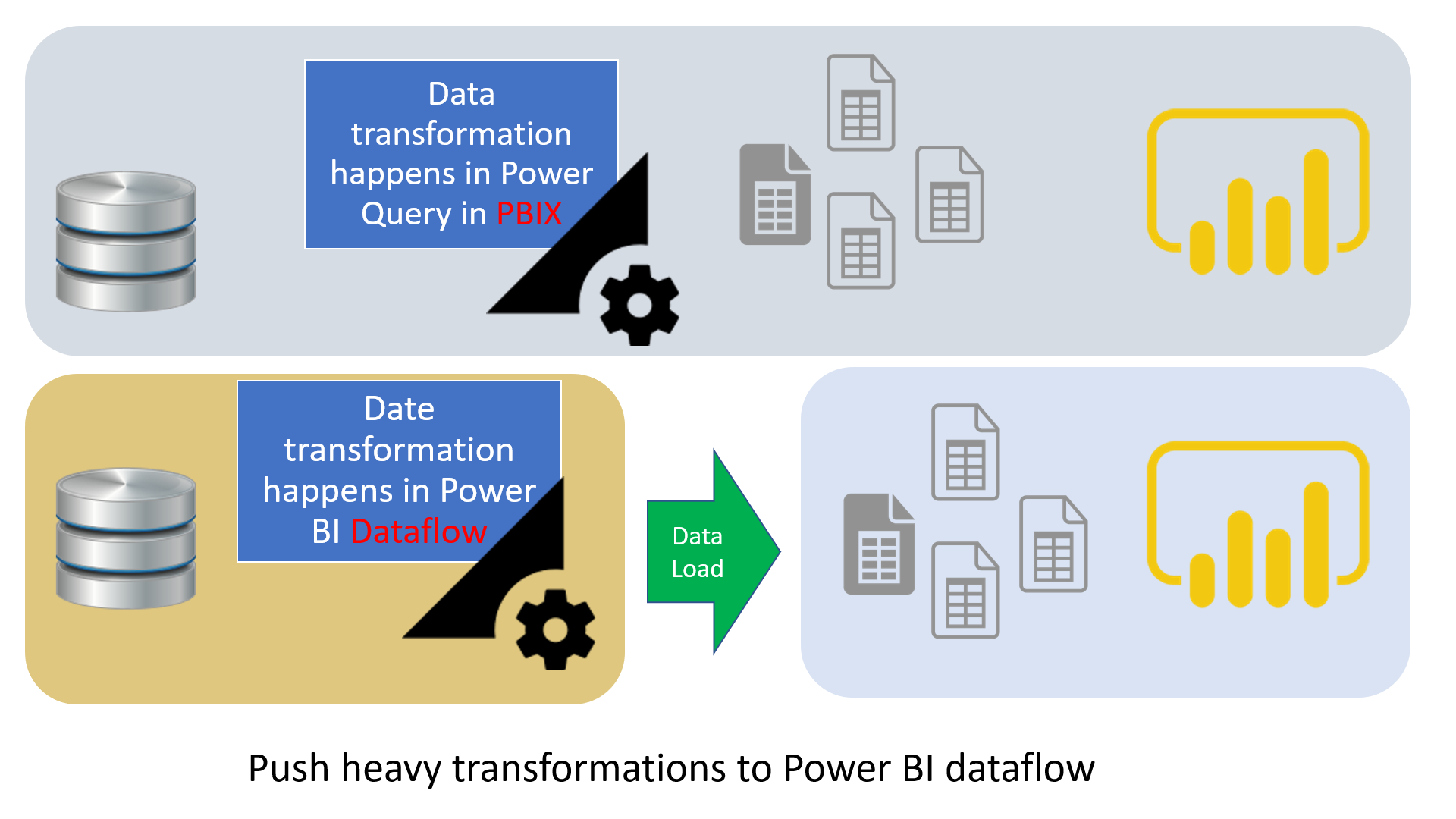
Instead of doing the heavy lifting work in Power BI, just push them all to dataflows, and your data refresh time in Power BI dataset would be super fast! That said, you still need to schedule the refresh of the dataflow in the service. However, because that can run on a different schedule than the Power BI dataset itself, then you don’t have to wait for the refresh to finish to get you development work done. Now let’s see an example of such implementation.
Create a Dataflow from Blank Query
I am not going to explain how to create a dataflow, because that needs some prerequisite steps to be done such as creating a workspace version 2, and having the right access to create dataflow and so on. I have written an article about how to create your first dataflow, which you can read here. So let’s start here at the time of choosing what to do with the dataflow creation, first is to create the dataflow;
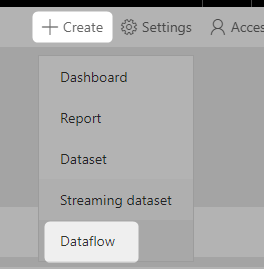
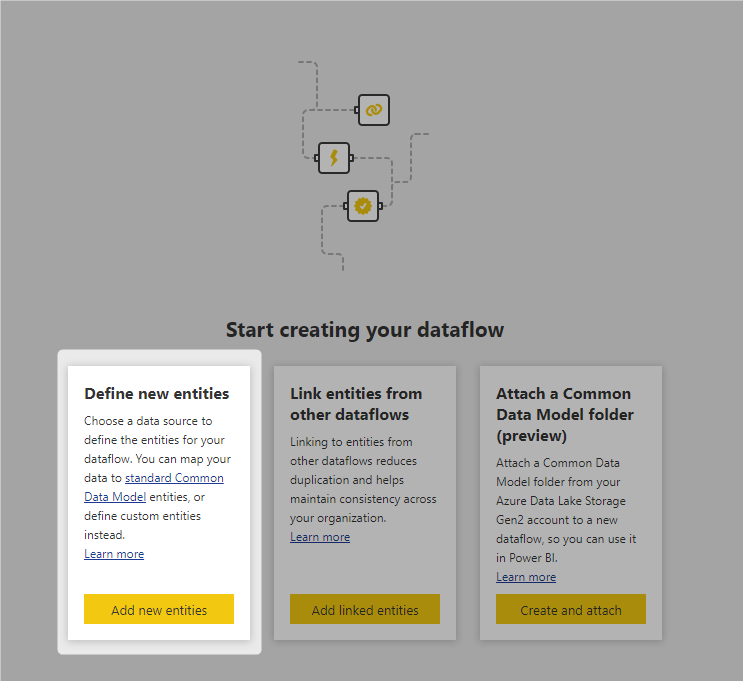
Choose Define new entities
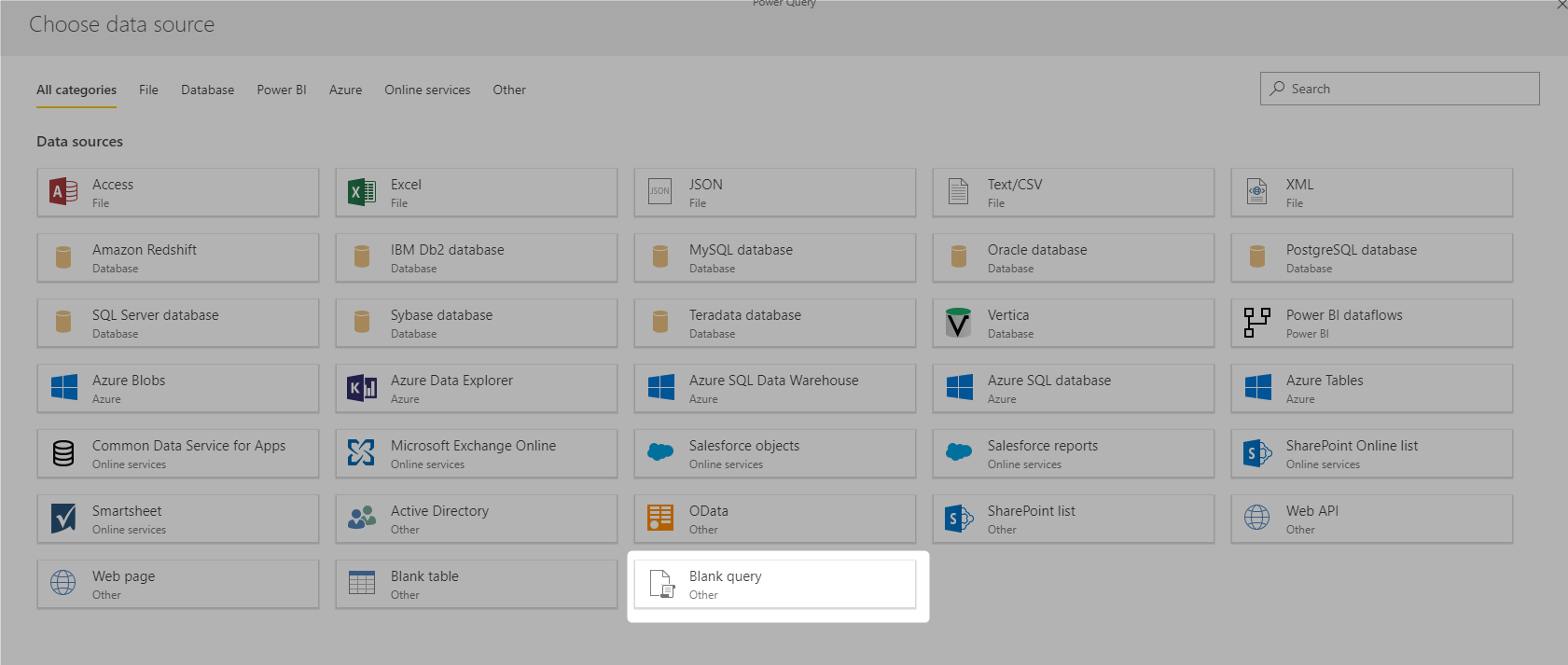
Choose the data source as a Blank Query;
Copy the Query from Power BI Desktop to Dataflow
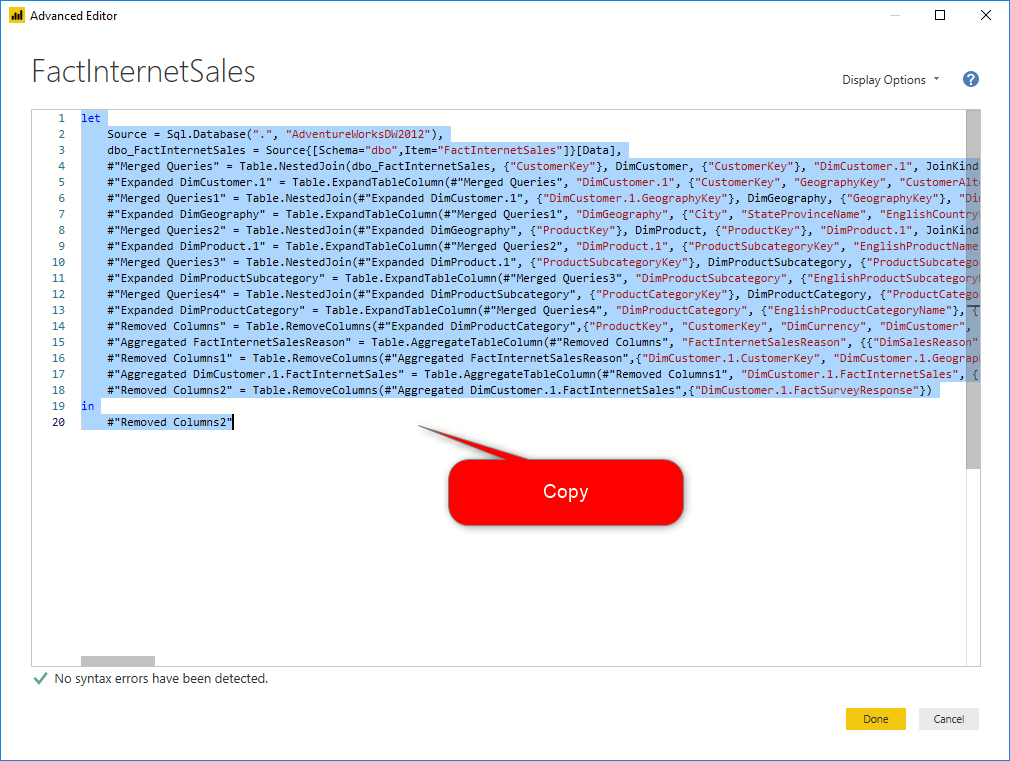
Moving your Power Query transformations from Power BI Desktop to Dataflow is as simple as copy and paste. You can copy the M script from the Advanced Editor of Power BI Desktop, and then paste it in the advanced editor of Dataflow. That’s it. Here is how it works. I open the Power Query in Power BI Desktop using Edit Queries and then selecting the query and going to Advanced Editor;
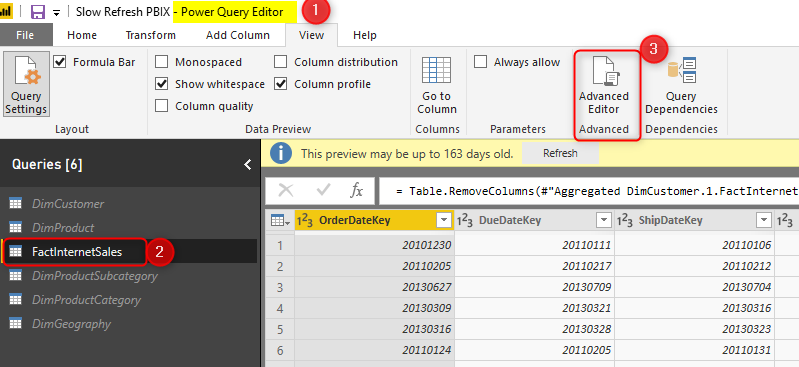
Copy the M script from there;
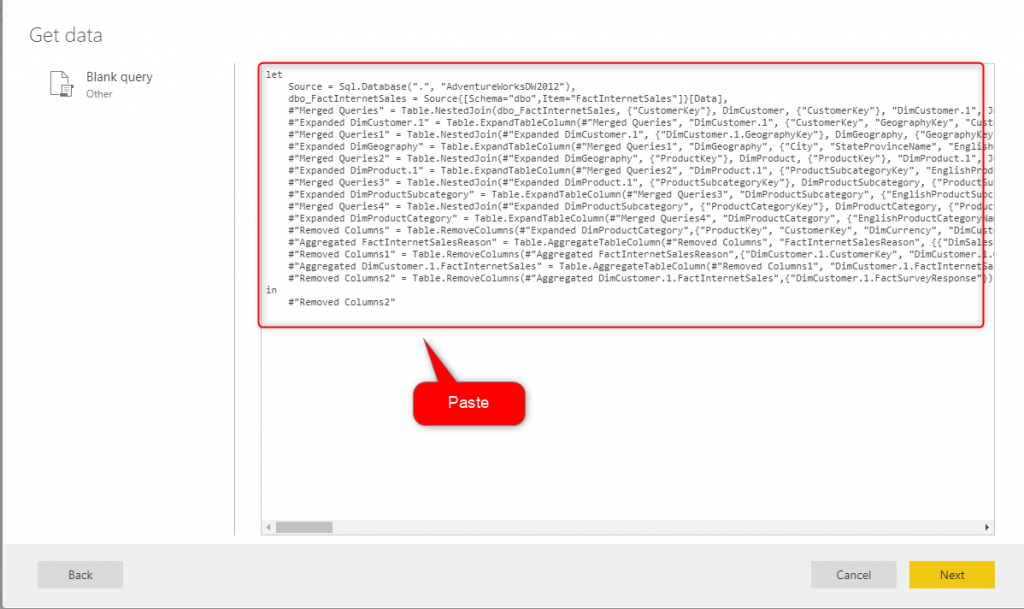
Then paste it in Power BI dataflow (under creating a blank query that we did in the previous step, or by using right-click and choosing advanced editor on an existing query);
After pasting it, you might get a message asking about on-premises data gateway (in case, you use an on-premises data source in your script);
The message is: An on-premises data gateway is required to connect.
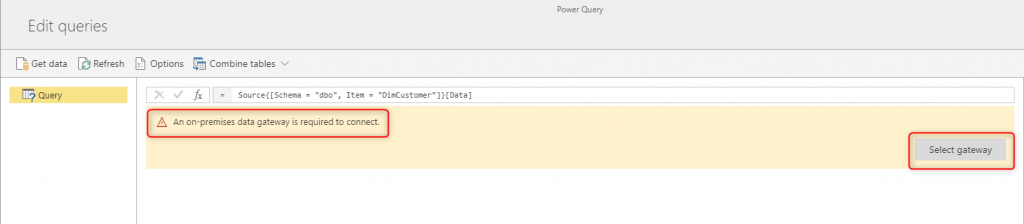
Then select the gateway;
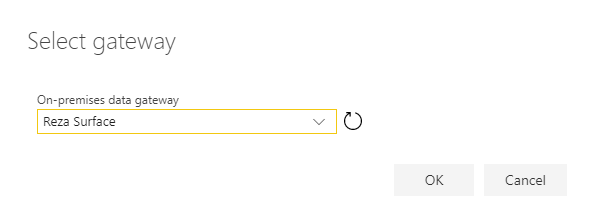
and click on OK. If your gateway setup is fine, then you should be able to go to the next step. Gateway is another component needed in the Power BI toolset if you are connecting from Power BI service to an on-premises (local domain) data sources. I have written an article explaining everything about the gateway, read it here.
Depends on if you used that step before or not, you might get a message about Editing credentials;
The message is: Please Specify how to connect.

Depends on the data source you are using, set the credential to access to it, and then connect.

Then you should see the data loaded in the graphical editor of Power Query in the dataflow.
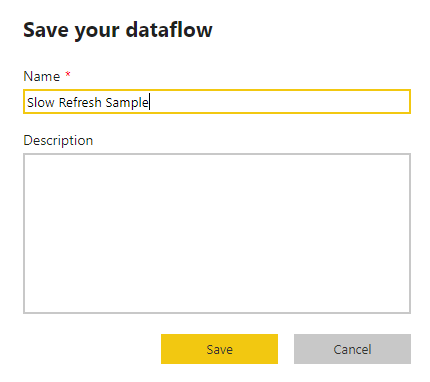
You can then click on Close and Save, and Save your dataflow;
Few Notes for Moving Your Queries
If you are moving your queries from Power Query in Power BI Desktop to Power Query in the Dataflow, there are few notes to consider, let’s talk about those here;
- Gateway might be needed.
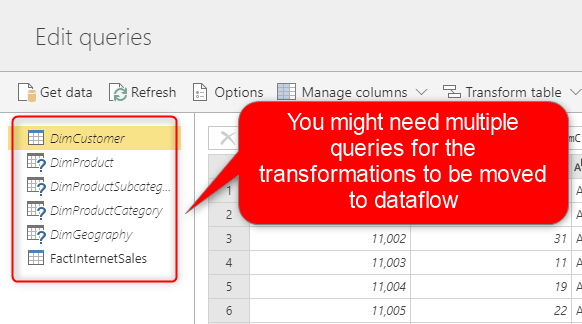
- You might need moving more than one query to move the transformation process.
- If you have queries sourcing each other, you might end up with creating Computed Entity
Gateway might be needed
In Power BI Desktop, and also the Power Query in the Power BI Desktop, you don’t need a gateway to connect to your local domain (or what we call on-premises) data sources. You just connect to it directly. However, Dataflow is a service feature, and in order to connect to an on-premises data source, it needs a gateway setup. If you are getting data from an online data source, such as Google Analytics, or Azure SQL database, you won’t need a gateway. However, if you are getting data from an on-premises data source, then you would need to have gateway setup, and then select it in the dataflow, like what we did in the previous step.
Gateway setup and configuration is a long process itself, I have written about it in an article; Everything you need to know about Power BI Gateway.
You might need moving more than one query to move the transformation process
Sometimes, In Power Query, you combine tables with each other using Merge or Append (read more about Merge and Append here). In such scenarios, you need to make sure that you get all tables needed into dataflow as well. A script cannot run if all relevant queries to that are not in the same process.
If you have queries sourcing each other, you might end up with creating Computed Entity
If you have a scenario such as what I mentioned above using Append or Merge, or any other scenarios that use the output of one query in another query, then you might end up with the creation of a Computed Entity in Dataflow. Computed Entities are generated when you source from another query, and that query itself is also set as “Enable Load”. Computed Entity is a dataflow-only concept, and does not exist in Power Query in Power BI Desktop.
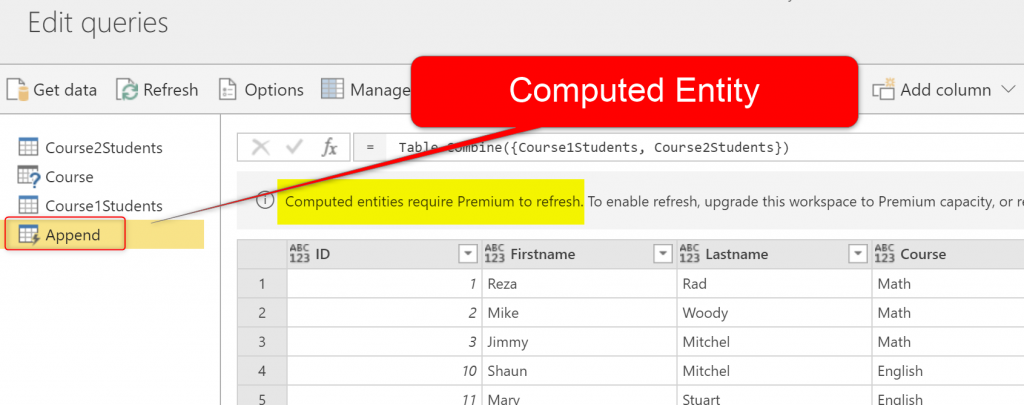
Creating Computed Entities is good for performance because it will do transformations step by step, using the result of previous transformations which is loaded as an output of another query in the Azure data lake storage. However, Computed Entity is a Power BI Premium-only feature, and if you don’t have premium licensing, then you might find it hard to move your transformations to the dataflow. I have written an article about what Computed Entity is, and also another article about a workaround for Computed Entity using Power BI Pro account.

Schedule Dataflow to Refresh
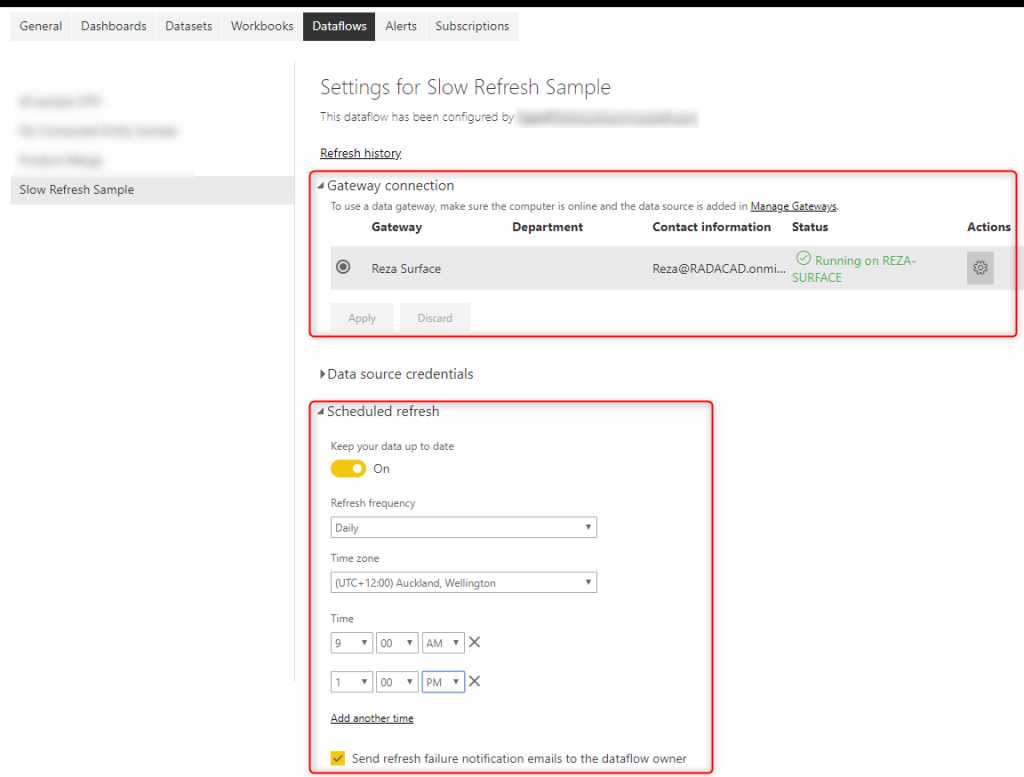
After creating the dataflow, and saving it. Now you can set it to refresh using Schedule Refresh;
Power BI Desktop Get Data from Dataflow
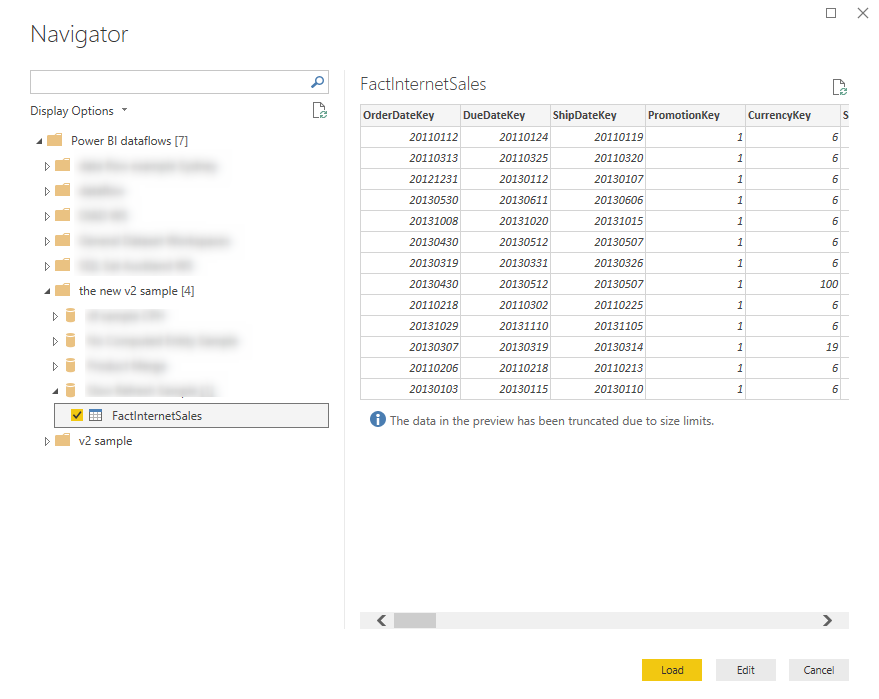
As the last step of this sample, you need to get data from dataflow using Power BI Desktop. Doing the process in this way, you are getting the data that is already transformed and stored in Azure data lake storage of Power BI dataflows. Start by getting Data from Power BI dataflows;
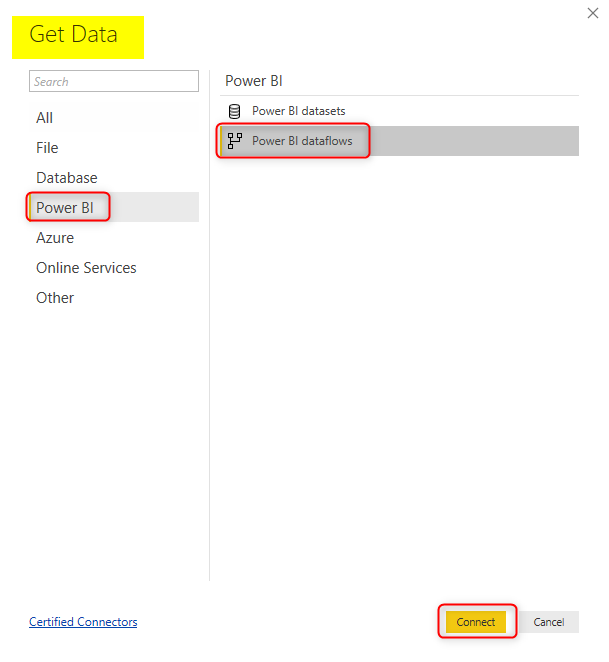
After logging into the dataflow using your Power BI account, you can choose the workspace that contains the dataflow, then under dataflow, select the entity or entities you want, and then load.
Now Let’s see how long this new Power BI file takes to refresh. Here is the sample refresh length of that file;
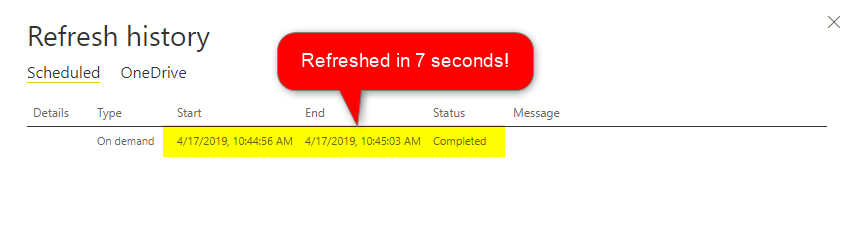
I let you do the math to see how faster it is compared to 5 minutes refresh time that you have seen at the beginning of this example. This would show even much more effective if applied on data refresh scenarios that take hours to complete.
Summary
You learned through this article, that you can move your Power Query transformations to Power BI dataflows rather than the PBIX file itself to make the refresh time faster. The method you learned in this article, does make your refresh time faster, but it doesn’t make your Power Query transformations process faster! Using this method, we just move the heavy part of the refresh of Power BI dataset which is for heavy lifting Power Query transformations to a separate process in the Power BI service; Dataflow. That Power Query transformation is still taking a long time to run. However, now it is independent of your dataset. You can schedule that process separately. In other words;
Using dataflow, you can separate the heavy lifting transformations in the ETL (Extract, Transform, Load) process from the refresh of Power BI dataset.
I hope this method helps you in shortening your dataset refresh time if you have any comments or feedback or questions, please don’t hesitate to share it in comments below.


Reza is author of more than 14 books on Microsoft Business Intelligence, most of these books are published under Power BI category. Among these are books such as Power BI DAX Simplified, Pro Power BI Architecture, Power BI from Rookie to Rock Star, Power Query books series, Row-Level Security in Power BI and etc.
He is an International Speaker in Microsoft Ignite, Microsoft Business Applications Summit, Data Insight Summit, PASS Summit, SQL Saturday and SQL user groups. And He is a Microsoft Certified Trainer.
Reza’s passion is to help you find the best data solution, he is Data enthusiast.
His articles on different aspects of technologies, especially on MS BI, can be found on his blog: https://radacad.com/blog.
Hi Reza,
Appreciate the depth of the article. I am having some issue with moving over the querys to dataflows. My current model in desktop contains 4 fact and 8 dimension tables. The original Pbix model was connecting directly to SQL Server and when published to the premium workspace was taking between 10 – 14 min to refresh the entire model. I moved the queries to dataflows (total time for dataflow refreshes was 8 min, so saw some improvement there) and pointed the model queries to the dataflow entities. What I am observing is refreshing the updated model is now taking aprox 30 – 35 min after the dataflows have been refreshed. Is there a setting which needs to be updated in Power BI or in the Gen 2 storage which is affecting this, or is there something else I need to do to speed this up. Thanks in advance for any help!
Hi Andrew
Do you test it in PBI Desktop get data? or after publishing it in the service? the PBI Desktop might be slower because of the internet connection
Cheers
Reza
Hi Reza, I have a question here. I am using dataflows to transform my data which is coming from REST API. Data is refreshed in the dataflow using the incremental refresh(Although not sure since my data source does not support query folding.
Now I am a little bit confused here, I understand that when I bring the data into Power BI desktop it will import the entire data set which might create an issue when the data expands. ( I am assuming around 10,000 new records to be added hourly in the dataset)
How can I make sure that my model works fine? Can I also do an incremental refresh on the dataset coming from the dataflow?
Hi Raks
You can definitely do incremental refresh from dataset side as well, Usually it makes sense to have it in both sides, the dataflow and the dataset.
Dataflow doesn’t support Query folding yet, which makes the incremental refresh process a bit unnecessary, but this would change very soon.
Cheers
Reza
Hey Reza,
Several of my scheduled data flows are running twice/day (when they are only scheduled to run once). If we tested with others even they are facing the same problem with dataflows. Happening twice schedule refresh instead of one schedule refresh
Hi Rahul
Have you contacted Microsoft support team about it?
Cheers
Reza
Hi Reza,
Once we’ve established our dataflow, do you know of a way to capture the refresh date/time of the dataflow in a report/dataset?
Currently using PowerBI.Dataflows(null) in PQ to bring in basically all other relevant metadata for my dataflows like workspaceid, dataflowid, entity etc. but frustratingly don’t see refresh time in there.
My current work around is to just create an Entity in each Dataflow with DateTime.LocalNow and pull that into my dataset.
Thanks!
Hi Scott
I’d say easiest would be creating that entity with the LocalNow PQ function in the dataflow that you mentioned.
another way is to use REST API calls to the dataflow (either through PowerShell, or .NET), and get the refresh history. However, that requires other components and can’t be done just with pure Power BI.
Cheers
Reza