
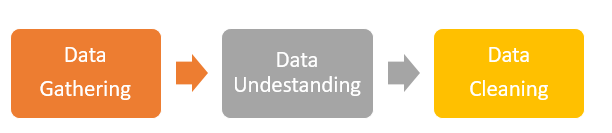
In previous post you’ve learned about data structures in R. In this post I’ll explain Data Gathering, Data Understanding, and Data Cleaning, which are the main tasks of data management that need to be done before any machine learning process. In this post I will explain how to fetch data from Spreadsheet and SQL Server. Gathering data from other resources help us to do some analysis inside R Studio.
In RStudio we can fetch data from different resources such as Excel, SQL Server, HTML, SAS and so forth.

 Import from Spreadsheet

There are two main approach to import Excel and CSV file into R:
- from menu and writing R codes.
- To import data from RStudio Menu .
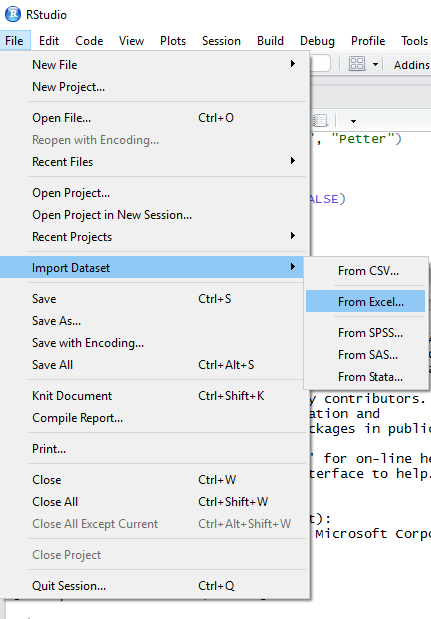
For importing the excel file, from “File” menu, “Import dataset” should be selected, then “From Excel”.
Next, below windows will be shown up. We brows our desire Excel file from “File/Url “
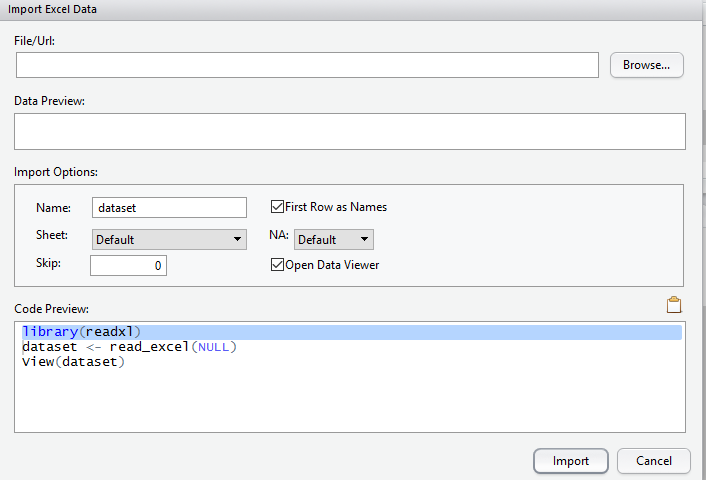
After we browse computer to import the required excel file, RStudio automatically detects the Excel headers data preview.
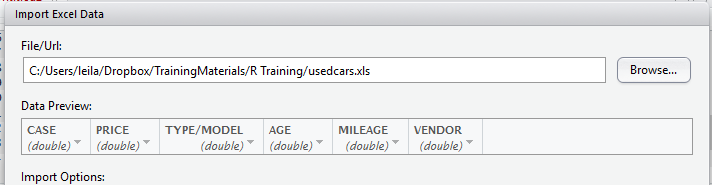
We also able to change importing options such as first row as header, sheet number, skip how many rows and so forth.
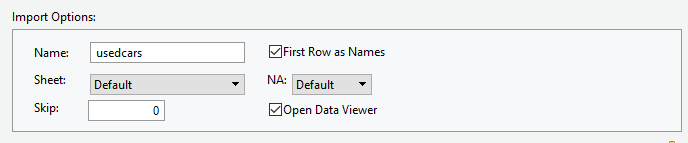
Moreover, the code behind the reading excel file, has been shown in Code Preview section.

Finally, by clicking on import option, all the dataset will be shown in Rstudio as below
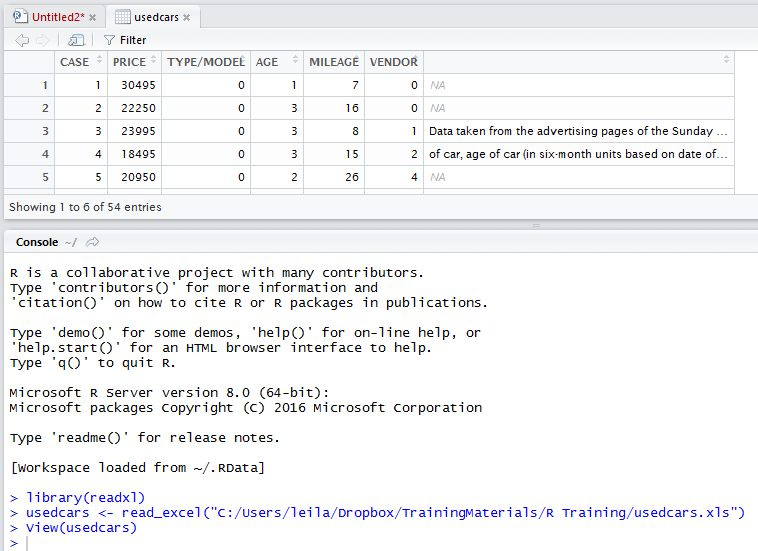
This process is equal to write the below codes in RStudio command editor:
R supports more than 6000 packages that each of them help the R users to have more functionality. For instance, to read the Excel file we need to call or install package “readxl”. If the package is already installed, we just call it via “library(readxl)”, if not we have to use command “install.packages(readxl)”.
Next, we call the function “read_excel()”. We should provide the path of the excel file as argument for his function. Finally, by calling the View() function, dataset will be shown to user.
We can follow the same process for CSV files .
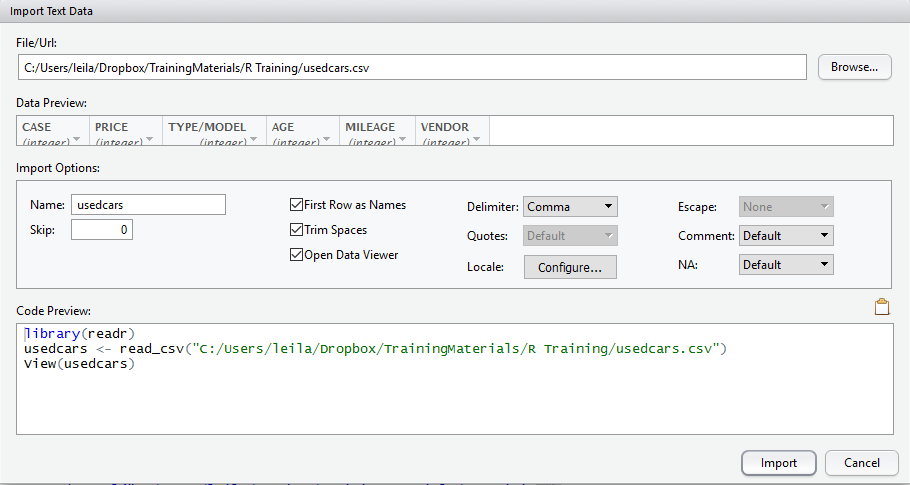
The only difference between importing Excel and CSV file is on setting up the import option as there are some more options to set. Such as “Delimiter”, “Trim Spaces” and so forth.
Moreover, the code behind the importing CSV file into RStudio is like:

We need to call “libraray(readr)” and call function “read_csv”.
In function “read_csv” we can specify that do not consider the character type as Factor by adding stringsAsFactors = FALSE to the function arguments.
usedcars <- read_excel(“C:/……….xls”,stringsAsFactors = FALSE)
 SQL Server 2016

we can fetch data from SQL Server and we want to do some analysis on it in RStudio. To get data from SQL Server 2016, first we should install a package named RODBC.

There is a function name odbcDriverConnect () that help us to connect to SQL Server database.

We should specify the Driver as “SQL Server”, server as “localhost”, DatabaseName as”DW”. The output of the odbcDriverConnect will be stored in a variable name dbhandle.
Then we can use sqlquery function to fetch data from SQL Server.in this function we pass the dbhandle as it contains the information about the database connection and the second argument should be SQL query to fetch data from tables.
For instance, we have a table name “usedcars” in “DW” database in SQL Sever 2016, we want to fetch all columns into a variable name “res”. The below query help us to do that.

We use View () commend to see the table inside the res variable
In Next post I will explain how to explore data to check the behaviour of data.
Save