
Dataflows are an important component in the Power BI architecture. Using them can enhance the development and maintenance of your Power BI solution significantly. However, there are many Power BI implementations that are not using this functionality, even though it is already more than three years passed since it was released. In this blog and video, you will learn what is dataflow and why you should use it.
Video
What is Dataflow?
Dataflow is the data transformation service that runs on the cloud independent of the Power BI dataset or solution. This data transformation service leverages the Power Query engine and uses the Power Query online and UI to do the data transformation.
One might say, well, the Power BI dataset, when published to the service, also runs the data transformation online. would it make it a Dataflow? the answer is No. Because the Power Query which is part of the Power BI dataset is loading data into the dataset directly. Where in Dataflow, the destination is not a dataset, it can be Azure Data Lake Storage, Dataverse (or some other storage coming later). This makes the Dataflow the independent data transformation component of Power BI.

Dataflow is a service-only (cloud-only) object
You can not author or create Dataflows in the desktop tools such as Power BI Desktop. The only way to create a Dataflow is to do it in the cloud. In the Power BI service, you can do it in a workspace. The Dataflow created in the service can be used in the desktop tools (to connect and get data).

Dataflow is not just for Power BI
Also, in the Power BI world, we call them Power BI dataflows. However, Dataflows are not just for Power BI. You can create Dataflows in Power Apps (these days called Power Platform Dataflows).

Calling the dataflows by the platform in which you create them is not a common categorization of Dataflows. Instead, Dataflows are in the two most common categories of Standard and Analytical.
Where the data is stored for Dataflow?
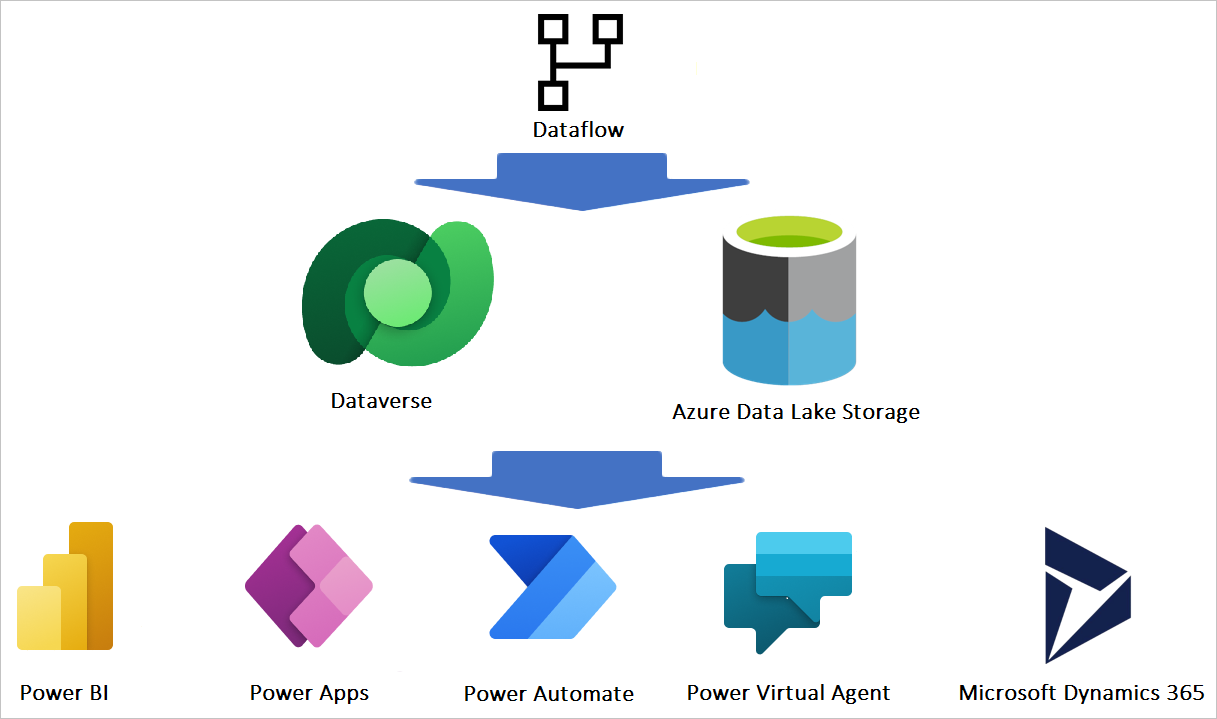
Dataflow does not store the data in the Power BI dataset. As you read earlier, the Dataflow acts independently of the Power BI dataset. So there must be another storage for the dataflow objects. The storage for Dataflow can be Azure Data Lake Storage, or Dataverse (and there are other storage options that will be available later, such as SharePoint or Azure SQL database based on the release wave 2 plan in 2022).
You don’t need an extra license to get the data storage option for Dataflow. If you use the Power BI Pro license, then there will be an internal Azure Data Lake storage available for your Dataflow tables. If you use Power Apps licenses, then you will have some storage available in the Dataverse to use for your Dataflows.
Other Microsoft services, such as Power Platform or other services, can then connect to the Dataflow.
Standard vs. Analytics Dataflows
A big categorization for Dataflows is the Standard vs. Analytical. This categorization is not only based on the storage option of the Dataflow but also based on some of the functionalities available in each option too. Analytical Dataflows give you more analytical power such as Computed entity and AI functions in the Dataflow. The Standard Dataflow stores the data into Dataverse only. There are a few other differences too. Here is a summary;
| Operation | Standard | Analytical |
|---|---|---|
| How to create | Power Platform dataflows | Power BI dataflows Power Platform dataflows by selecting the Analytical Entity checkbox when creating the dataflow |
| Storage options | Dataverse | Power BI provided Azure Data Lake Storage for Power BI dataflows, Dataverse provided Azure Data Lake Storage for Power Platform dataflows, or customer provided Azure Data Lake storage |
| Power Query transformations | Yes | Yes |
| AI functions | No | Yes |
| Computed entity | No | Yes |
| Can be used in other applications | Yes, through Dataverse | Power BI dataflows: Only in Power BI Power Platform dataflows or Power BI external dataflows: Yes, through Azure Data Lake Storage |
| Mapping to standard Entity | Yes | Yes |
| Incremental load | Default incremental-load Possible to change using the Delete rows that no longer exist in the query output checkbox at the load settings | Default full-load Possible to set up incremental refresh by setting up the incremental refresh in the dataflow settings |
| Scheduled Refresh | Yes | Yes, the possibility of notifying the dataflow owners upon the failure |
Dataflow is powered by Power Query Online
Dataflow is powered by Power Query Online. Every transformation is done by the Dataflow engine, and the UI provided for doing the transformation is the Power Query Editor online. There are more than 80 different data sources available to get data from using the Dataflow.
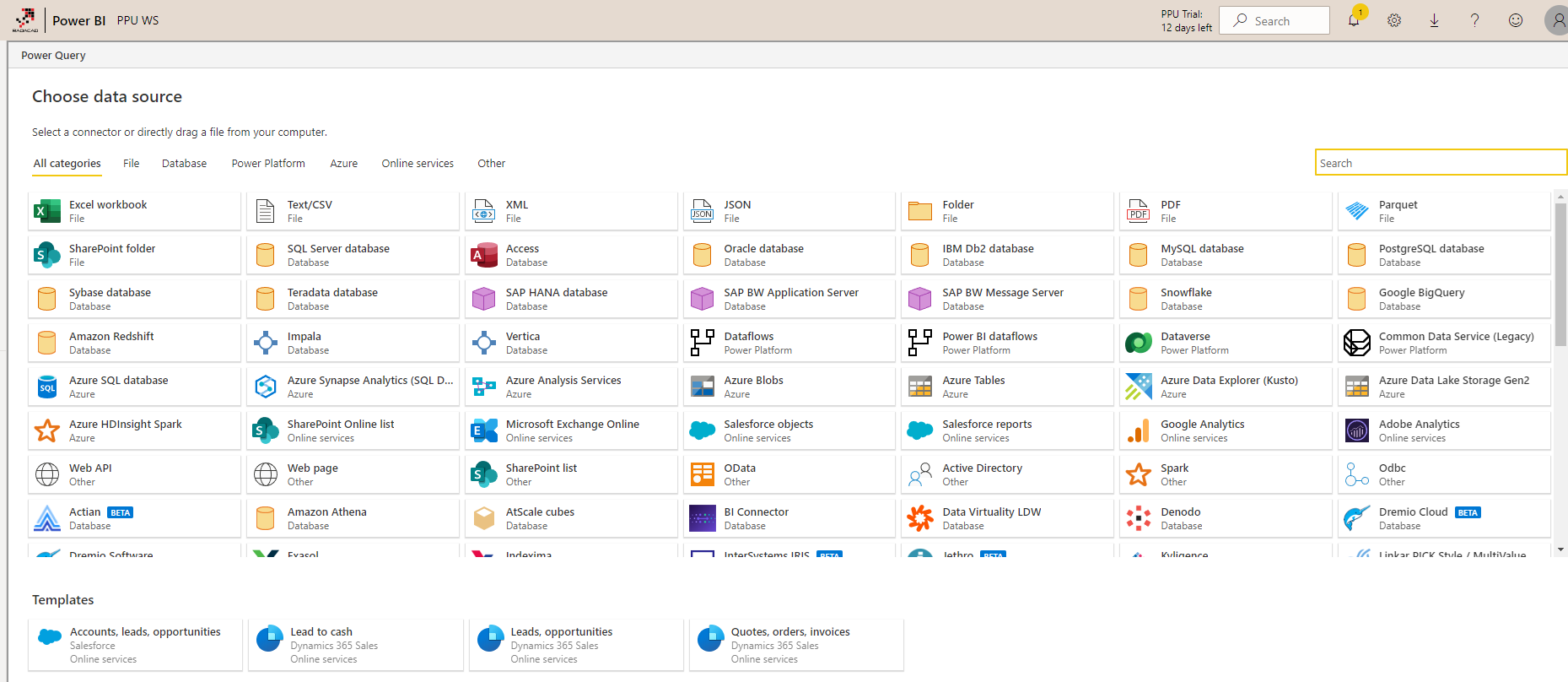
The online Power Query Editor enables you to do most of the transformations through the GUI. However, you can also use the Advanced Editor and work with the M script directly.
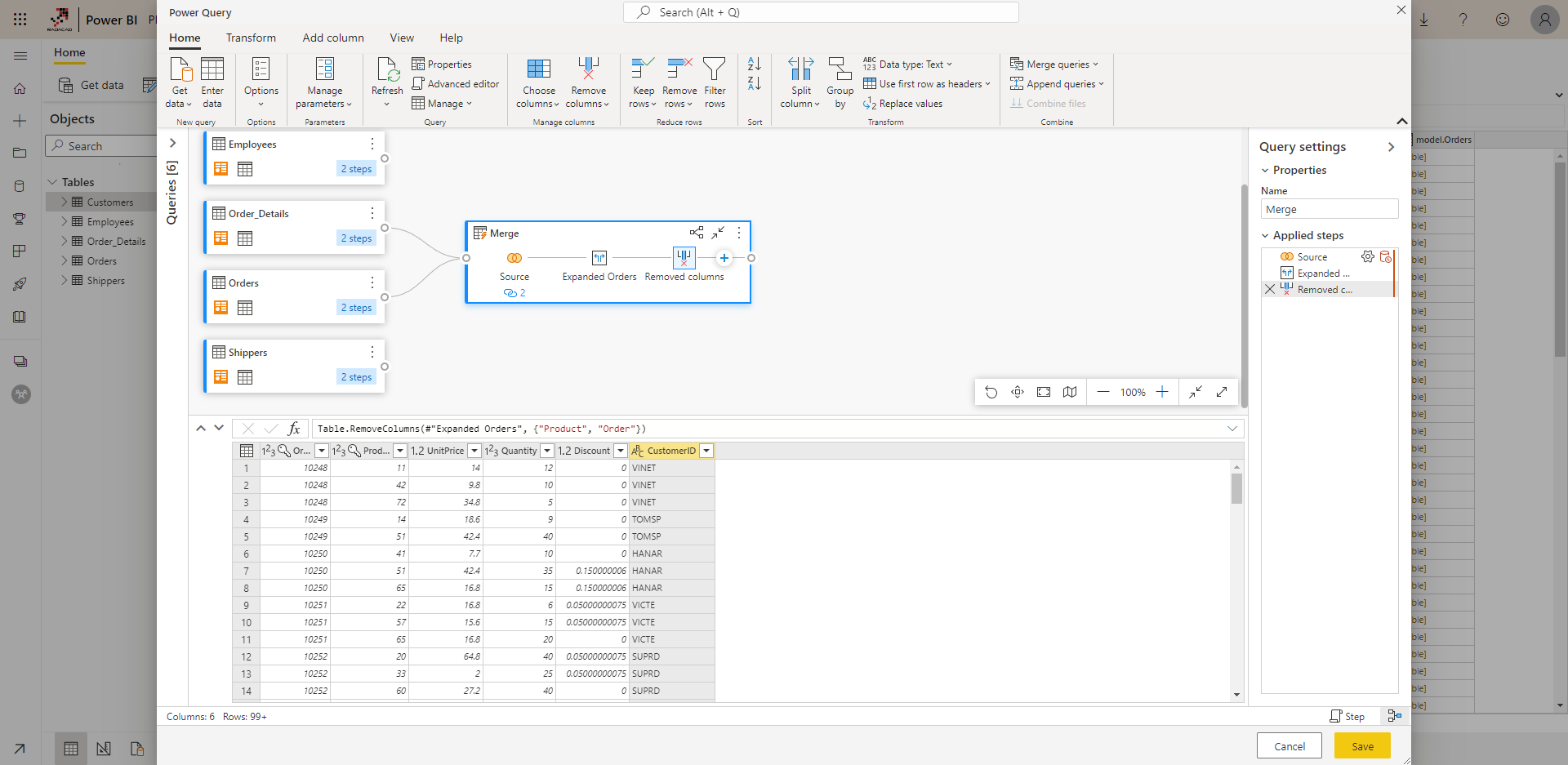
Dataflow can be used in Power BI, Excel, and some other services
Depending on the type of the Dataflow, you can get data from it in Power BI Desktop (or Power BI Dataset), In Excel and some other services. This makes the Dataflow a fully-independent component on its own.
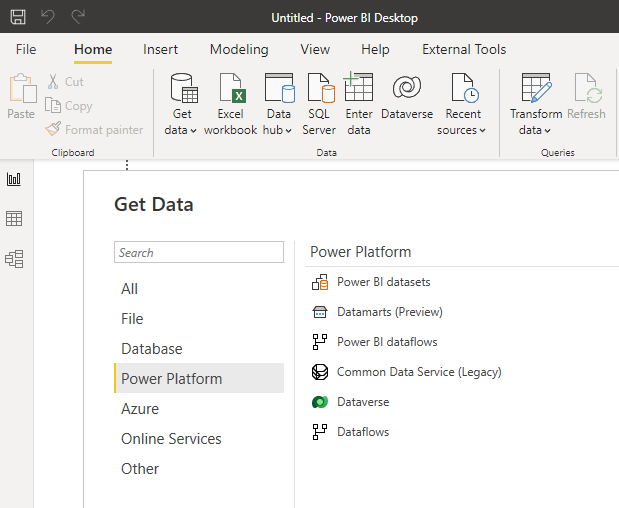
And in Excel the same thing is available;

The use cases of these are what you are going to learn in the next section.
Why should you use Dataflow? Example Scenarios
Now comes the big question of why should someone use a Dataflow? what is the point of it? I found it best to explain it using an example;
Using One Power Query Table in Multiple Power BI Reports
Have you ever had the need to use one Power Query table in multiple Power BI Reports? Of course, you did. If you worked with Power BI for some time, you know that tables generated through Power Query are only part of one Power BI file. If you want to use the same table in another file, with a combination of some other tables which is not in the first file, then you would need to replicate the Power Query transformations (or copy and paste the M script) into the new *.pbix file. You may say, no I don’t, but here is an example: Date Dimension!

Date dimension is a table that you use in a *.pbix let’s say for Sales Analysis, and also in another *.pbix for Inventory reporting, and for HR data analysis *.pbix too. So what do you do in these situations? Copying the script for Date Dimension in all of these three files? What if after a year, you decided to add a transformation or a column to the date dimension? then you need to replicate this change in all *.pbix files that you have, otherwise, your code becomes inconsistent. It would have been much better if you did the transformation once, stored the output somewhere, and then re-use it. That is exactly what Dataflow can do for you!
Re-usable tables or queries across multiple Power BI files, are one of the best candidates for Dataflow.

Different Data Sources with Different Schedules of Refresh
What if you have a dataset that includes two tables with totally different schedule options. For example, the Sales transactions table coming from the SQL Server database is changing every day, and you need to refresh this data every day. However, the mapping table used for some of the products and maintained by the product team is only changing every quarter. If you have both of these queries in one *.pbix file, then you have no other choice but to refresh at the maximum frequency needed which is once a day.
However, if there is a mechanism that can refresh the mapping table every quarter, apply all transformations needed, and store it in a table. Then on every day you just need to read it. Dataflow can do that for You; With one query running the data transformation script and loading it into a destination table. This can be scheduled for whatever plan you need.
Dataflow can run extract, transformation, and load (ETL) process on a different schedule for every query (or table).

Centralized Data Warehouse
With the evolution of Power BI and other self-service technologies, many companies started to implement a BI system without having a data warehouse. However, if the number of BI systems increases, the need for a centralized data warehouse appears quickly. A data warehouse is a specifically designed database to store data in the format needed for reporting. In traditional BI systems, one of the phases of building a BI system, and one of the most important phases let’s say, is to create a centralized data warehouse. The ETL process will extract data from data sources, and load it into the centralized data warehouse. All reporting solutions, then use the data warehouse as the single source of truth.
Dataflow can be an important part of building a centralized data warehouse for your Power BI solution. You can build the structure you want through Power Query scripts in a Dataflow. Dataflow then runs those scripts and stores the data into output tables. Output tables of dataflow can act as a centralized data warehouse for your *.pbix files. Alternatively, you can have your own Azure Data Lake storage and configure it the way that you want, with the structure of tables that you want, and get dataflow to load data into those tables.
Dataflow can be the ETL engine, that fuels the centralized data warehouse in Azure data lake storage.

Power BI Datamarts is the new component of Power BI, which can be a much better replacement for Dataflow if it is used for Data Warehouse purposes. I suggest strongly reading about it here.
Summary
In Summary, Dataflow is the data transformation engine of Power BI, which is independent of any other Power BI objects. Dataflow is powered by the Power Query engine and the Power Query Editor online. Using Dataflow, you can separate the ETL layer of the Power BI implementation from the rest of the work. Using Dataflows is highly recommended to re-use your existing tables in multiple files. Dataflow is not just for Power BI, then can be used in Excel too, and it can be created in Power Platform. Dataflows come in two categories of Standard and Analytical.
Learn more about Dataflows
Now that you know what the Dataflow is and why it is useful, Let’s see how you can use it. Read the next articles here to know more about it:
- Getting started with Dataflows
- Computed and Linked Entity
- Dataflow Vs. Dataset
- Dataflow Vs. Data Warehouse
- Multi-Developer Architecture using Dataflow and Shared Dataset
- Power BI Datamarts


Reza is author of more than 14 books on Microsoft Business Intelligence, most of these books are published under Power BI category. Among these are books such as Power BI DAX Simplified, Pro Power BI Architecture, Power BI from Rookie to Rock Star, Power Query books series, Row-Level Security in Power BI and etc.
He is an International Speaker in Microsoft Ignite, Microsoft Business Applications Summit, Data Insight Summit, PASS Summit, SQL Saturday and SQL user groups. And He is a Microsoft Certified Trainer.
Reza’s passion is to help you find the best data solution, he is Data enthusiast.
His articles on different aspects of technologies, especially on MS BI, can be found on his blog: https://radacad.com/blog.
Getting data from a data warehouse that isn’t quite in a usable form (for example, a date table with a non-contiguous value to replace null).
Getting data from websites is a good use case to me. Since the data is static I wonder if this would protect internal data from getting exposed as well.
Good article Reza. I am trying to think of differences/ justifications of using Power BI Data Flows over Azure Data Factory. Maybe they will merge. Do you have any thoughts?
Hi Ian.
Good question. There are pros and cons for each technology. For example, ADF is good with the distribution of computing power over multiple spark clusters, and Dataflow is good with the transformative power of the Power Query. However, for the future plan, I think we still have to wait for few months to see what is going to be the direction.
Very useful Reza, at least now I understand what the data flow is, in simple a way.
Thanks
Hi Reza. I have a use case which I proposed to business some time back. As you know Power BI does not support write-backs yet. There was a requirement wherein the client wanted to do some adjustments to the data by himself. We stripped Power Query from the report and into a data flow. And now, the client(who is good at excel) can himself do the cleansing on his own. It saves us a lot of to and fro emails, time and flexibility. There are workarounds for data correction but none that I found which make make more sense than this.
Hi Sourav
Thanks for sharing your experience. So you’ve isolated the query that is fetching data from the dataset which client changes much, and you run that transformation set separately through Dataflow, and then get data from it in the Power BI. Interesting use case 🙂
Cheers
Reza
Great post. Could you show the versioning you mentioned? I have not thought about this before but it sounds interesting? How exactly would this work? Copying the dataflow and then never update that version?
Yes, I’ve been thinking of running Dataflows manually at specific point-of-time to get snapshots of data. With later support of running Dataflow through REST API, this process can be implemented even much better.
I’ve just started building a small API using MS Flow and Azure Functions to achieve data versioning, saving data into OneDrive – this would be an absolute lifesaver if I could just use Dataflows and M to take care of it.
How do you actually save Dataflows into different locations each time?
Hi Sam
Dataflows can be also configured with Power BI REST API. and in the REST API, you can rename the entity each time to end up with a different destination each time and then run it. However, this is all theory so far, because I haven’t written a code to do it. maybe a good topic for another blog post 🙂
Cheers
Reza
I have not seen in the Power BI REST API documentation the endpoint which would allow the renaming of a dataflow. I am looking forward to read your solution !
Hi Bertrand
the REST API part of the dataflow is very new, and hopefully, many features will come for it.
Cheers
Reza
Good article Reza, Data flow may be useful for smaller data sets with limited data source connectivity. Also Not sure how azure data lake optimizes data retrieval (block box for someone without azure data lake license) ? As some one already commented here, azure data factory may be good option for ETL than this.
Hi Chandra.
You can actually SEE how Dataflow manages the data storage in the data lake. If you use your own Azure Data Lake storage, you can connect a Gen2 storage to a dataflow. I will write about it. However, as I mentioned before, for parallel compute processing or big data scenarios, still ADF seems a better option
Cheers
Reza
Great blog Reza as usual. I just have a question about your comment here. Would it be possible to access the internal Data Lake storage that Power BI created by default ?
or Do I have to configure Power BI workspaces to store dataflows in my organization’s Azure Data Lake Storage Gen2 account i.e. (Use your own Azure Data Lake Storage -preview) / (Dataflows and Azure Data Lake integration – Preview) ?
I assume the first internal default option doesn’t incur additional cost while the second option my organization’s Azure Data Lake Storage Gen2 account does incur additional cost, correct ?
Hi Ashraf
The internal dataflow (which works with just a Power BI account) is limited to be used only through Power BI. So you can’t really see that data from other services. However, if you use Power Platform Dataflows, because that can write into CDS, the story is different and can be accessed from everywhere.
The external dataflow (which works with your own Azure data lake subscription) can be accessed even outside of Power BI.
Cheers
Reza
Hi Reza, I am a big fan of your blogs and books. The question i have is slightly different from dataflows. I have 2 reports using exactly the same data and data model. The only difference is that one dataset has security levels and other doesn’t. Does the security bind to a dataset or a report. Is it possible I can use the same dataset but change the security. It really pains me to load 2 similar datasets in the workspace. I had to do this because business wanted a report specific to Area Managers but also allow them to see the overall figures. Rather than loading summarized tables in my Area Manager level report and making the data model complex, I came up with a solution to have 2 reports (Area Manger specific & overall Sales) and only giving access of AM level report to AM but having a dashboard with numbers from both the report. Is there a better way of getting around this. Hope this makes sense. Thanks !!
Hi.
You just need one dataset. If you are publishing two separate datasets only because their RLS configuration is different, then it means you don’t have a proper Dynamic RLS implemented. a proper dynamic RLS implemented should need only one dataset, and you can have all the access role logic within your data model. check out my RLS blog series to learn different patterns for using it.
Cheers
Reza
Hi, useful post.
I’d like to give my feedback regarding the “Using One Power Query Table in Multiple Power BI Reports”
Data flow is not the only solution. I’ve created one specific .pbix for the model definition and one or more .pbix files for the reports, using Power BI Dataset as source.
All the tables and measures are defined only once centrally in the model.
Moreover, you take advantage of DAX for model definition.
Some drowbacks:
– You cannot have reports that use row level security and free to access reports;
– Same refresh frequency;
Hi Marco,
Yes, a shared dataset can also share tables. But you can not edit that model (until when the composite model on top of the Power BI dataset becomes available, which is not far away).
Although you CAN, it doesn’t mean you SHOULD. Dataset is for the relationship between tables, and the DAX calculation, where the dataflow is for the data transformation layer. You need both layers. Here I explained in detail how these two work with each other.
Cheers
Reza
Hi Reza, thanks for the article. I am very interested in configuring Dataflows for versioning history, but cannot find a lot of information about this. I have a dataset that changes daily, but would like to compare counts per day. So I need to find a way to cache the daily data somehow…
Bests
Ben
Hi Ben,
That is more like a possibility at this stage, not an implementation path.
Dataflows can be a path towards that if we can have a way to dynamically change the destination or the dataflow creation. that can happen using Power BI REST APIs in the future if such a thing becomes available.
Cheers
Reza
ANother use is ..if we want to edit dataset, we need to download the obix file , edit and publish. Now with dataflow, we just need to edit dataflow, no need to download pbix file. This only applies if we want to edit dataset only not the report visuals.
Thanks Reddy,
Yes, right. However, if the change is structural change, and you want to bring that into Power BI dataset at the end, then edit in the Power BI file is also needed.
Cheers
Reza