
Using Power BI is simple. However, using it properly needs a good architecture. In a multi-developer environment, the architecture of a Power BI implementation should allow multiple developers to work on the same solution at the same time. On the other hand, the Power BI architecture should be designed so that different layers of that can be decoupled from each other for better integration. In this article, I explain how Dataflows, Datamarts, and Shared Datasets can help build such architecture in Power BI. To learn more about Power BI, read the Power BI book from Rookie to Rock Star.
Video
Challenges of a Single PBIX file for Everything
Before I start explaining the architecture, it is important to understand the challenge and think about how to solve it. The default usage of Power BI involves getting data imported into the Power BI data model and then visualizing it. Although there are other modes and other connection types, however, the import data is the most popular option. However, there are some challenges in a model and a PBIX file with everything in one file. Here are some;
- Multiple developers cannot work on one PBIX file at the same time. Multi-Developer issue.
- Integrating the single PBIX file with another application or dataset would be very hard. High Maintenance issue.
- All data transformations are happening inside the model, and the refresh time would be slower.
- The only way to expand visualization would be by adding pages to the model, and you will end up with hundreds of pages after some time.
- Every change, even a small change in the visualization, means deploying the entire model.
- Creating a separate Power BI file with some parts it referencing from this model would not be possible; as a result, you would need to make a lot of duplicates and high maintenance issues again.
- If you want to re-use some of the tables and calculations of this file in other files in the future, it won’t be easy to maintain when everything is in one file.
- And many other issues.
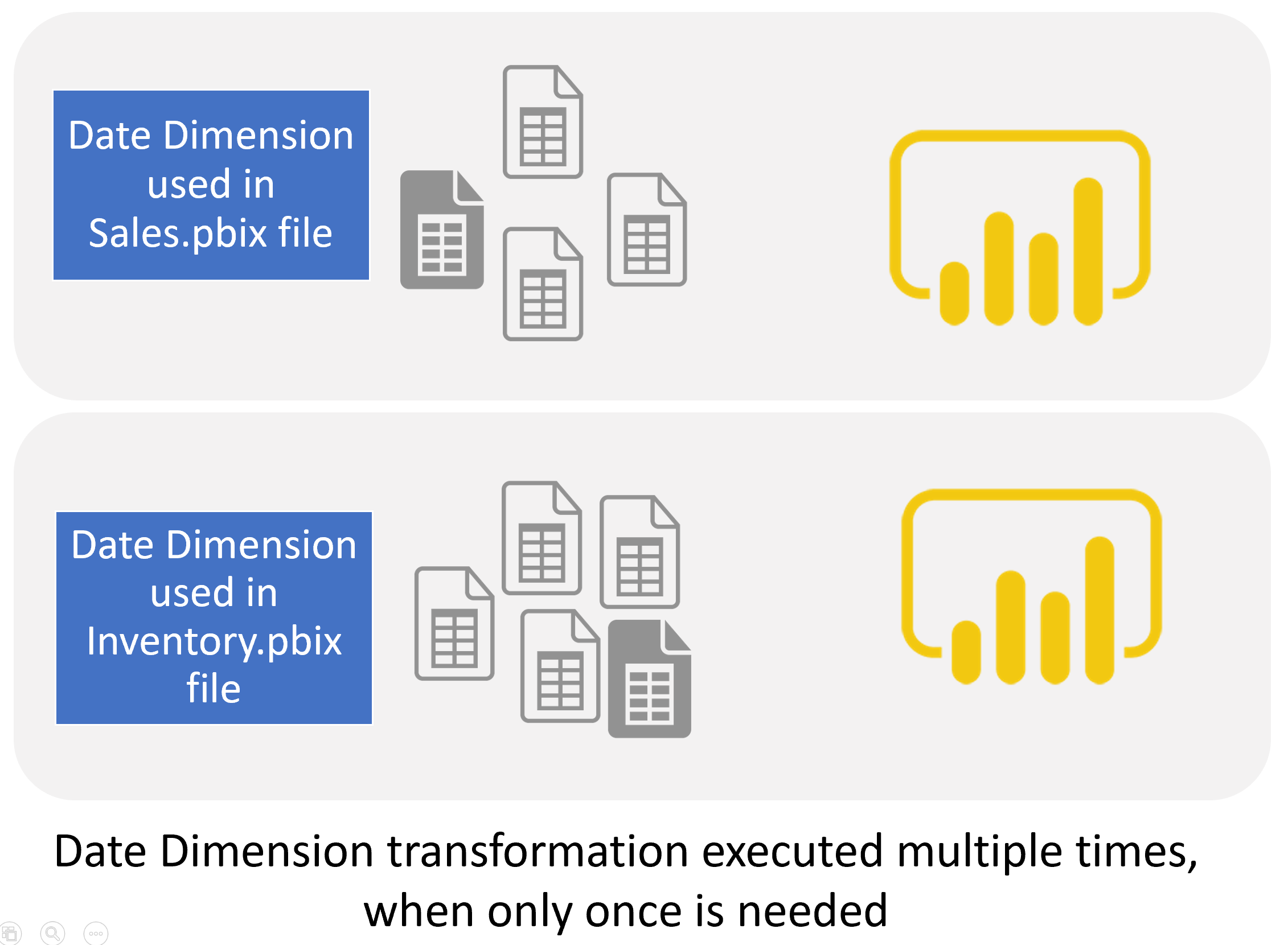
Suppose you are the only Power BI developer in your organization and are working on a small model that won’t grow into multiple Power BI files in the future. In that case, you can keep going with having everything in one file. However, I do not recommend everything in one file if the scenario is different.
Dataflow to Decouple the Data Preparation Layer
Power Query is the tool for data preparation in the world of Power BI. Based on my experience and what I have seen from other implementations, you will need to spend 70% of your time on data preparation for a proper data model. That means if you are doing a Power BI implementation for ten months, then seven months out of that was spent on data preparation with Power Query! You don’t want that time to be wasted and duplicated for another work. You want to maintain the efforts you have made for your data preparation.

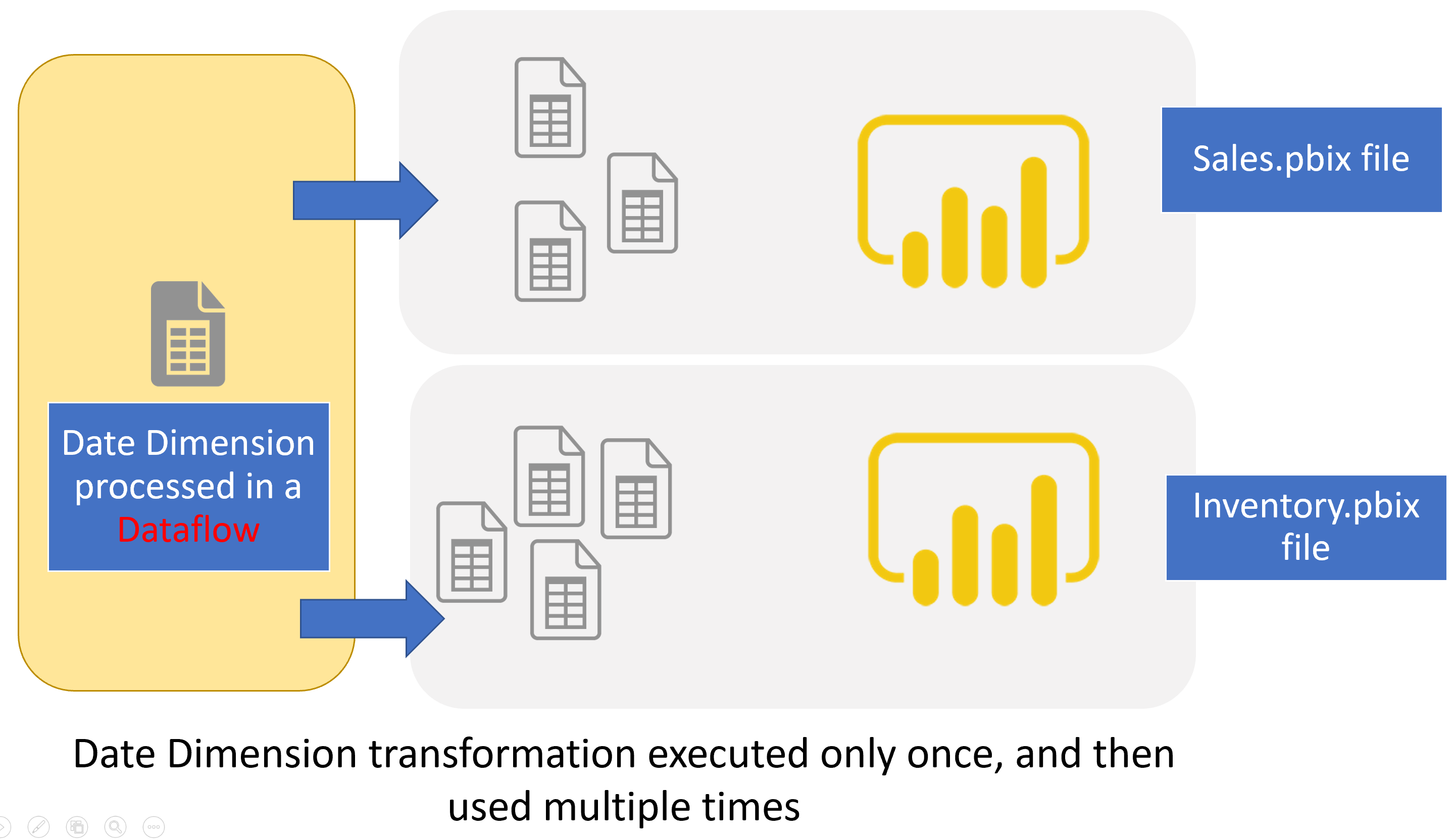
Instead of doing your data preparation as part of a Power BI file, which will link that work only to that file, you can do it through Power BI dataflow. Power BI Dataflow is running Power Query independently from Power BI files. The independence of Dataflow from a Power BI file means you can do data preparation for one entity only once and use it multiple times! In other words, you can use Dataflow to decouple the Power BI system’s data preparation (or ETL) layer from the Power BI file. After doing the data preparation using Dataflow, then Power BI files can get data from it using Get Data from Dataflow.
Here is the diagram of the usage of Dataflows with multiple Power BI files:
I have written many articles about Dataflows, which I strongly recommend you to read;
- What are Dataflow and Use Case Scenarios of that in Power BI?
- Creating your first Dataflow
- What are Computed Entity and Linked Entity?
- Workaround for Computed Entity and Linked Entity in Power BI Pro
- How to Use Dataflow to Make the Refresh of Power BI Solution Faster
- Move your Shared Tables to Dataflow; Build a Consistent Table in Power BI
Shared Dataset for the Data Modeling Layer
Although Dataflow creates a shared data source for Power BI models, still, if you want to create multiple Power BI models, you then need to set field-level formatting inside the Power BI file. You need to create DAX calculations inside each file and create hierarchies and any other modeling requirements inside the Power BI model. These settings and formatting cannot be done in the Dataflow. These are parts of the Power BI Dataset.
Instead of doing all the modelings and calculations in each Power BI file separately, you can leverage the Shared dataset concept. The shared dataset concept means you create a Power BI file with a model only and no visualization pages.
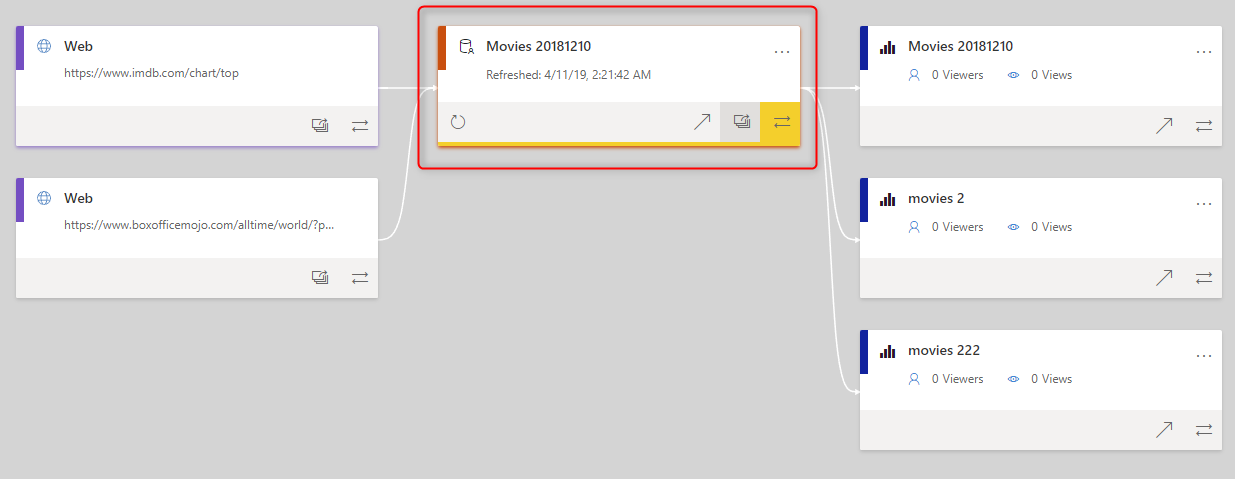
A shared dataset then can be used in multiple Power BI reports as a centralized model. You won’t need to duplicate your DAX calculations, hierarchies, and field-level formattings using the shared dataset. The shared dataset will act like the modeling layer of your Power BI solution.
Thin Power BI Reports, Paginated reports, or Analyze in Excel.
Now that you have the Power BI data model in a shared dataset, you can create Power BI reports that gets data from that shared dataset. These reports will create a live connection to that dataset. These are called thin reports.
You can create multiple thin reports getting data from the shared dataset. This enables multiple report visualizers to build visualizations at the same time.
Not only can you create Power BI reports on top of the shared dataset, but you can also create Paginaged reports, or even in Excel connect to the same Power BI dataset.

Power BI Architecture with Dataflow, Shared Dataset, and thin reports
As a result, here is the multi-layered Power BI architecture I recommend using. This architecture hasn’t considered Datamart (I’ll explain that later in this post) because the licensing for Datamart might require a different setup.
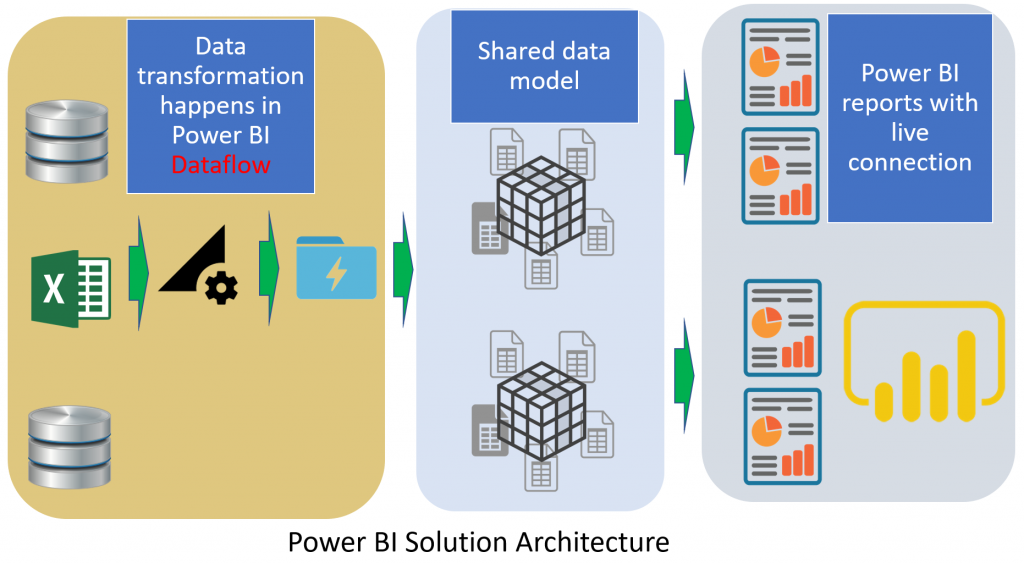
In this architecture, we are using layers as below;
- Dataflow for the ETL or data preparation layer
- Shared dataset for the data modeling layer
- Get data from Power BI dataset for the visualization layer (thin reports), paginated reports, or Analyze in Excel
Benefits of a multi-layered Architecture
Every architecture plan has pros and cons. Let’s discuss some of the benefits of this architecture.
Decoupling data preparation layer using Dataflow
The development time you put using Power Query will be preserved and can be used in other Power BI models. As the Dataflow stores the data in Azure Data Lake. Decoupling the data preparation from the modeling means that you can apply changes in the data transformation with the minimum effect on the other layers (modeling). Moving shared data tables to Power Query dataflow is a recommended approach that I wrote about it in another article.
A multi-layered architecture without the need for other developer tools
You can use SSIS or Azure Data Factory, or other ETL tools to take care of the data preparation. However, the power of Power BI resides in its simplicity of it. Everyone with fair knowledge of Power Query can use dataflow too. You don’t need to be a C# or SQL Server developer to work with that tool. When you build the shared dataset, you are still using Power BI to build it. All the skills you need are within the Power BI skillset.
Multi-Developer Environment
The proposed architecture supports multiple developers simultaneously on one Power BI solution. You can have multiple ETL developers (or data engineers) working on Dataflows, data modelers working on the shared Dataset, and multiple report designers (or data visualizers) building reports. They don’t need to wait for each other to finish their work and then continue. They can work independently.
In this environment, everyone can do the job they are skilled best on. The Dataflow developer requires Power Query and M skills but not DAX. The Data modelers need to understand the relationships and DAX, and the report visualizer needs to understand the art of visualization and tips and tricks on how to build informative dashboards.
Re-use of Calculations and Modeling using Shared Dataset
Having a centralized model will reduce the need for writing DAX calculations repeatedly. You will do the modeling once and re-use it in multiple reports. On the other hand, you are sure that all reports are getting their data from a reconciled and fully tested model, or in other words, it is a gold data model.
Minimum redundancy, Maximum Consistency, Low Maintenance
A solution implementation that reduces the need for duplicating the code (using Dataflows and shared Dataset), and re-using the existing code (using get data from Dataflow and Datasets), will be highly consistent. Maintenance of such implementation would be possible with minimal effort.
Enhancing the architecture using Power BI Datamart
Power BI Datamart is one of the recent components added to the Power BI ecosystem. This component can take the architecture of Power BI implementation to the next level by bringing one unified UI to build the Dataflow, the data warehouse using Azure SQL Database, and the shared Dataset. Because Datamart requires premium (PPU or Premium capacity) licensing, I did not explain it in the original version of the architecture.
If you have the required licensing, I would recommend using Datamart, which will bring the Datawarehouse as the fourth layer of the Power BI architecture.
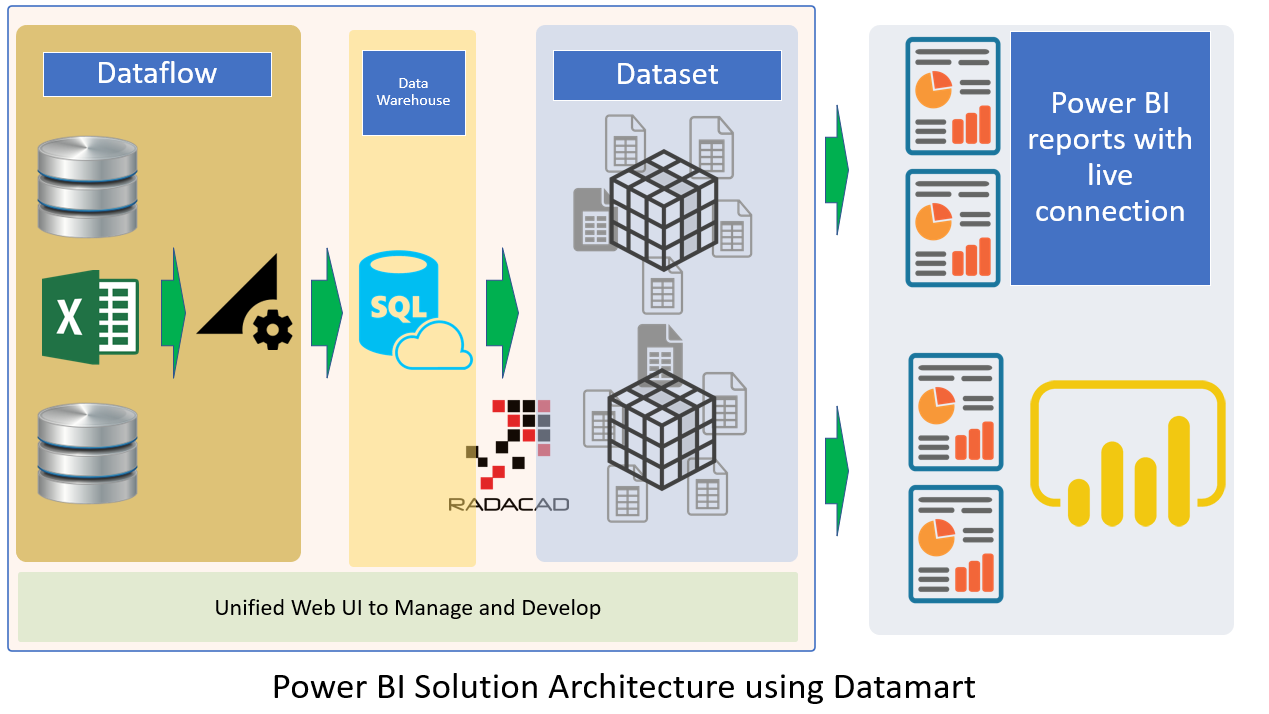
I have explained Datamart in some other articles, which I recommend you to study here;
- Power BI Datamart – What is it and Why You Should Use it?
- Getting Started with Power BI Datamart
- Power BI Datamart Components
- Power BI Datamart Integration in the Power BI Ecosystem
Layered Architecture for Dataflow
The architecture mentioned above includes three (or four if you use Datamart) layers. However, this can be expanded into many more layers in a real-world situation. The Data preparation layer, which is done by Dataflow, can split into multiple layers itself. I have explained this concept in my article here. I copied the related parts of that below;
*The below is referenced from my article here: https://docs.microsoft.com/en-us/power-query/dataflows/best-practices-for-dimensional-model-using-dataflows*
Staging dataflows
One of the key points in any data integration system is to reduce the number of reads from the source operational system. In the traditional data integration architecture, this reduction is made by creating a new database called a staging database. The purpose of the staging database is to load data as-is from the data source into the staging database on a regular schedule.
The rest of the data integration will then use the staging database as the source for further transformation and converting it to the dimensional model structure.
We recommended that you follow the same approach using dataflows. Create a set of dataflows that are responsible for just loading data as-is from the source system (and only for the tables you need). The result is then stored in the storage structure of the Dataflow (either Azure Data Lake Storage or Dataverse). This change ensures that the read operation from the source system is minimal.
Next, you can create other dataflows that source their data from staging dataflows. The benefits of this approach include:
- Reducing the number of read operations from the source system, and reducing the load on the source system as a result.
- Reducing the load on data gateways if an on-premises data source is used.
- Having an intermediate copy of the data for reconciliation purpose, in case the source system data changes.
- Making the transformation dataflows source-independent.

Image emphasizing staging dataflows and staging storage, and showing the data being accessed from the data source by the staging dataflow, and entities being stored in either Cadavers or Azure Data Lake Storage. The entities are then shown being transformed along with other dataflows, which are then sent out as queries.
Transformation dataflows
When you’ve separated your transformation dataflows from the staging dataflows, the transformation will be independent of the source. This separation helps if you’re migrating the source system to a new system. All you need to do in that case is to change the staging dataflows. The transformation dataflows are likely to work without any problem because they’re sourced only from the staging dataflows.
This separation also helps in case the source system connection is slow. The transformation Dataflow won’t need to wait for a long time to get records coming through a slow connection from the source system. The staging Dataflow has already done that part, and the data will be ready for the transformation layer.

Layered Dataflow Architecture
A layered architecture is an architecture in which you perform actions in separate layers. The staging and transformation dataflows can be two layers of a multi-layered dataflow architecture. Trying to do actions in layers ensures the minimum maintenance required. When you want to change something, you just need to change it in the layer in which it’s located. The other layers should all continue to work fine.
The following image shows a multi-layered architecture for dataflows in which their entities are then used in Power BI datasets.
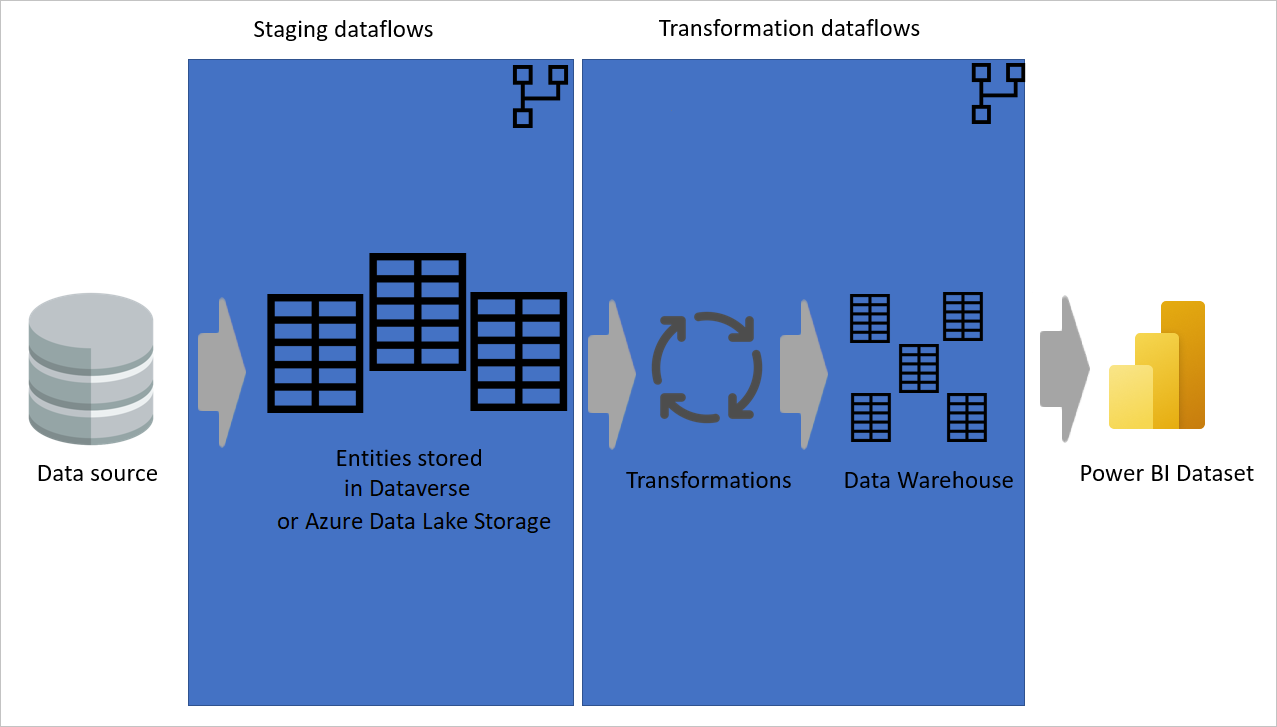
The Dataflow layered architecture is not only helpful if you are using the 3-layered architecture, it is also helpful if you use the 4-layered architecture with the Datamart. The Datamart can get data from dataflow that are ingesting data from some other transformation dataflow, which are then getting data from the data source using some staging dataflows.
*The above is referenced from my article here: https://docs.microsoft.com/en-us/power-query/dataflows/best-practices-for-dimensional-model-using-dataflows*
Chained Datasets
Power BI Datasets can also be implemented in multiple layers. Chained datasets do this. Chained Datasets are datasets that are using DirectQuery to Power BI Dataset. These chained datasets can have further modeling or combining data from other sources in them. This is particularly helpful for scenarios where data analysts use a centralized model built by the BI team and extend it to a smaller chained model for their use cases.

As you see in the examples above, the Dataflow and the Dataset can become multiple layers each. The number of layers in the architecture is not an important factor. Designing the layers in a way that leads to less maintenance and more re-usable objects and components is the critical thing to consider when you design the architecture of a Power BI solution.
What about Enterprise Architecture?
You might already use Power BI in an enterprise solution using Azure Data Factory or SSIS as the ETL tool, and SSAS as the modeling tool and Power BI live connection as the visualization tool. Such architecture is similar to what I mentioned here already. If you already have that architecture in place, I recommend you to proceed with that.
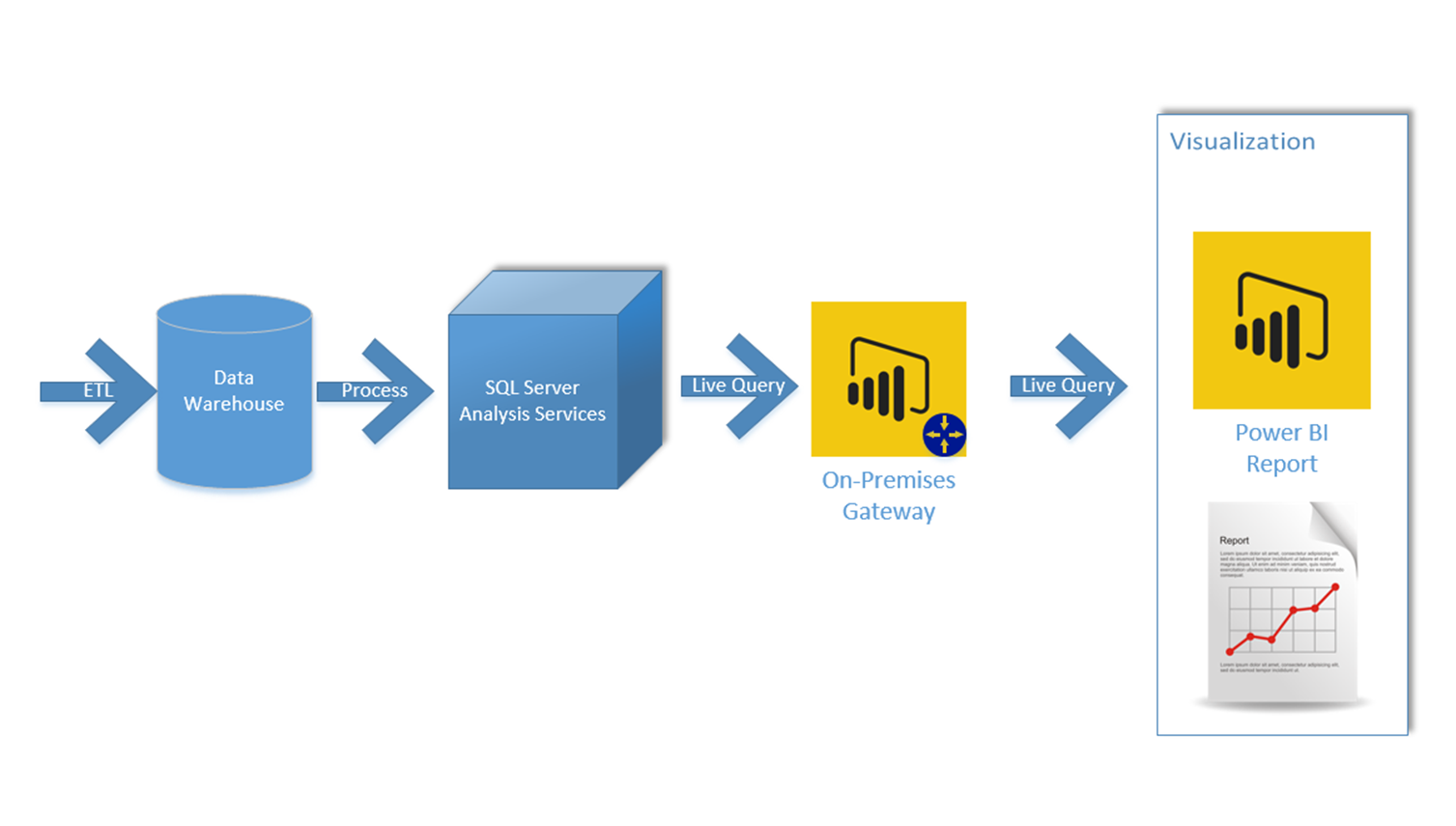
Summary
Implementing a Power BI solution is simple. However, maintaining it is not! You must have a proper architecture if you want low maintenance, highly scalable, consistent, and robust Power BI implementation. In this article, I explained the benefits of a proposed architecture that leveraged Dataflow for the data preparation layer and shared Dataset for the data modeling layer. The architecture can also be enhanced using Power BI Datamart. The proposed architecture will have the minimum maintenance efforts; it is highly scalable. And I strongly recommend you consider using it in your implementations.
Do you have any thoughts about this architecture or any questions? Please let me know in the comments below.


Reza is author of more than 14 books on Microsoft Business Intelligence, most of these books are published under Power BI category. Among these are books such as Power BI DAX Simplified, Pro Power BI Architecture, Power BI from Rookie to Rock Star, Power Query books series, Row-Level Security in Power BI and etc.
He is an International Speaker in Microsoft Ignite, Microsoft Business Applications Summit, Data Insight Summit, PASS Summit, SQL Saturday and SQL user groups. And He is a Microsoft Certified Trainer.
Reza’s passion is to help you find the best data solution, he is Data enthusiast.
His articles on different aspects of technologies, especially on MS BI, can be found on his blog: https://radacad.com/blog.
Hi Reza, looking at using Power Apps and Common Data Service as a source for Power BI, but I need to append data to an existing entity with data. Everything I’ve tried and can find infers that you can only overwrite the existing data rather than add to it.
“If you use Power Query to add data to an existing entity, all data in that entity will be overwritten”.
I’m looking to append the data in CDS upfront.
Are there any ways around this?
Many thanks
Hi Scott. Are you talking about dataflows or datasets? if dataflows; are you talking about Power BI dataflows or Power Platform dataflows?
Cheers
Reza
Great article! What are your thoughts on using the online report editor to enable multiple visualization developers? I know there are definite limitations with the editor. However, if the model and Power Query development are separate, does the viz developer need everything Power BI Desktop offers? We’ve done some testing and you can definitely have multiple developers editing separate pages in the same report and even developers making changes to the same page. Besides not having Power Query or any DAX capabilities, we also found you don’t have an Image Visual, Performance Analyzer and Themes. Also, if you want to download the PBIX, after you’ve edited online, you have to have the most recent version of PBI Desktop.
Doing the visualization in the service is a viable option. You mentioned some of the limitations already. the benefits is that report visualizer can work with it with any machine even without having Power BI Desktop.
Cheers
Reza